1. Install the SelectTranslate Extension
Open the installation guide on the SelectTranslate website and choose the installation method that works best for you. The SelectTranslate extension can be installed from the extension stores of Edge, Chrome, Safari, Firefox, and other browsers. You can also install it manually by downloading the CRX file or ZIP package.2. Use SiliconFlow in SelectTranslate
2.1 Use SiliconFlow’s Free Models
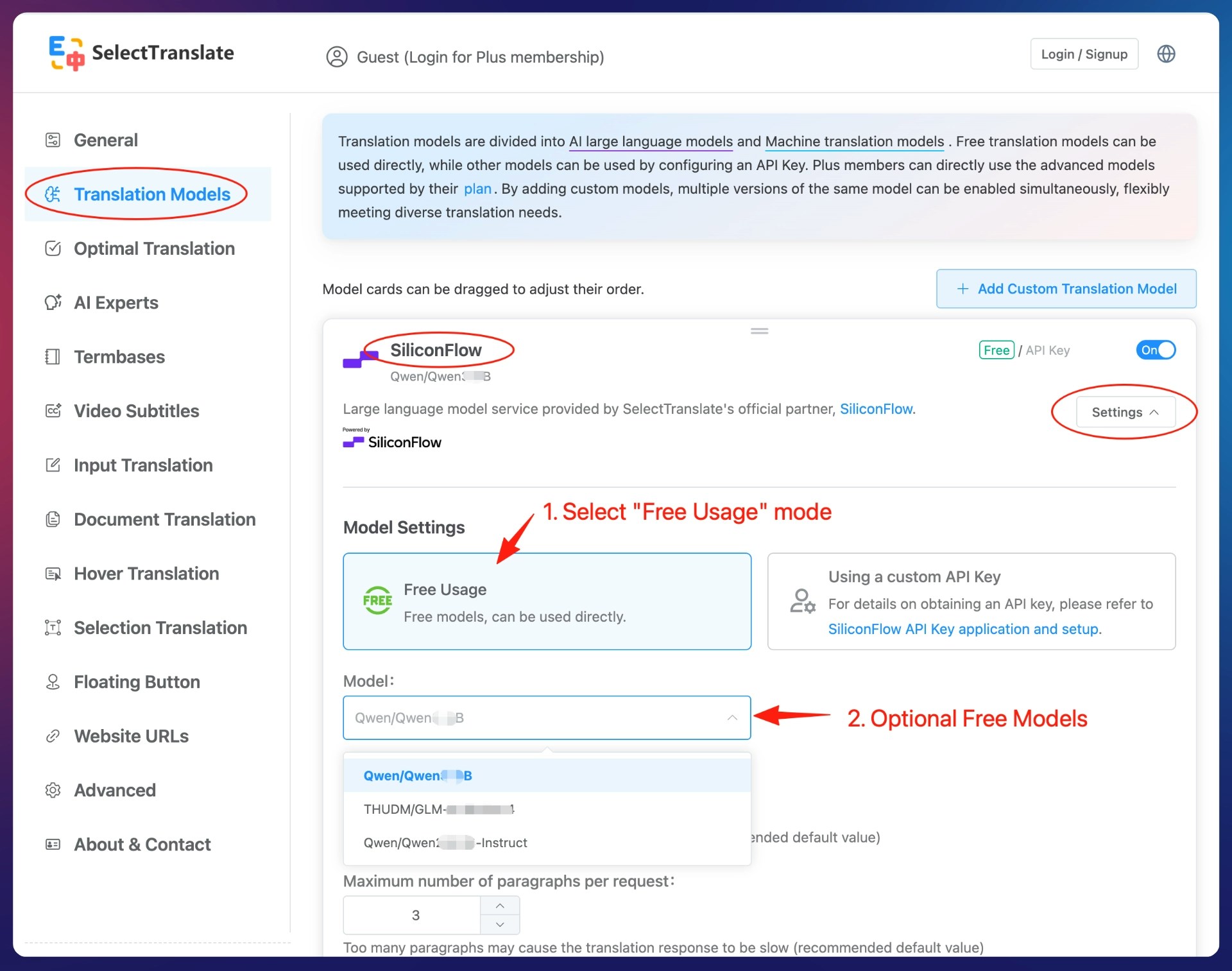
- When you select SiliconFlow, the extension defaults to the “Free Usage” mode with a preset free model.
- To switch between SiliconFlow’s free models, go to the “Translation Models” management page in the SelectTranslate extension settings, find the “SiliconFlow” model, click “Settings” on the model card, select “Free Usage” mode, and choose the model you need from the “Model” dropdown menu.
2.2 Use More Models with a Custom SiliconFlow API Key
- Go to the SiliconFlow website, register an account, and sign in.
- Open the API Keys management page, create a new API key, and click the API key to copy it.
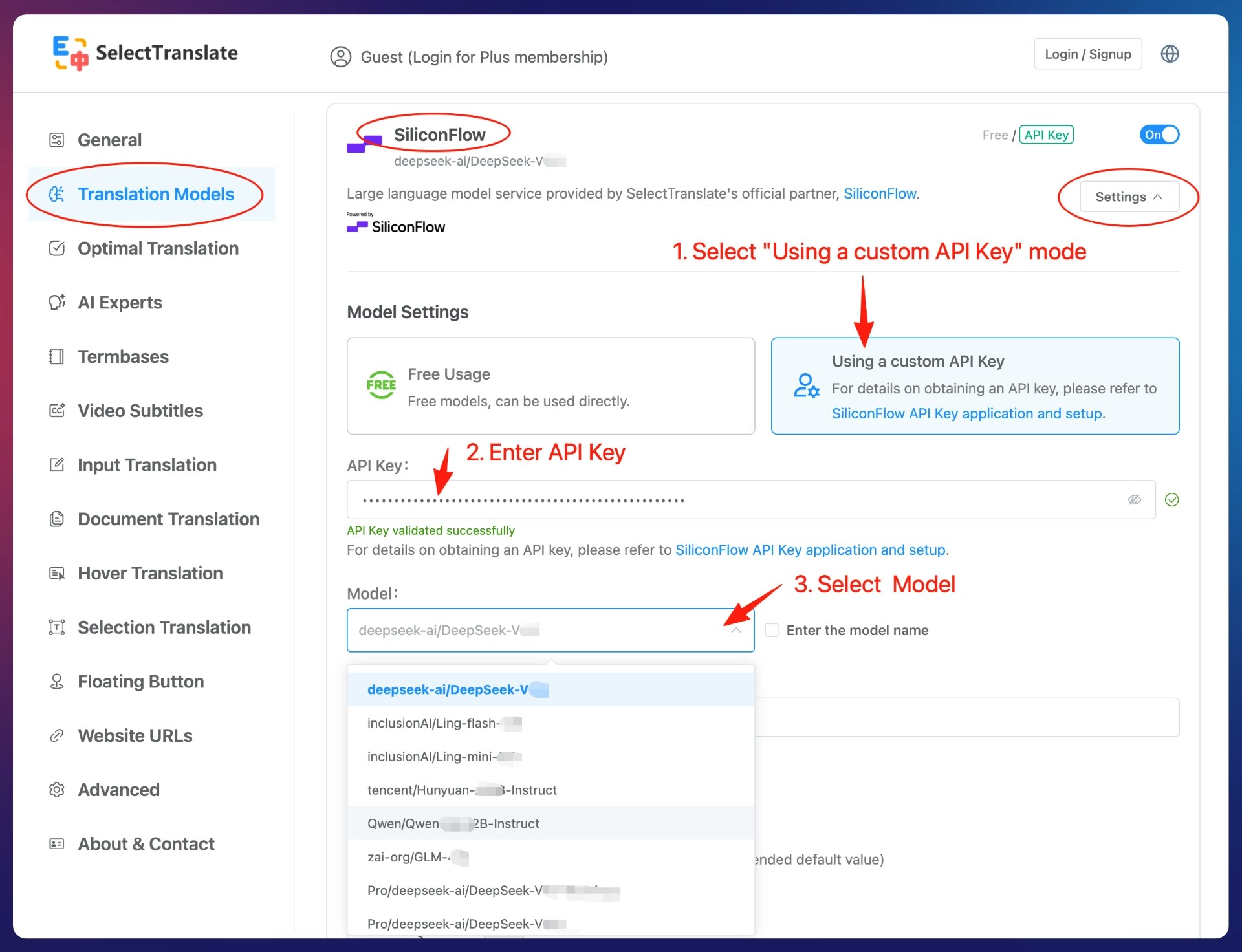
- In the SelectTranslate extension settings, open the “Translation Models” management page, find the “SiliconFlow” model, click “Settings” on the model card, select “Use a custom API key”, enter your API key in the “API Key” field, and choose the model you want from the “Model” dropdown menu.
- If the model you need is not listed, enable “Enter the model name” and manually enter any model name supported by SiliconFlow.
2.3 Add Multiple Models Provided by SiliconFlow
To add additional SiliconFlow models, go to the “Translation Models” management page in the SelectTranslate extension settings and click “Add Custom Translation Model” button. In the popup window, select “SiliconFlow”, then configure the model using the same steps described in section 3.2 for using a custom API key.2.4 Use SiliconFlow Models for Translation
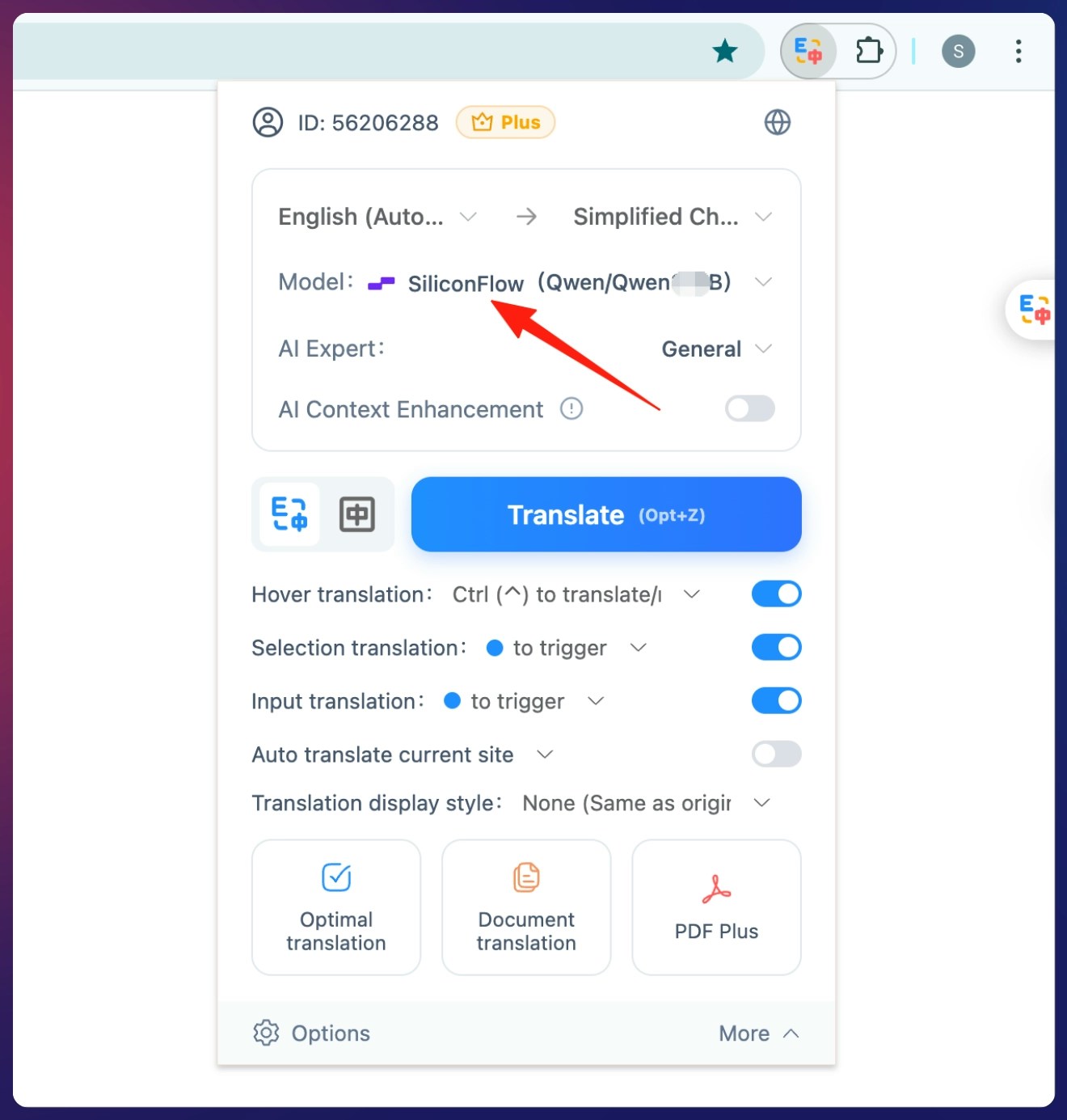
Select the SiliconFlow model under the “Model” option in the SelectTranslate extension panel to start translating.