
Large Model Configuration
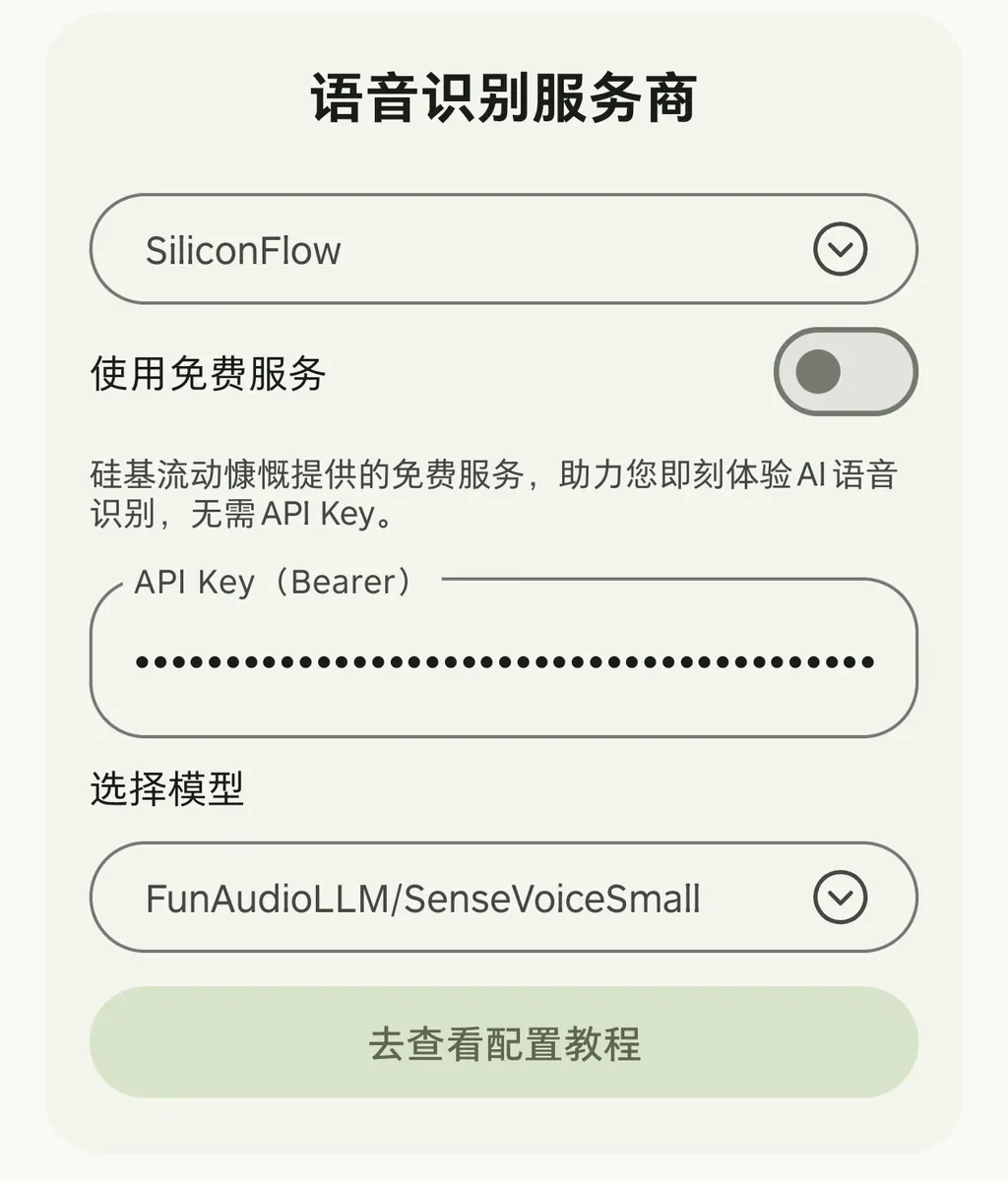
Currently, new users can directly choose to use the free model APIs provided by SiliconFlow on the onboarding page: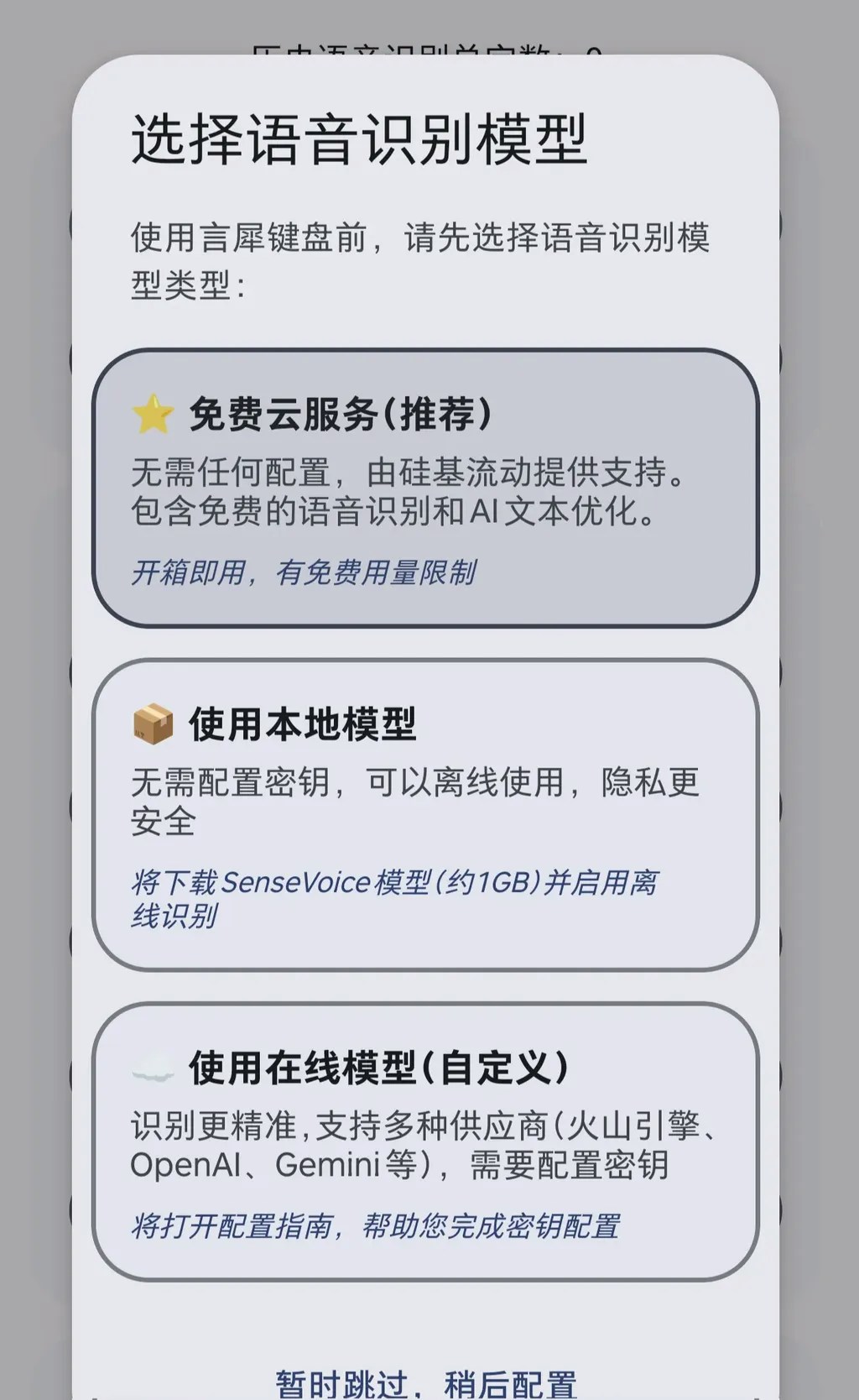
Configuring the Speech Recognition API
On the app’s home page, you can enter the Speech Recognition Settings and AI Post-processing Settings from two separate entry points.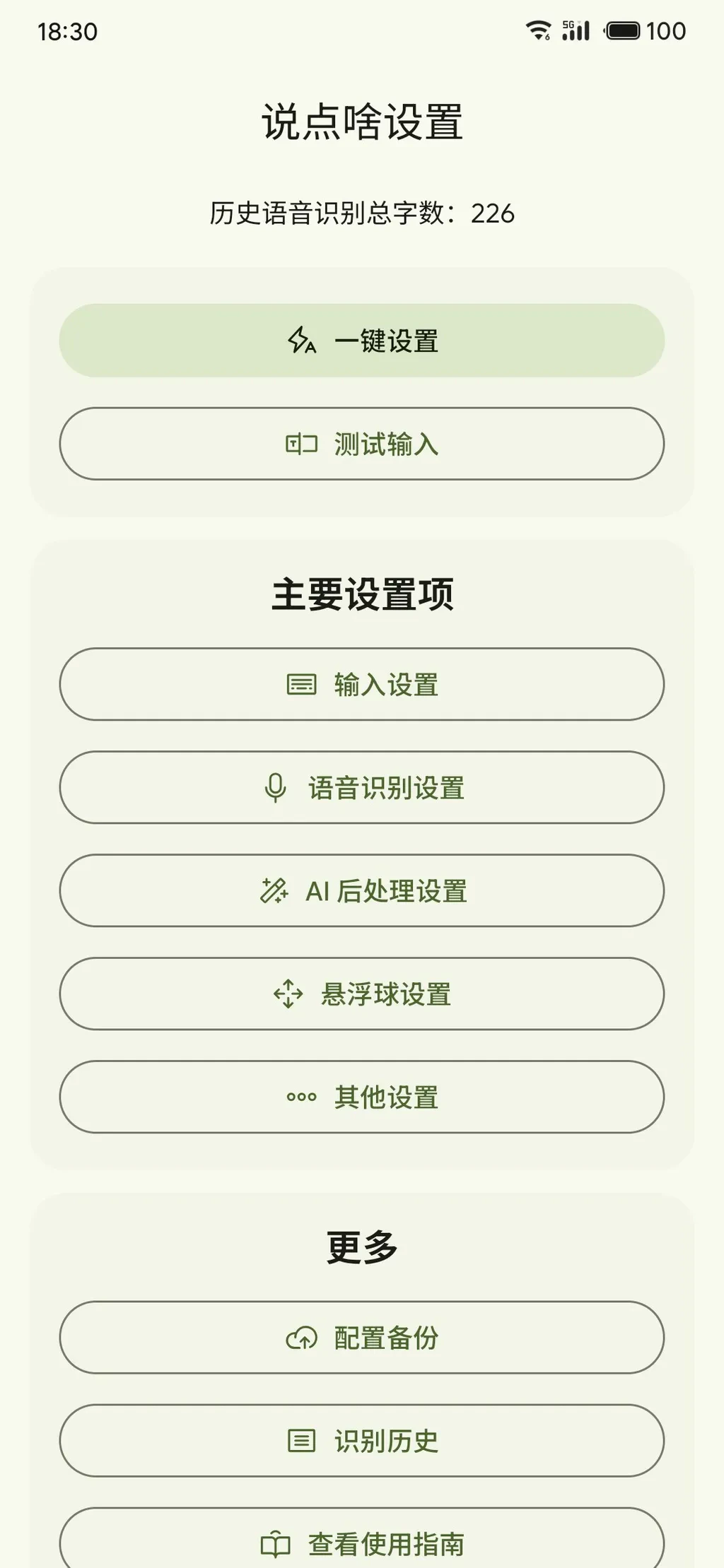
- TeleAI/TeleSpeechASR
- FunAudioLLM/SenseVoiceSmall
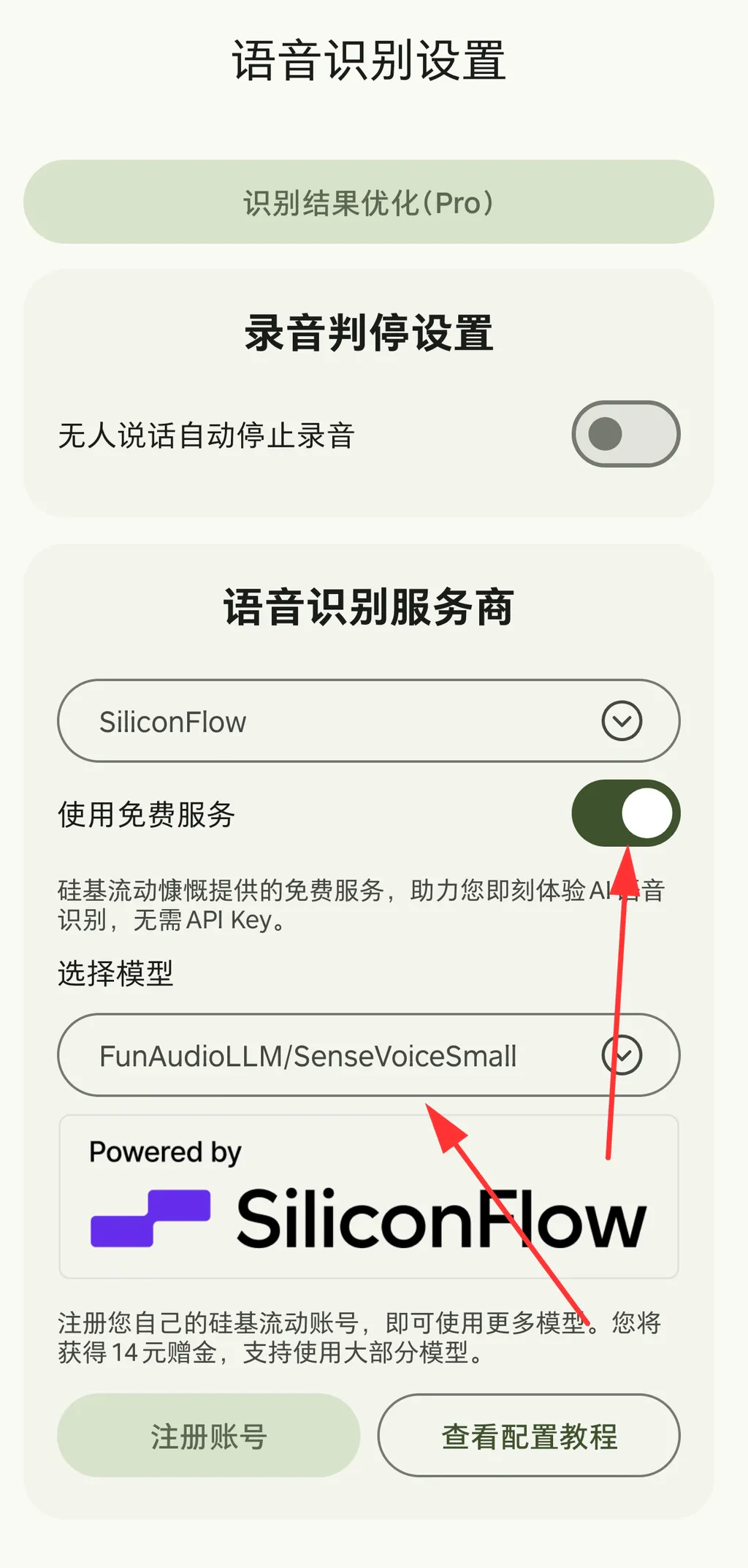
- Qwen/Qwen3-Omni-30B-A3B-Instruct (multimodal model, supports audio input, faster and better)
- Qwen/Qwen3-Omni-30B-A3B-Thinking (multimodal model, supports audio input, best quality but slightly slower)
- TeleAI/TeleSpeechASR
- FunAudioLLM/SenseVoiceSmall
- Qwen/Qwen-3-8B (reasoning model)
- THUDM/GLM-4-9B-0414
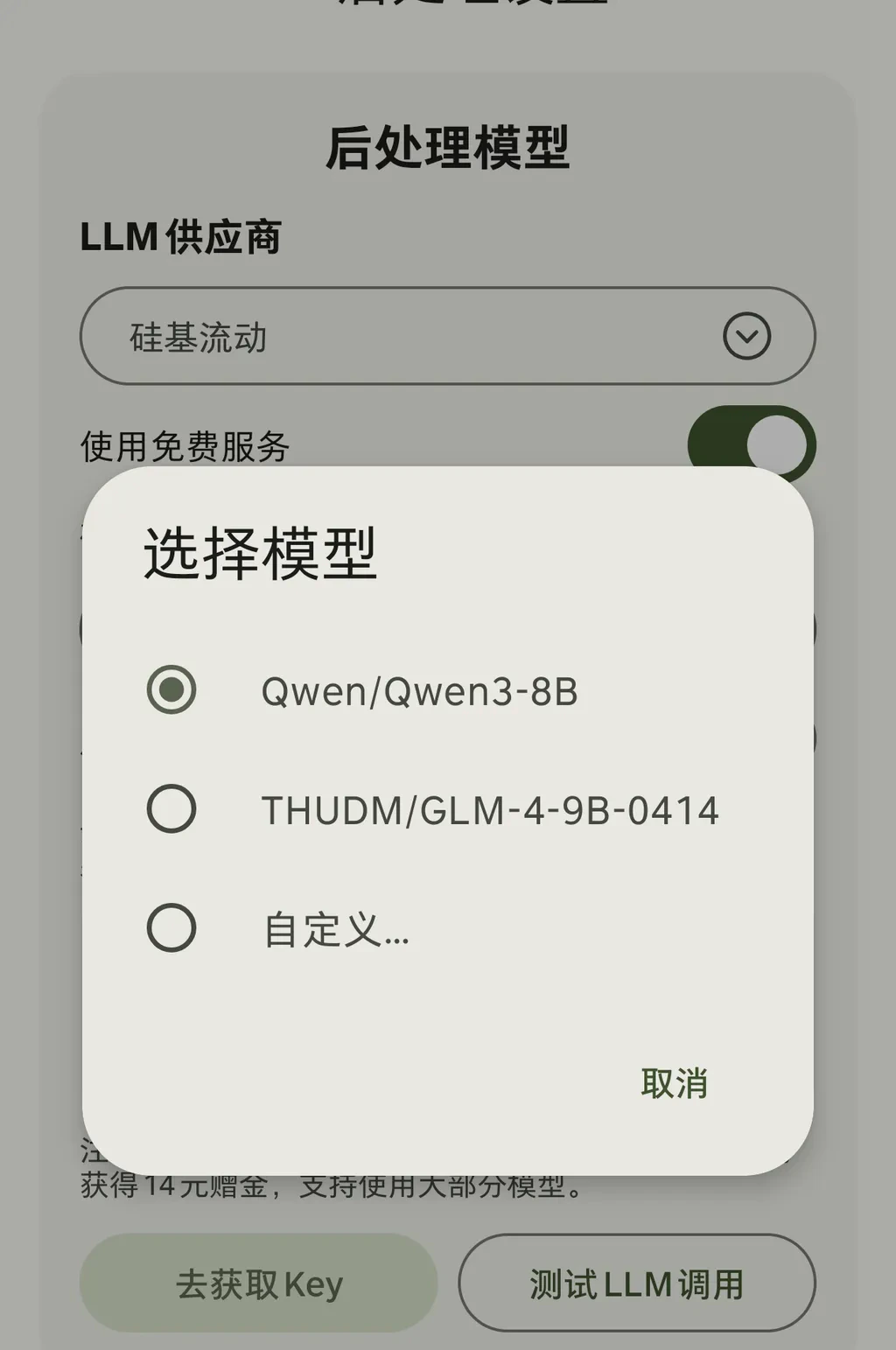
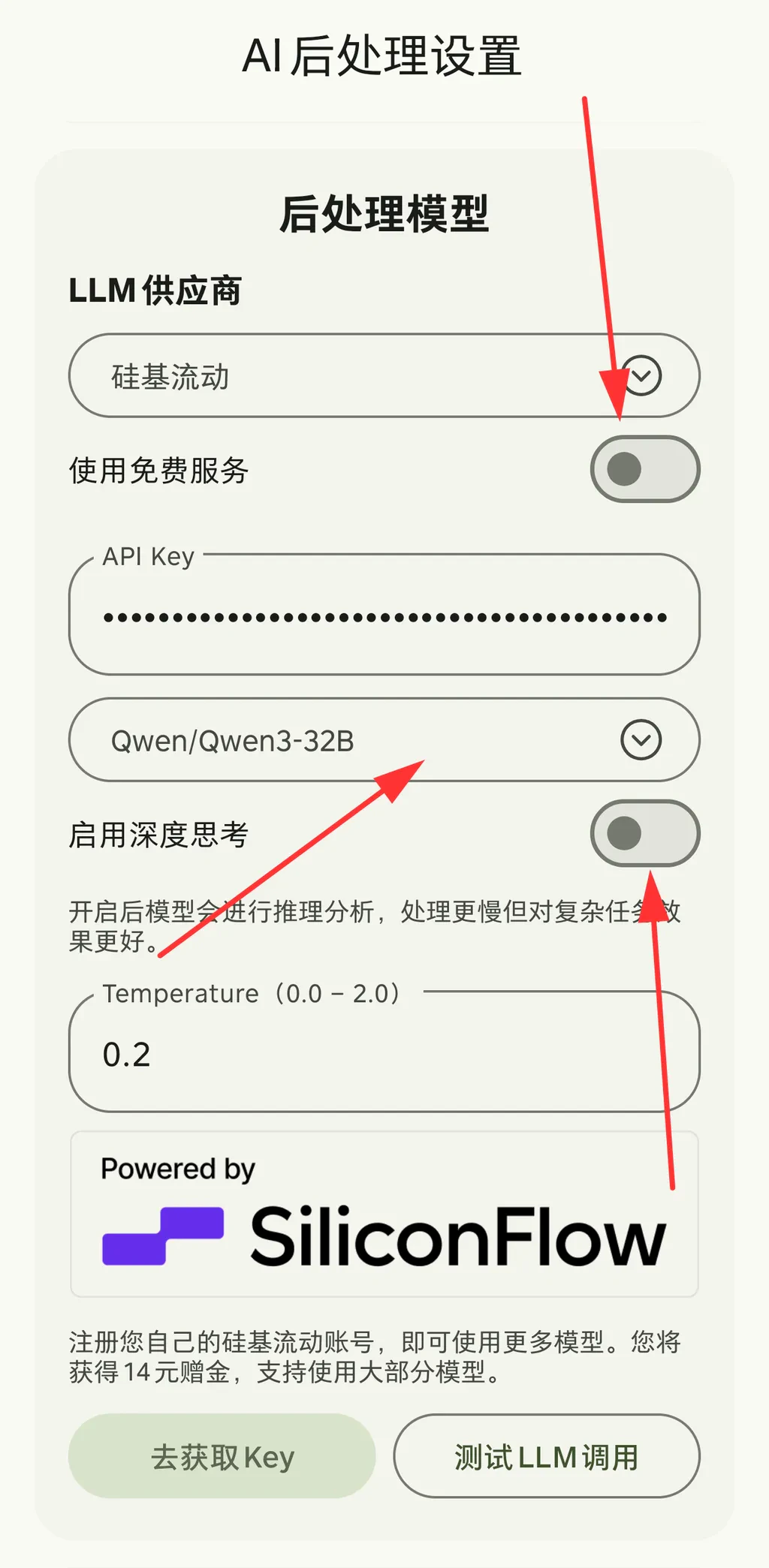
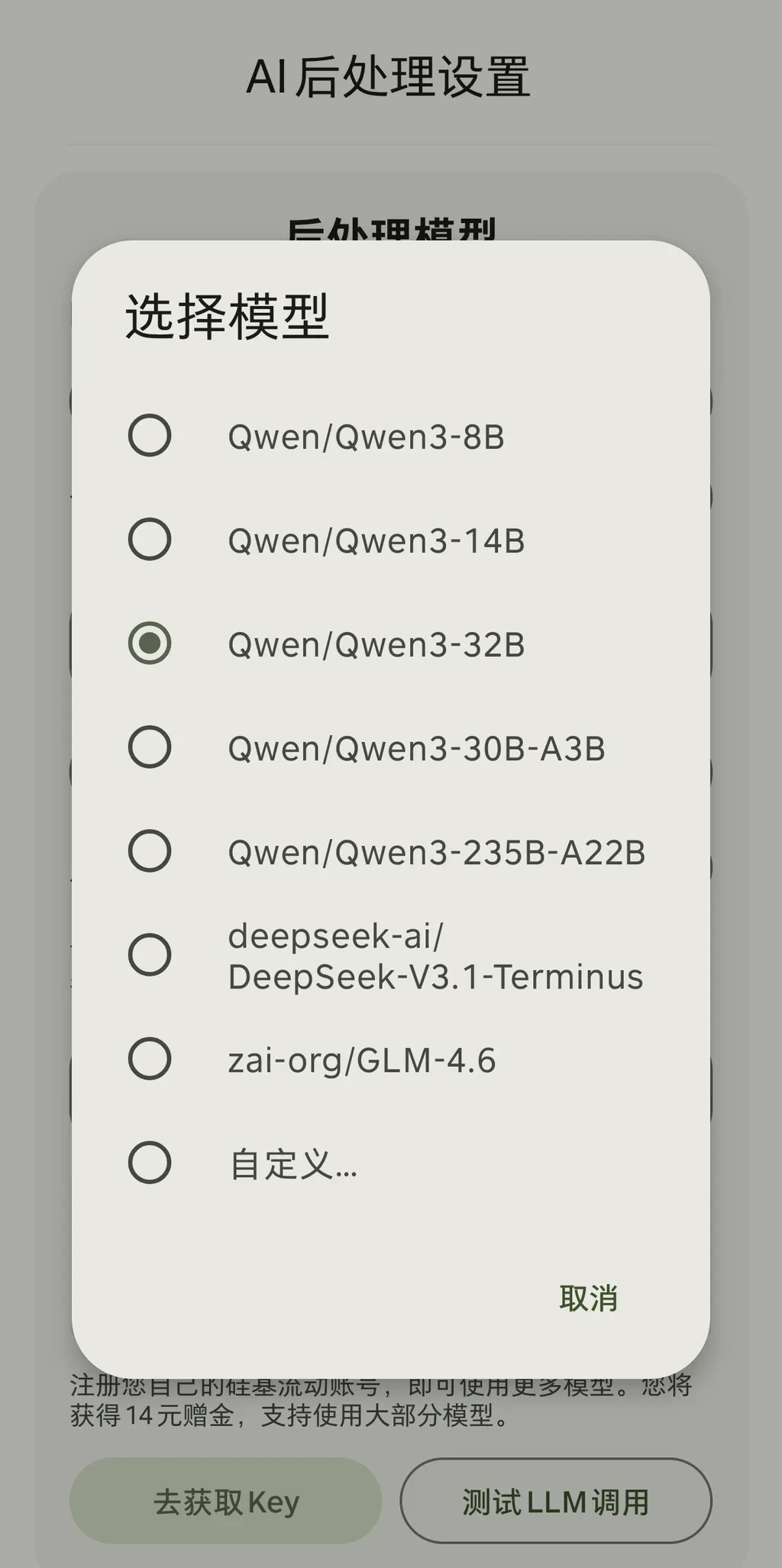
In addition to the built-in supported models, you can also enter other model IDs through the custom option.
Some models support a deep thinking mode toggle, allowing users to choose between faster response speed and better processing quality.
Usage Example
After completing the configuration, let’s test whether speech recognition is working properly:- Open a text input field
- Perform voice input
- Make sure the current input method is Say Something
- Press and hold the microphone button on the keyboard (the large button) to start speaking
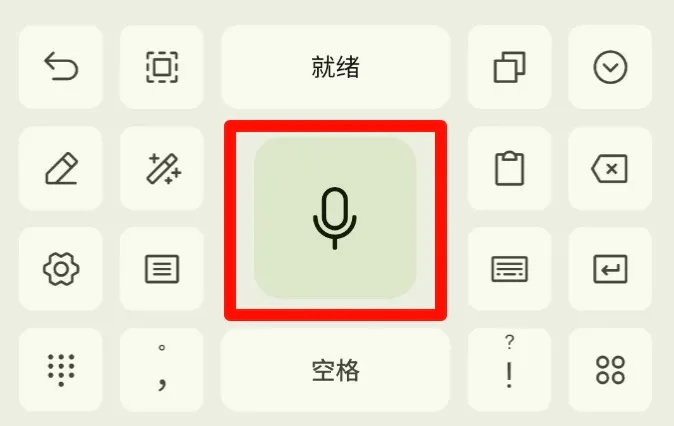
- Release the button after speaking and wait for the recognition result
- Check the result
- If configured correctly, the recognition result will be automatically entered into the text field
-
If an error occurs, the error message will be automatically copied to the clipboard. Please check:
- Whether the API Key is correct
- Whether the network connection is working properly
- Whether microphone permission has been granted
- Whether there is audio input (check the volume waveform)