LangBot
Updated: July 16, 2025
About LangBot
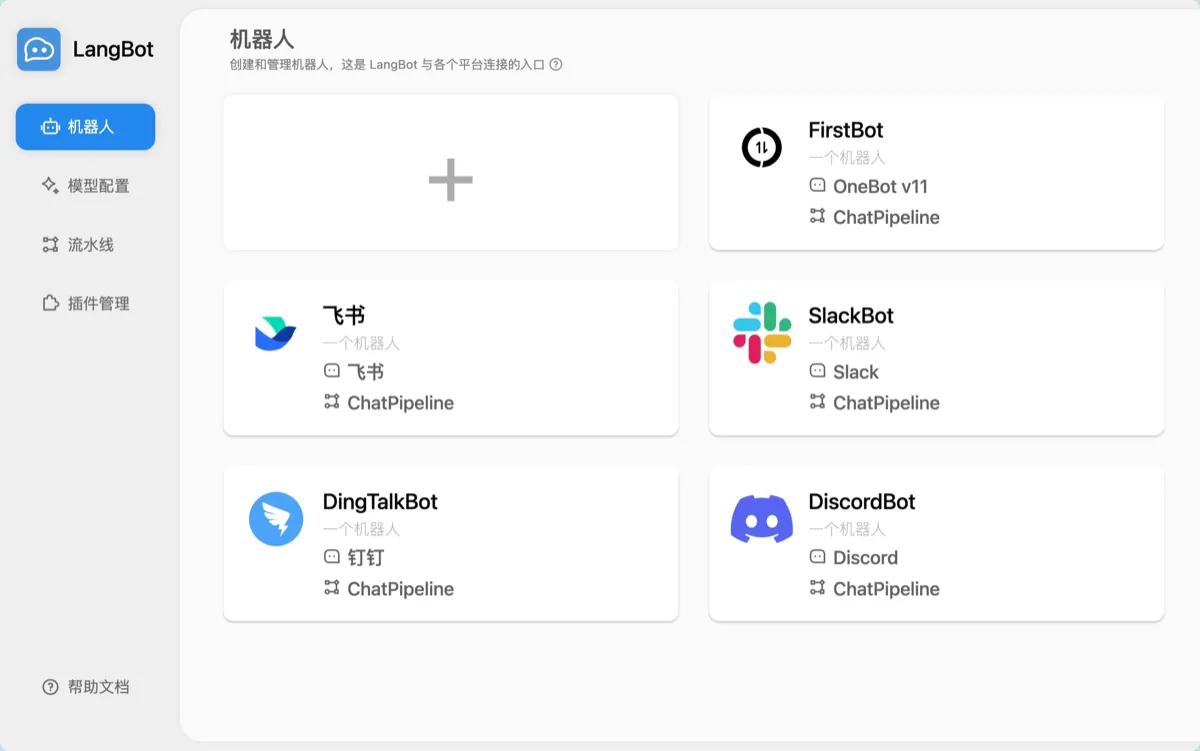
LangBot is an open-source instant messaging bot platform that supports integration with Feishu, DingTalk, QQ, WeChat, Discord, Telegram, and various other messaging platforms. It helps users handle tasks or act as part of a business workflow directly within these platforms.

In combination with the SiliconFlow large model API service, LangBot can integrate with various mainstream open-source large language models. Users can select the most appropriate model based on their specific scenario needs. The following is a complete configuration tutorial — just a few simple steps to get your own intelligent assistant.
Configuration Tutorial
Step 1: Obtain a SiliconFlow API Key
How to Get an API Key
-
Register and log in to SiliconFlow.
-
Navigate to the
API Keypage and generate a new API key.
Retrieve Model Information
Visit the Model Marketplace to view available models and detailed parameters.
Step 2: Deploy and Configure LangBot
Deploy LangBot Using Docker
For more deployment methods, refer to the documentation
Make sure Git and Docker are installed.
git clone https://github.com/langbot-app/LangBot
cd LangBot
docker compose up -dIf you are using it in mainland China, you can replace the image in
docker-compose.yamlwith:
docker.langbot.app/langbot-public/rockchin/langbot:latestAccess the WebUI
After starting, visit:
http://127.0.0.1:5300The first run will prompt you to create a configuration file. Follow the instructions to complete initialization.
Configure the Chat Model
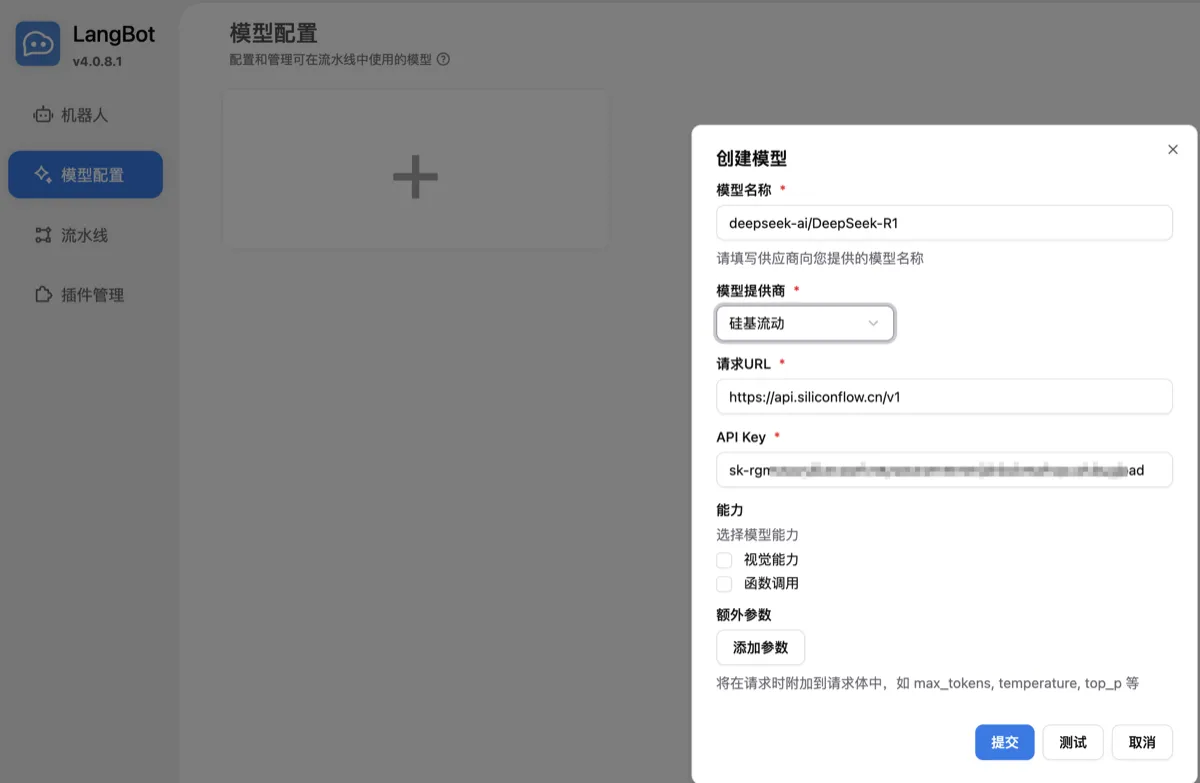
- Log in to the WebUI and navigate to the Model Configuration page.
- Add a new model and fill in the following information:
| Field | Description |
|---|---|
| Model Name | Choose the desired model name (available on SiliconFlow's Model Marketplace) |
| Provider | Select SiliconFlow |
| API Key | Use the key from the API Key page on SiliconFlow |
| Capabilities | Select the appropriate capabilities based on the model description |

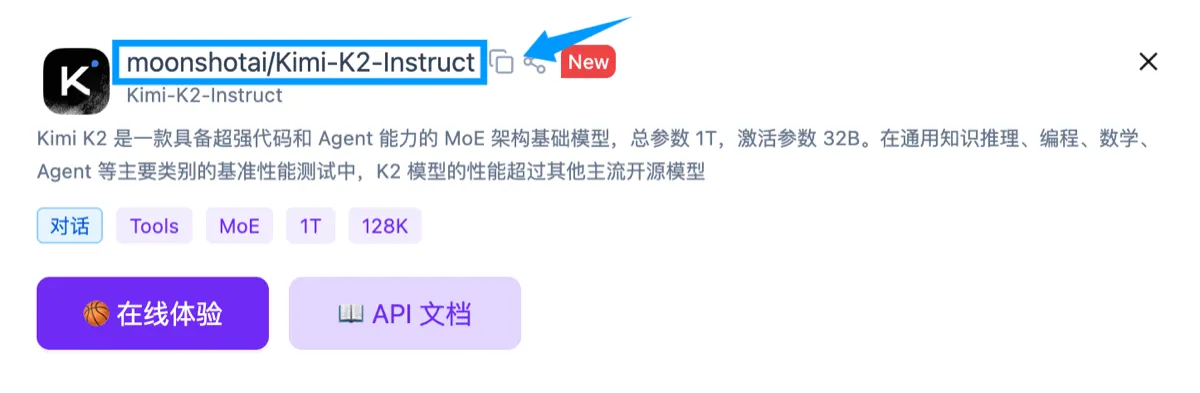
You can find the model name in the title of the model details page on SiliconFlow.

Step 3: Connect to a Platform (Using DingTalk as an Example)
For more platforms like WeCom, Feishu, Discord, Telegram, QQ, WeChat, etc., refer to the LangBot Documentation
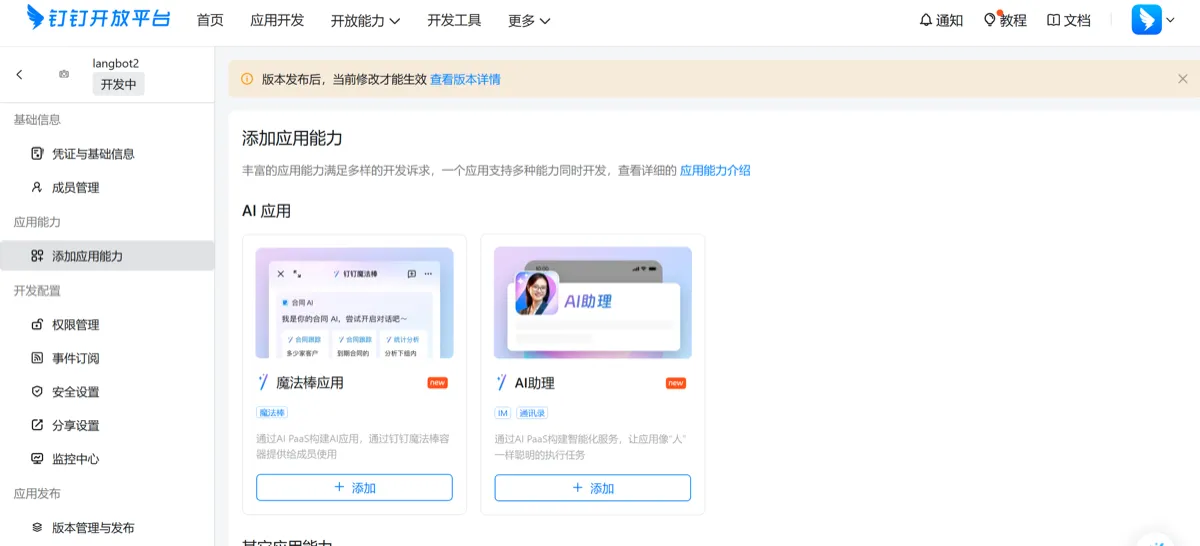
Create a DingTalk Bot App
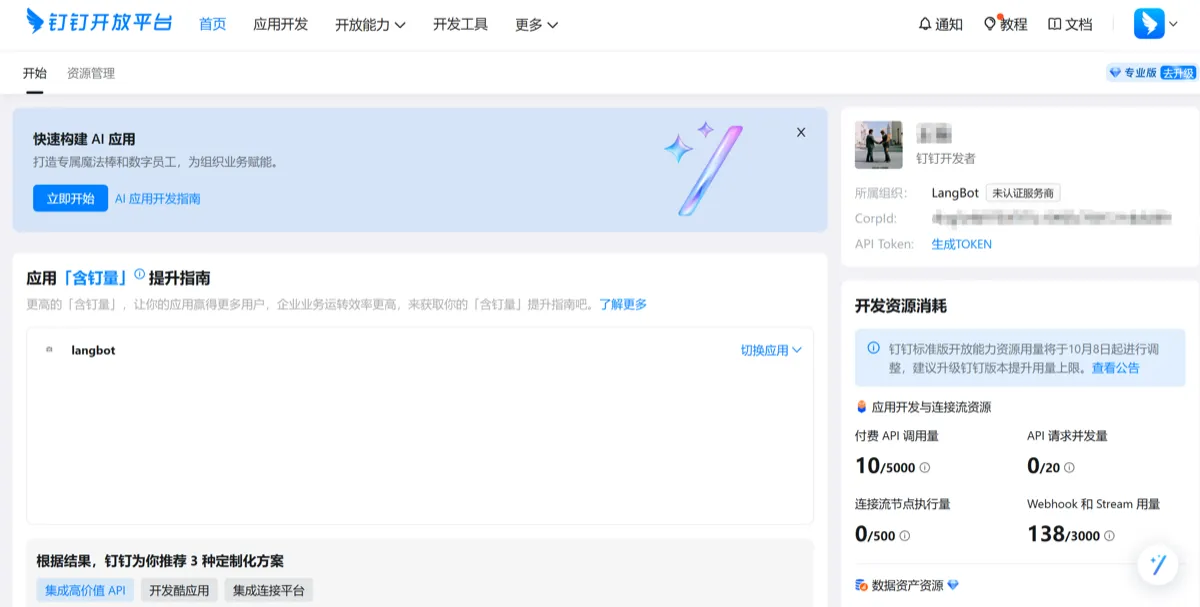
- Log in to the DingTalk Developer Console

-
Enter your organization, click App Development → Create App, and fill in the basic information.
-
Add the Bot capability, complete the basic settings, and publish the app.

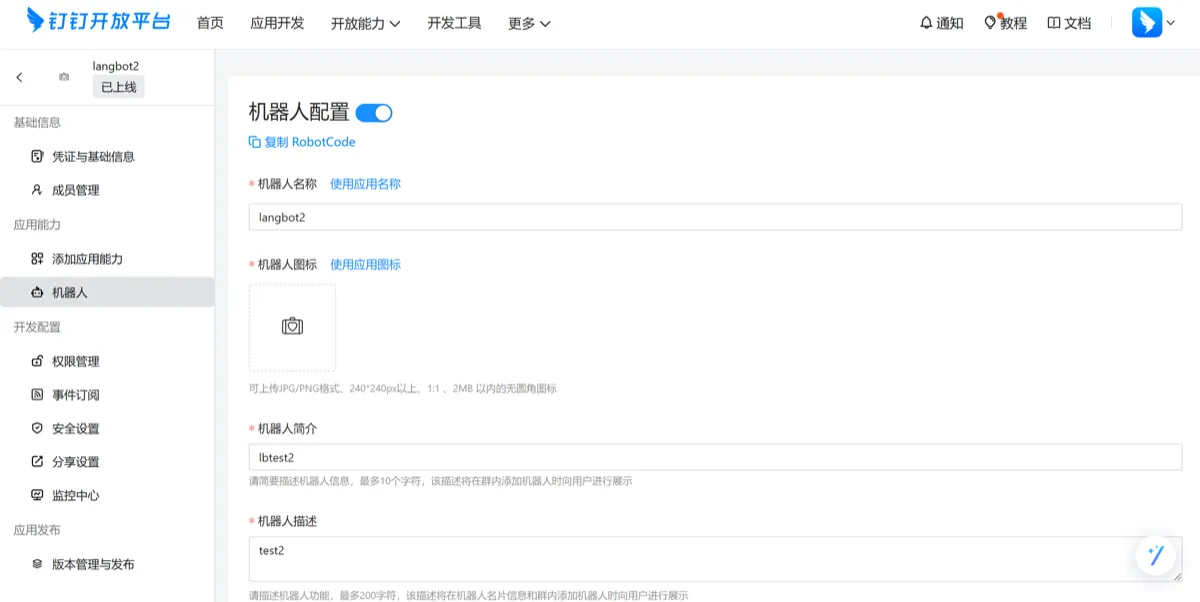
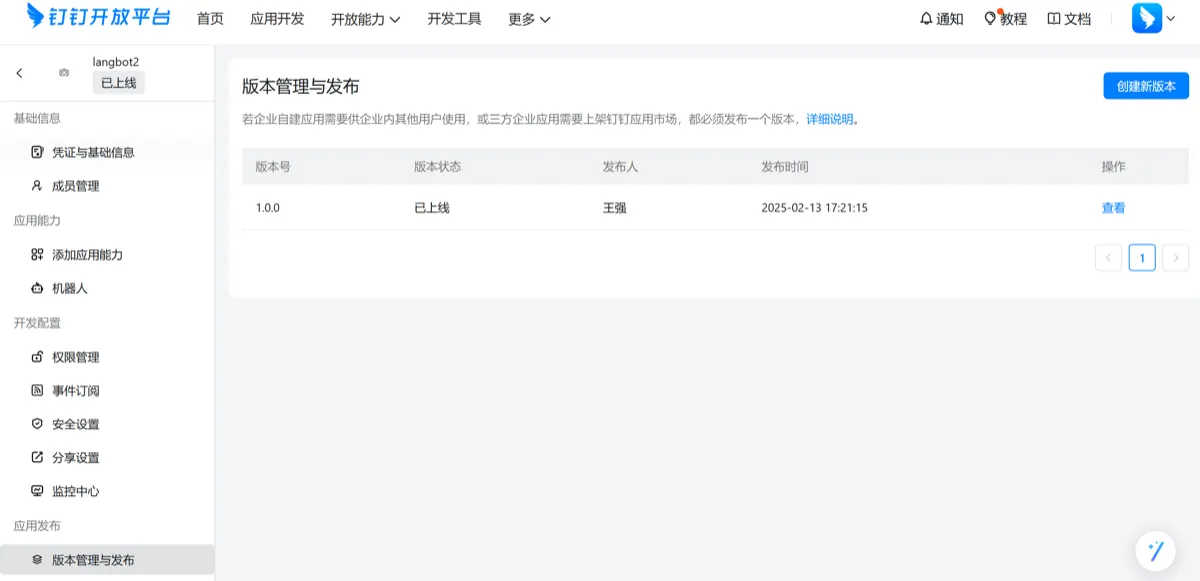
Configure the Bot
- Under the Bot tab, fill in the relevant information and publish.

- In Version Management, configure the version number.

- In Event Subscriptions, choose Stream Mode (no public callback URL needed).
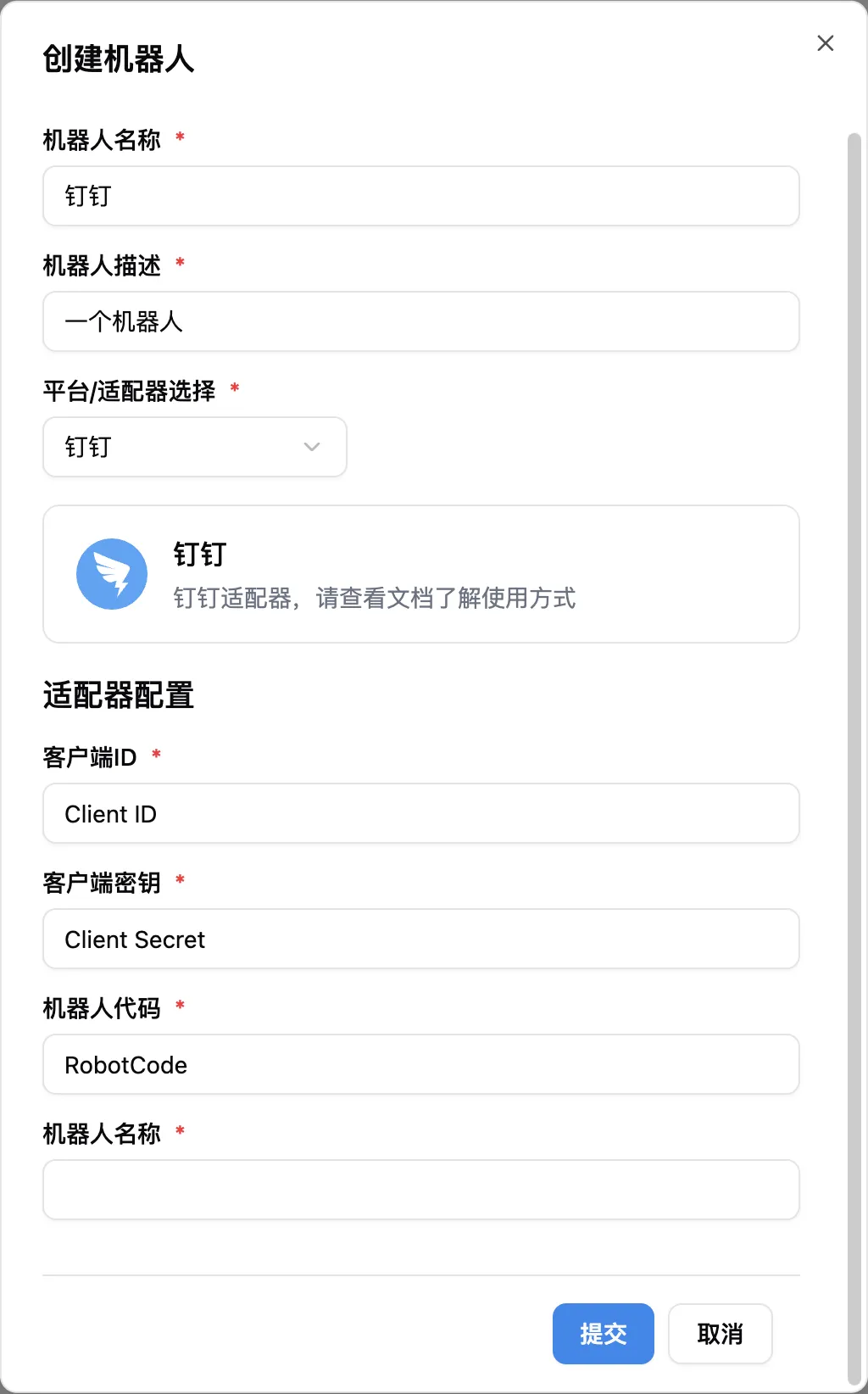
- In Credentials & Basic Info, note the following:
- Client ID
- Client Secret
- RobotCode
- Bot Name
Bind in the LangBot Platform
- Open the LangBot WebUI and edit the bot.

-
Bind a pipeline (by default,
ChatPipelineis available). Select DingTalk as the platform. -
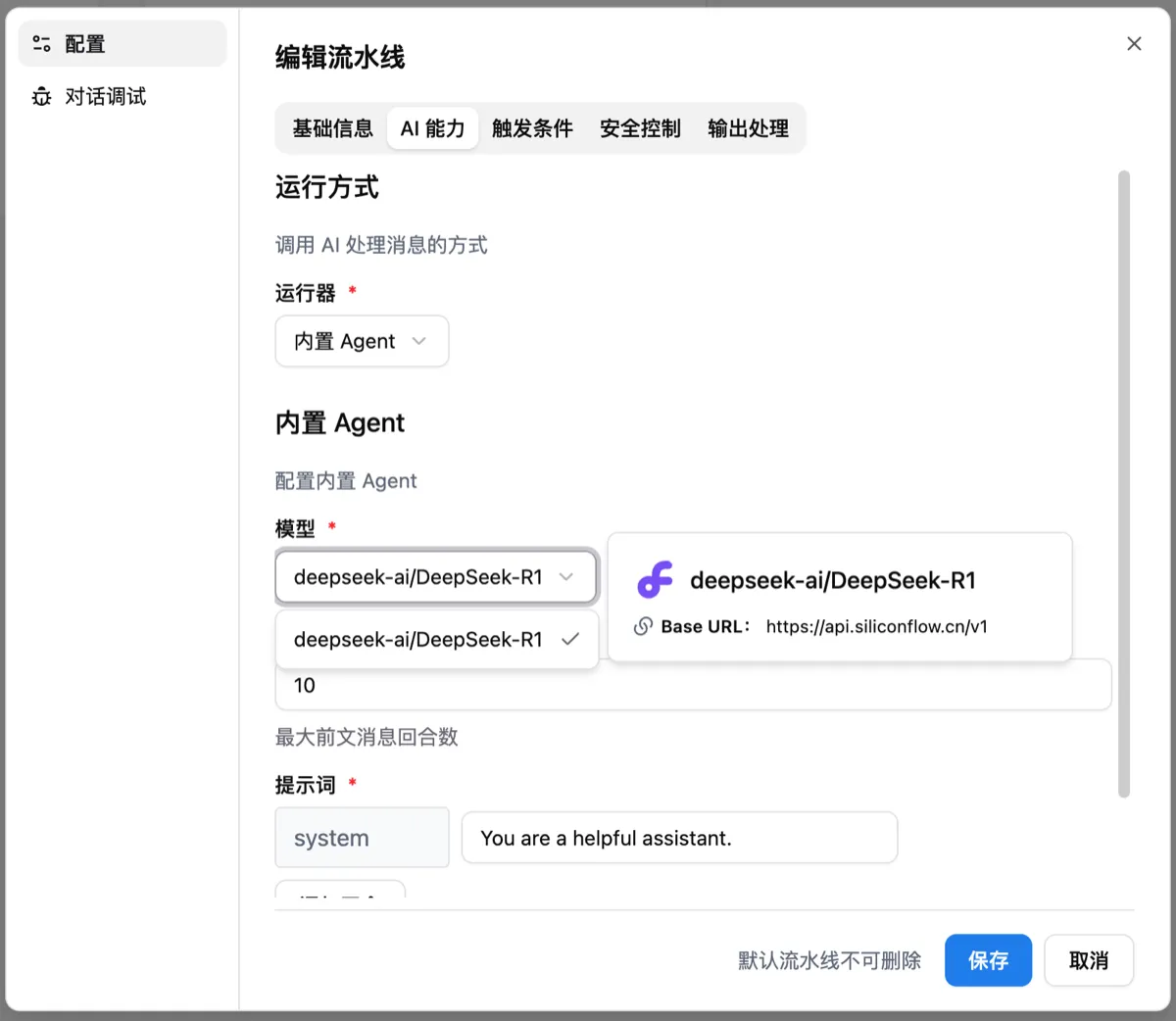
Edit the pipeline, choose Built-in Agent under AI capabilities, and select the previously configured model.

Step 4: Use the Bot
-
In DingTalk, search for the bot name and click to start chatting.
-
To use the bot in a group chat, go to the group settings, click Add Bot, and search for the bot name to add it.