场景示例
OpenClaw
更新日期:2026年2月12日
本文档指导如何在 Openclaw 中通过 “OpenAI 兼容模式” 接入 硅基流动 (SiliconFlow),以使用硅基流动平台上 100+ 高性能大模型。
第一步:准备硅基流动 API
在配置之前,请确保已获取以下信息
-
硅基流动 API Key (密钥)
- 以
sk-开头的字符串。
- 以
-
Base URL (接口地址)
- 地址:
https://api.siliconflow.cn/v1 - 重要: 务必包含末尾的
/v1
- 地址:
-
模型名称
- 请在硅基流动模型广场复制完整模型名称,如:
deepseek-ai/DeepSeek-V3
- 请在硅基流动模型广场复制完整模型名称,如:
第二步:打开 openclaw.json 配置文件*
(以 MacOS 平台为例,默认文件路径:~/.openclaw/openclaw.json)
1、将以下内容复制并合并到您的文件中(注意替换您的 API Key 和您需要的模型 id。 注:如果已经配置过自定义模型请从第三行开始合并到文件中。
  "models": {
    "providers": {
      "siliconflow": {
        "baseUrl": "https://api.siliconflow.cn/v1",
        "apiKey": "您的_SILICONFLOW_API_KEY",
        "api": "openai-completions",
        "models": [
          {
            "id": "zai-org/GLM-4.6",
            "name": "GLM-4.6",
            "reasoning": false,
            "input": [
              "text"
            ],
            "cost": {
              "input": 0,
              "output": 0,
              "cacheRead": 0,
              "cacheWrite": 0
            },
            "contextWindow": 200000,
            "maxTokens": 8192
          }
        ]
      },
2、将以下内容合并到 openclaw.json 中的 agents 配置项中(如下图)。
注:siliconflow/zai-org/GLM-4.6 中的模型模型 id 需与您上一步配置的模型 id 保持一致,建议先将模型配置到:fallbacks 中,以避免模型配置不正确而导致错误。
"siliconflow/zai-org/GLM-4.6",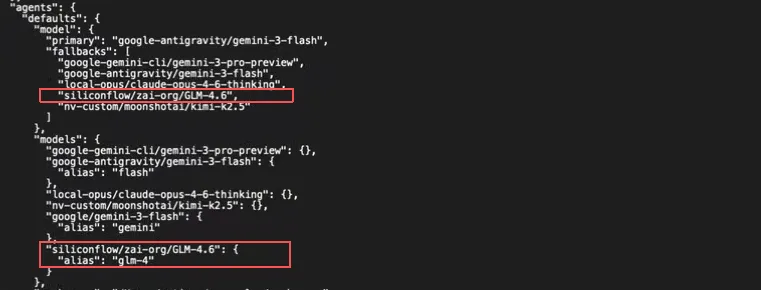
第三步:查看配置模型
在终端输入 openclaw models list 就可以看到您配置的 siliconflow 模型。

第四步:模型切换
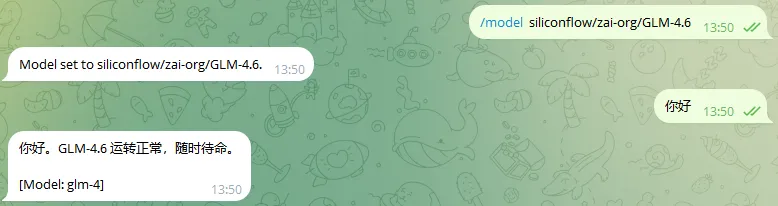
在 web 端或者您配置的聊天软件中输入:/model siliconflow/zai-org/GLM-4.6 就可以临时切换到您刚添加的 siliconflow 模型。