Codex
Updated: June 29, 2026
Codex now supports custom Provider configuration in its advanced settings. In addition to the default OpenAI models, developers can also connect third-party model services that are compatible with the OpenAI API.
For users already familiar with models like DeepSeek, Qwen, and GLM, SiliconFlow now makes it possible to use these models inside Codex.
Get Your SiliconFlow API Key
Sign up or log in to the SiliconFlow platform and complete real-name verification. Go to the API Key management page, click Create API Key, and copy the generated key.
Install Codex
Check Node.js Environment
Codex is installed via npm, so Node.js must be installed first. Node.js 20 LTS or later is recommended.
Run the following commands in your terminal:
node -v
npm -vInstall Codex CLI
Open a terminal and run:
npm install -g @openai/codexAfter installation, verify it worked:
codex --versionIf the version is printed successfully, the installation is complete.
Windows users are recommended to install WSL2 (Windows Subsystem for Linux) first, then follow the steps above in a Linux distribution such as Ubuntu.
Configure SiliconFlow API
Starting with Codex v0.80.0, Codex uses the Responses API protocol. SiliconFlow currently provides a Chat Completions API, and the two protocols are not directly compatible. To bridge them, we use CC Switch as a local routing layer.
CC Switch converts Codex requests into a format that SiliconFlow can accept, and converts the responses back. It also makes it easy to switch model providers or models later without repeatedly editing Codex configuration files.
For CC Switch and its installation guide, see: Use SiliconFlow in CC Switch.
Step 1: Open CC Switch Settings
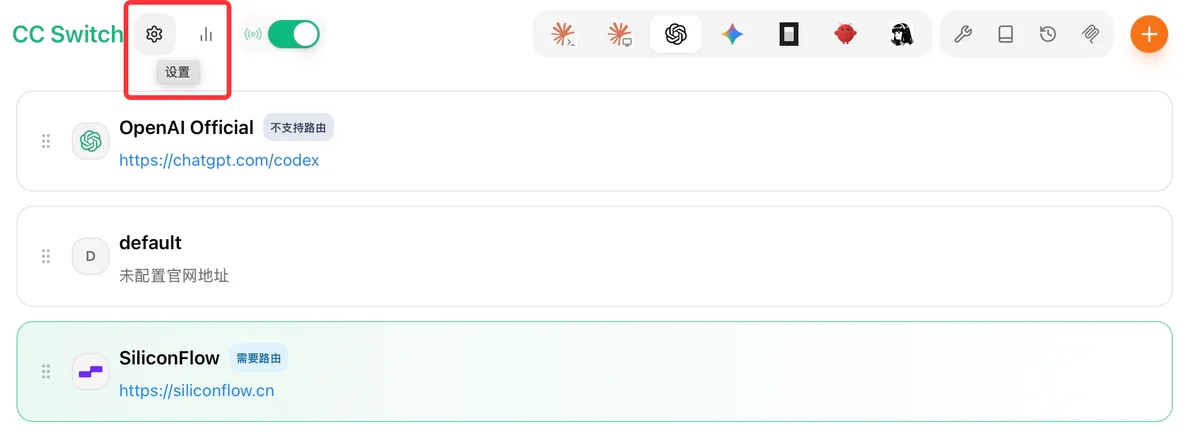
After installing and opening CC Switch, click the upper-left menu to enter Settings.

Step 2: Enable the Codex Route
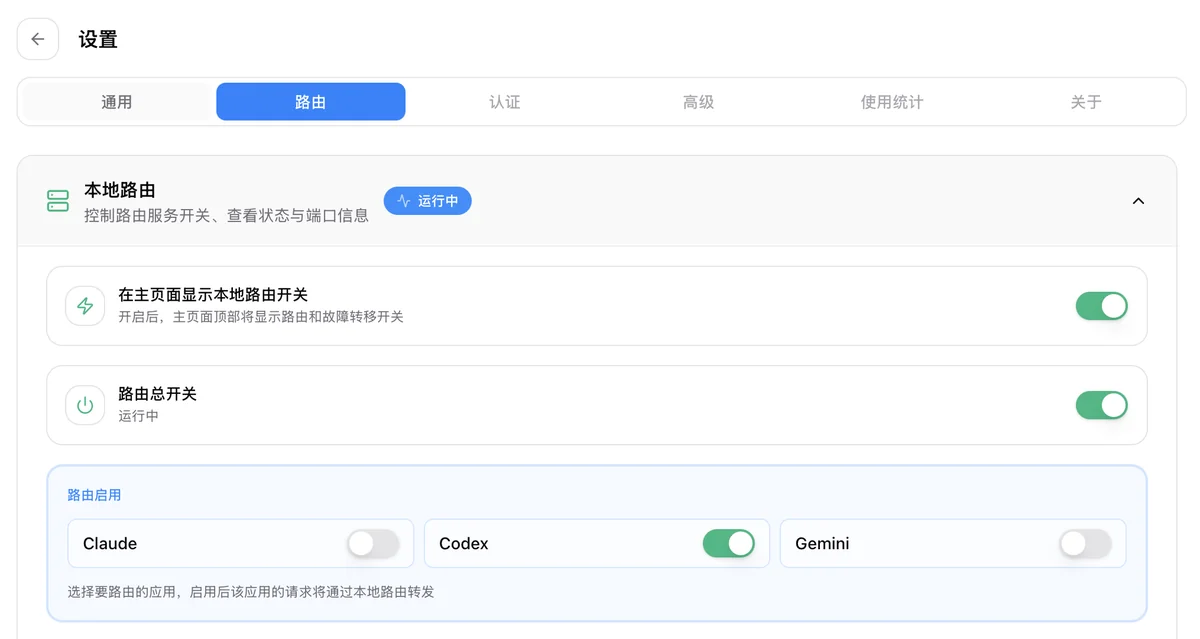
In the Routing page, turn on the Routing master switch, then enable the Codex switch under Enabled Routes.

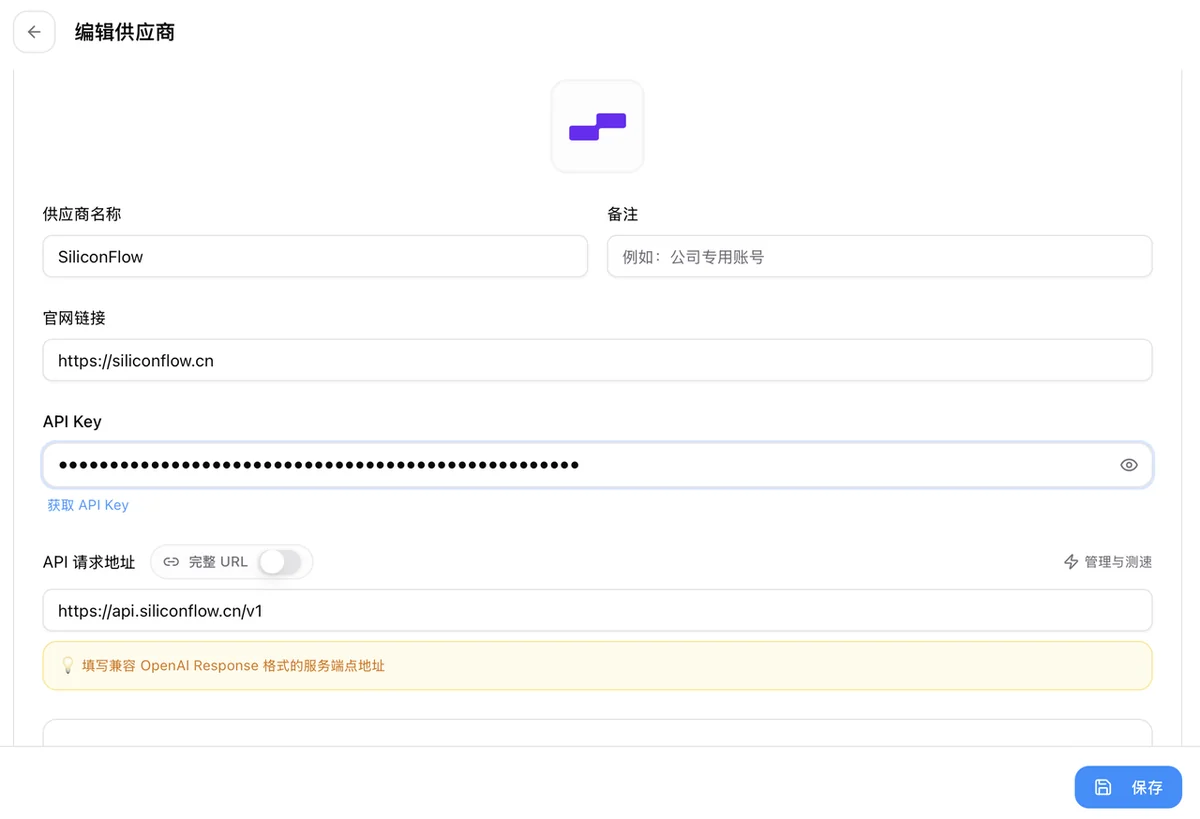
Step 3: Add a SiliconFlow Provider
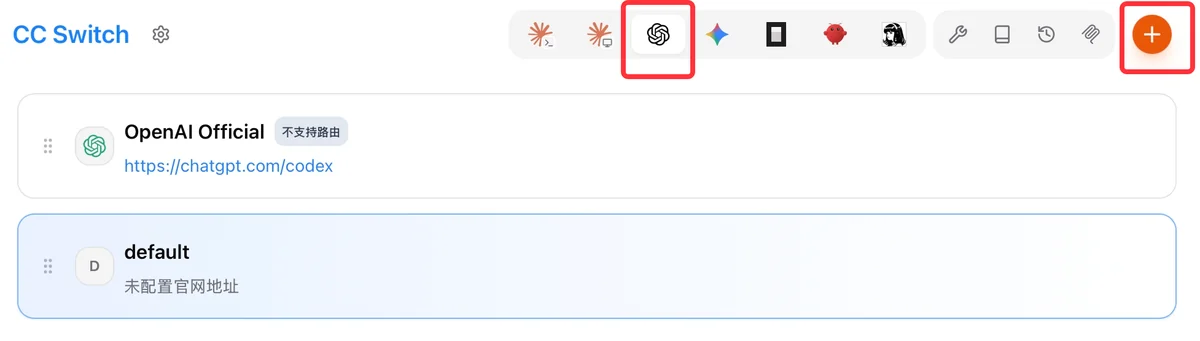
After enabling routing, select Codex in the top app switcher (as shown), then click the plus icon in the upper-right corner to add a new provider.

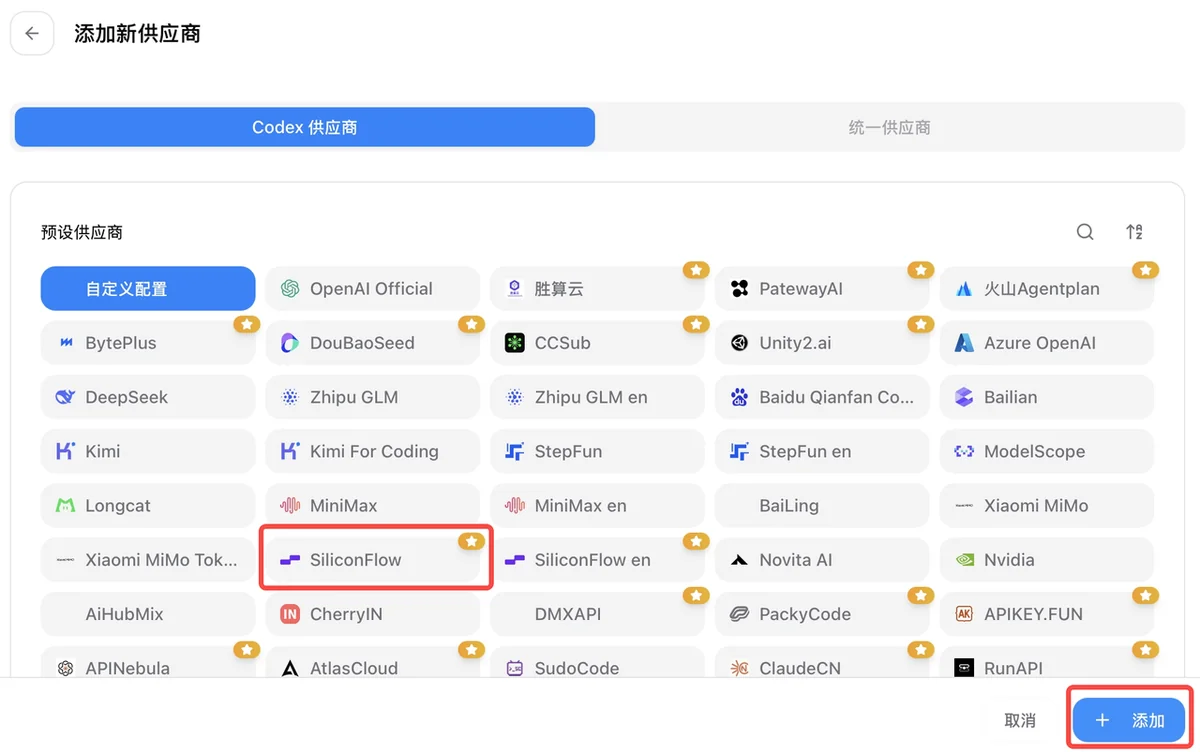
In the Preset dropdown, select SiliconFlow (purple icon), then click Add.

Step 4: Enter Your API Key
Paste the API key you obtained earlier into the API Key field.

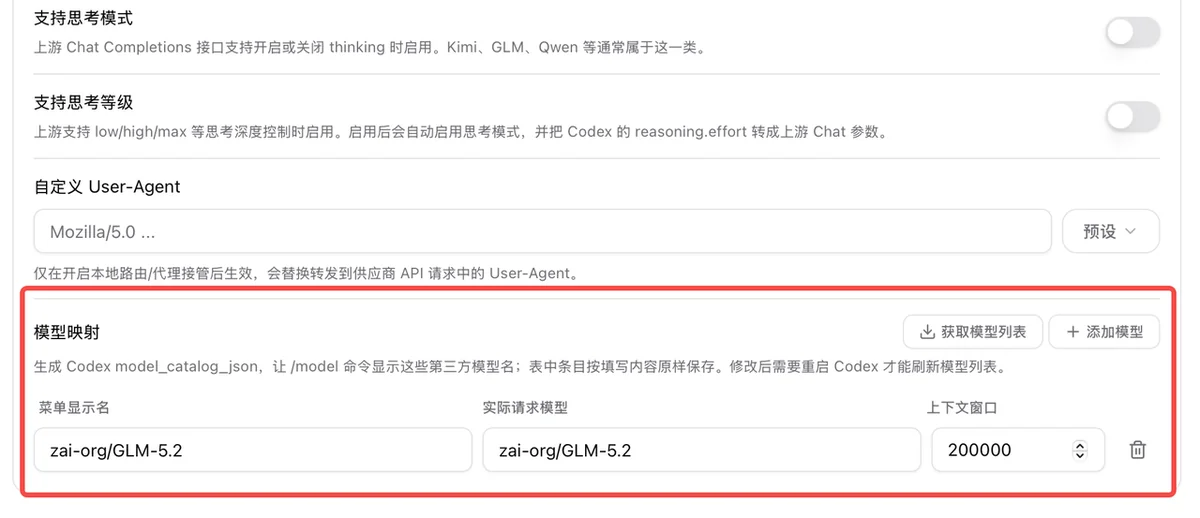
Step 5: Configure Model Mapping
Scroll down to the Model Mapping section. Modify the model and context window as needed (model names are available on the Models page), then click Save.

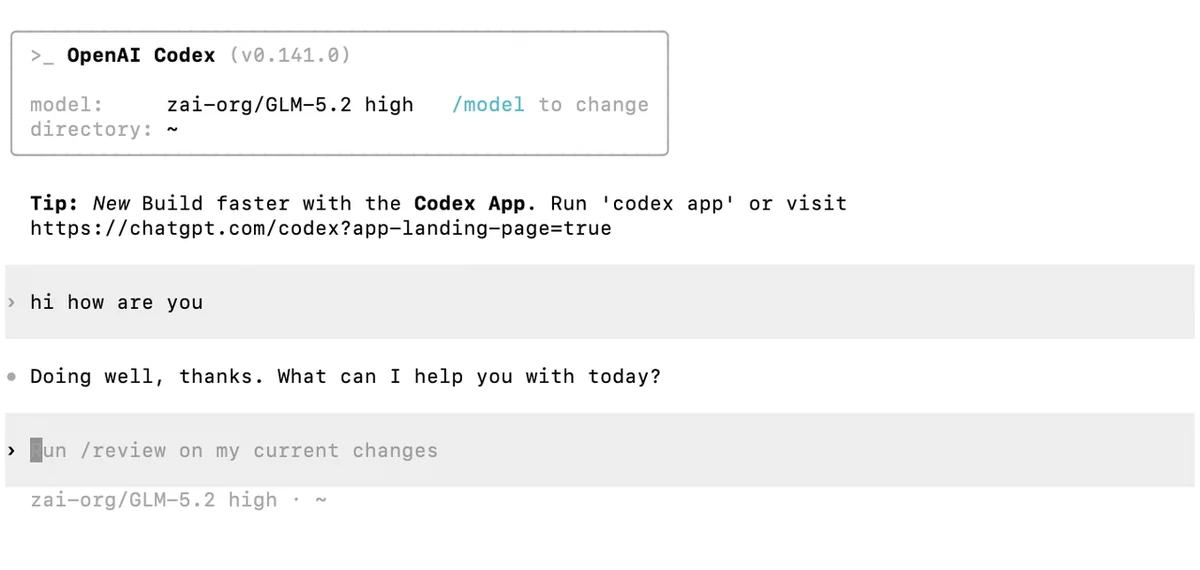
After completing the steps above, run codex in your terminal. The model section will display the selected model name. If the chat responds normally, the configuration is successful!