SiliconFlow
SCENARIO EXAMPLE

Cube Agent

Updated: September 10, 2026

Cube Agent is a native AI chat assistant and workbench for HarmonyOS devices. It works across phones and tablets, supporting multi-model conversations, standalone assistants, Markdown rendering, and document parsing, as well as web search and MCP tool extensions — useful for everyday Q&A, learning, writing, and coding help.

Cube Agent ships with free partner models provided by SiliconFlow. Once Cube Agent cloud services are connected, you can start chatting with the built-in models without providing an API Key; alternatively, you can configure your own SiliconFlow API Key to use more models.

How you use itIn-app entryWhat you need
Use the partner free models directlySiliconFlow (built-in)Complete HUAWEI ID verification and connect Cube Agent cloud services; no personal SiliconFlow API Key required
Use your own API KeySiliconFlowCreate a personal API Key on the SiliconFlow platform

1. Download and Install

Download and install Cube Agent from AppGallery. Supported devices, system versions, and installation requirements are subject to the AppGallery listing.

The steps below use the app's Chinese interface as an example; layouts may vary slightly across devices.

2. Using SiliconFlow Free Models Directly

To use the built-in free models, you don't need to apply for a personal API Key on the SiliconFlow platform first. After Cube Agent cloud services are connected, the app prepares the partner configuration automatically, and model requests are sent directly to SiliconFlow's official endpoint.

2.1 First use: start from the onboarding guide

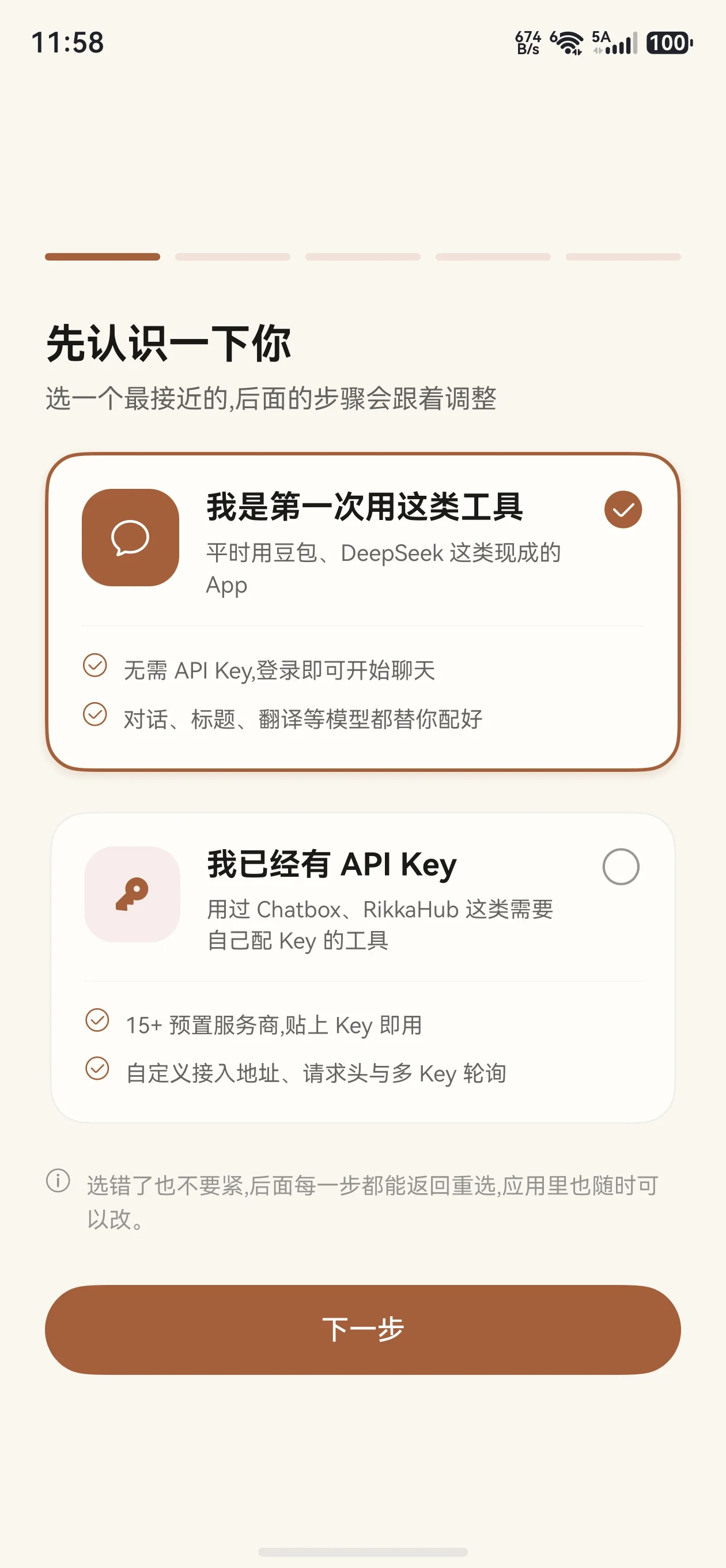
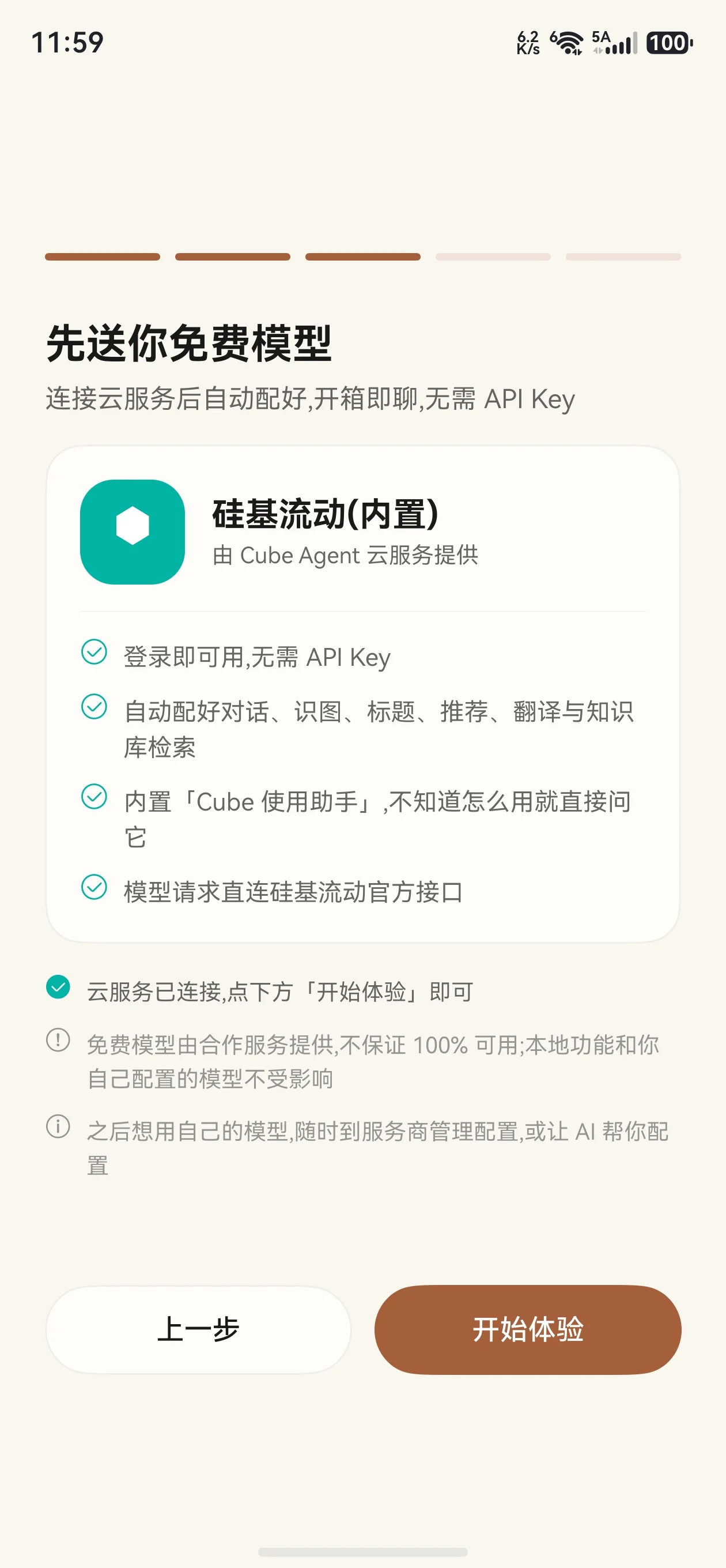
  1. When you first open Cube Agent, choose「I'm new to this kind of tool」in the guide, then continue to the「Free models to start with」page.
  2. Tap「Connect cloud services」and complete HUAWEI ID verification and cloud service authorization as prompted.
  3. Once connected, the app prepares the「SiliconFlow (built-in)」service and its models. If you are still on that page, tap「Start exploring」to finish the guide.

No API Key, endpoint, or model ID needs to be entered manually at any point.

2.2 Skipped the guide: enable it from settings

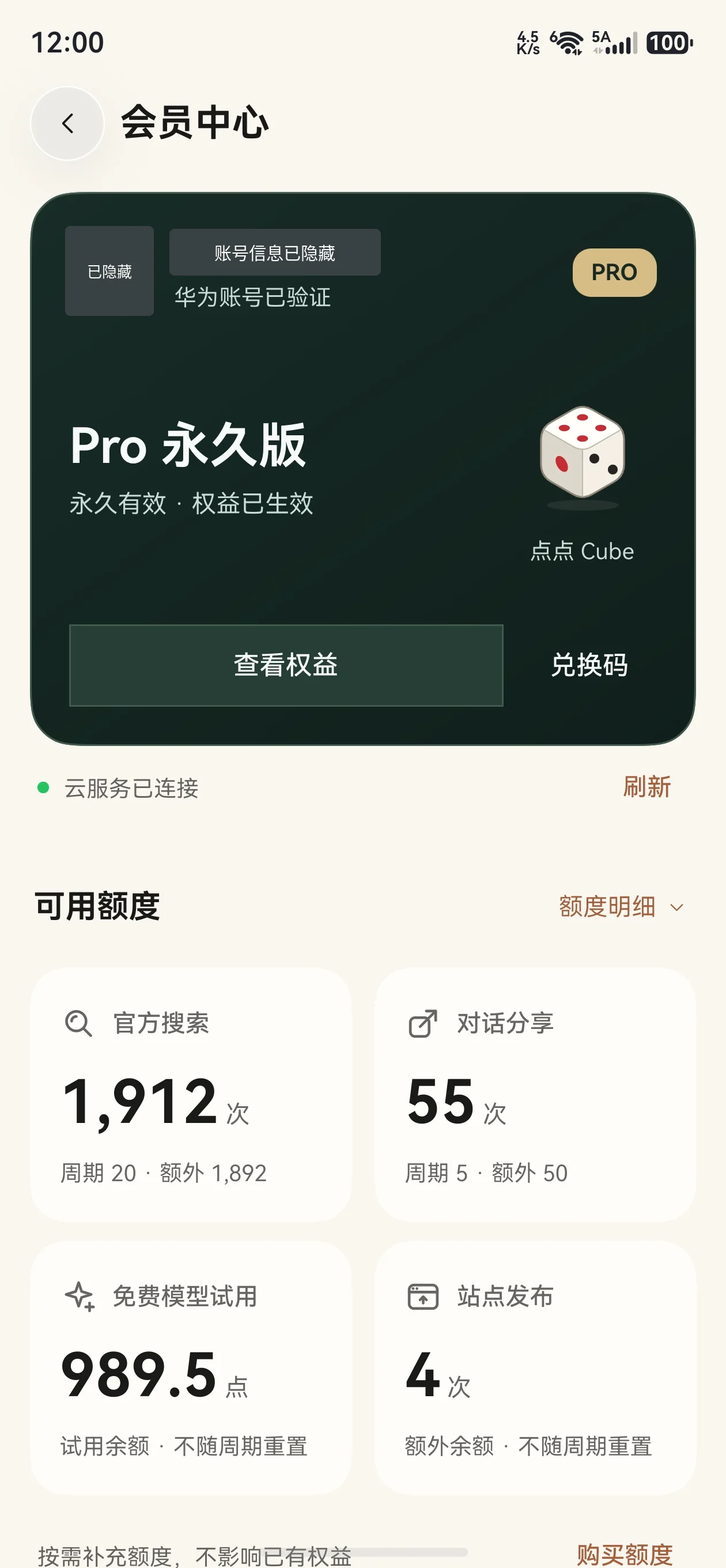
  1. Open「Settings」and tap the account card at the top to enter the「Membership center」.
  2. Complete HUAWEI ID verification as prompted, and connect「Cube Agent cloud services」in the「Account & services」area. Skip this step if it is already connected.
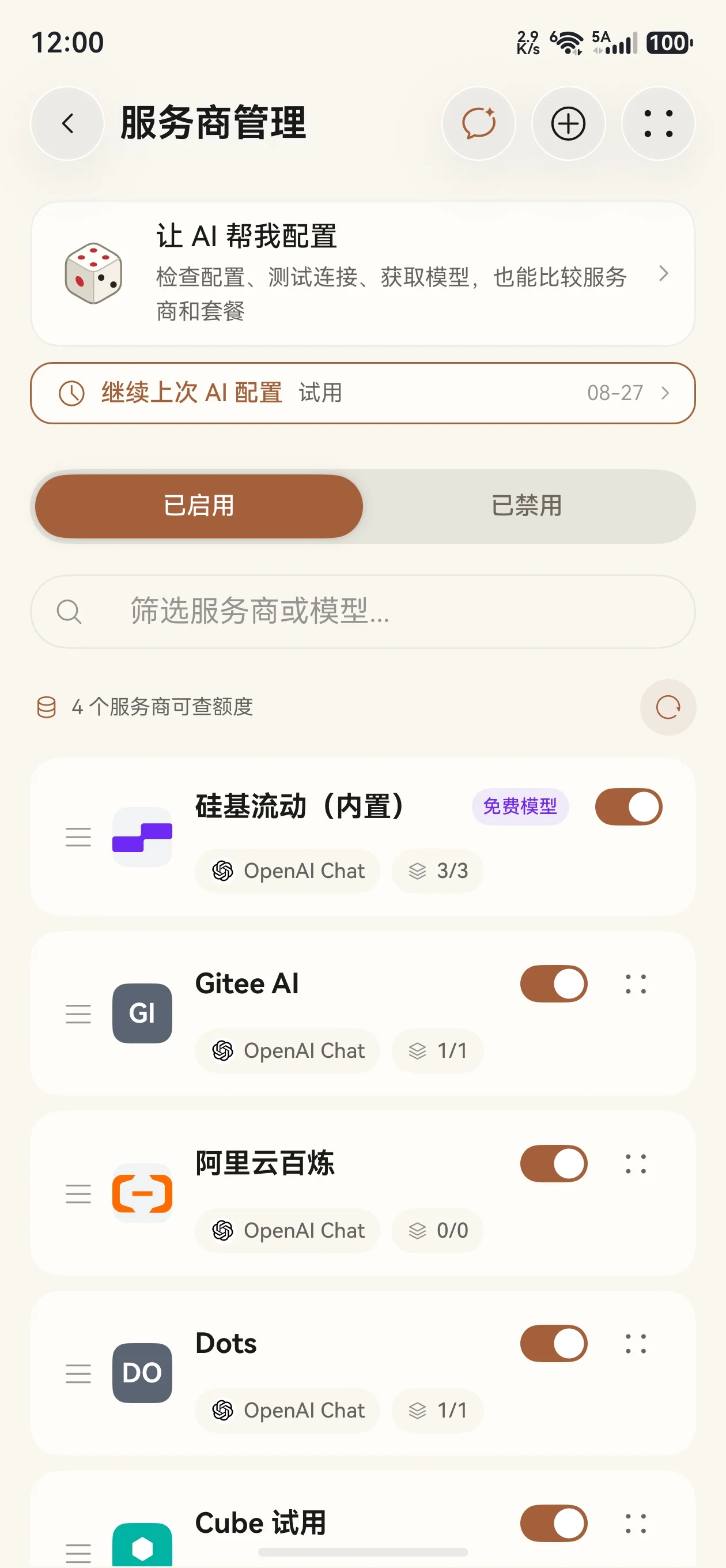
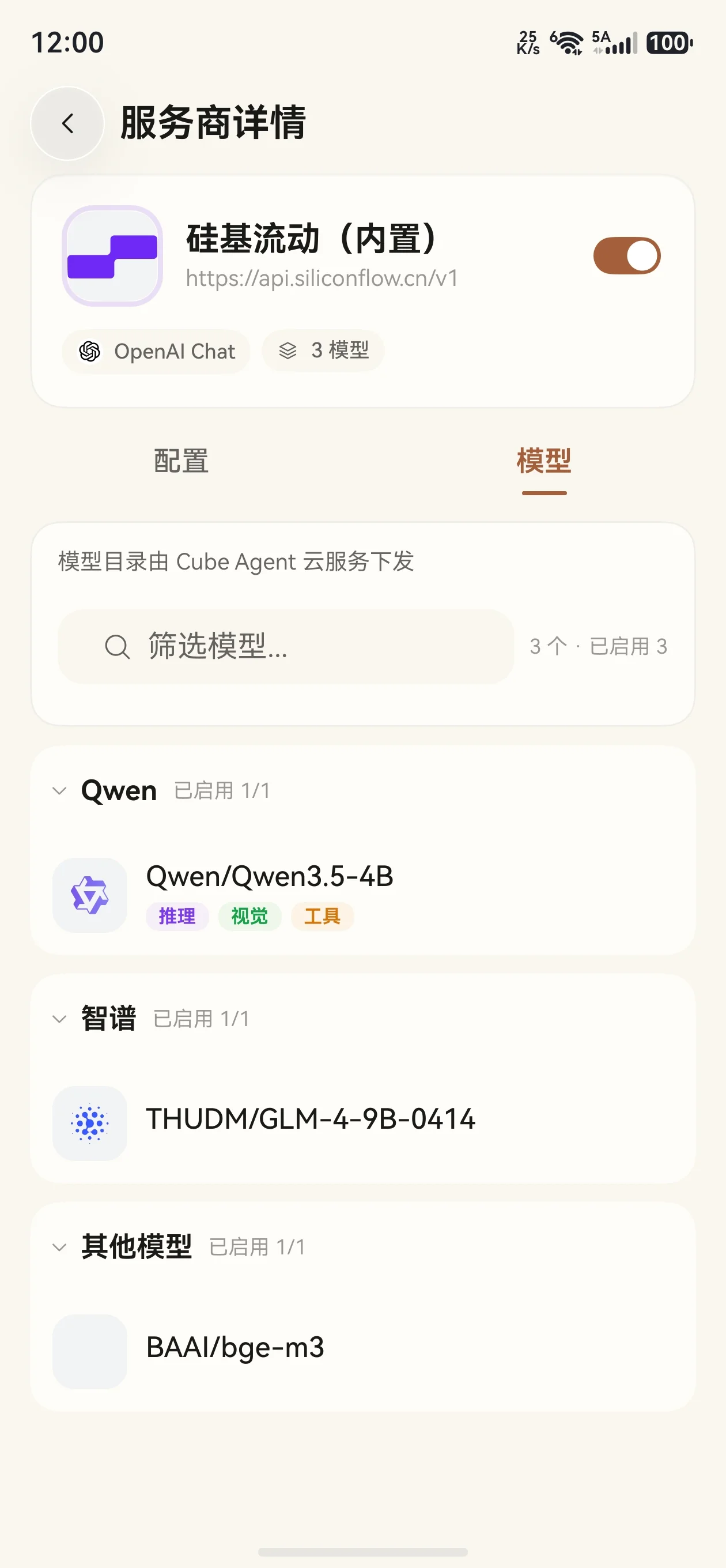
  3. Return to settings, open「Provider management」under the「Model configuration」group, find「SiliconFlow (built-in)」, and make sure the provider is enabled. Open its「Models」tab to see the current partner model catalog.

Completing HUAWEI ID verification is not the same as connecting Cube Agent cloud services. Using the built-in partner models requires the cloud services to be connected. The app will not overwrite your existing default model configuration; users with existing configurations can switch manually in the chat page.

The Pro status and quota in the screenshot above belong to the demo account and do not imply that using the built-in partner free models requires a Pro subscription. The「Free model trial」shown in the screenshot is a separate service, not the quota for the built-in partner models in this guide.

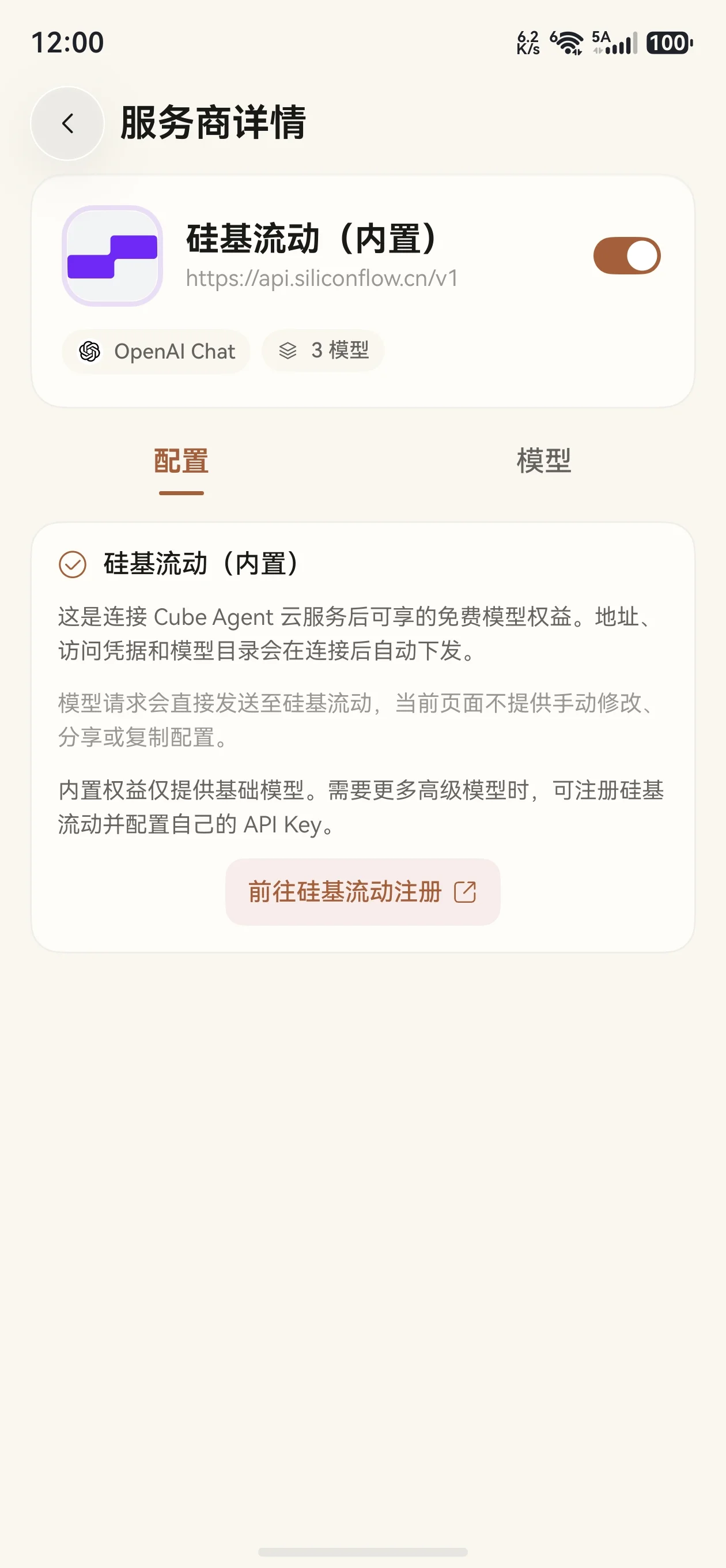
Inside the built-in provider details, the「Configuration」tab shows the partner service description; no personal key is required here.

2.3 Pick a model and start chatting

The table below shows the partner catalog used in this guide. The models actually available are updated by the cloud service; refer to the「SiliconFlow (built-in) → Models」page in the app.

Model IDTypeUsed in the app for
Qwen/Qwen3.5-4BChat modelEveryday Q&A, writing, and study help
THUDM/GLM-4-9B-0414Chat modelText conversations, plus auxiliary tasks such as title generation and translation
BAAI/bge-m3Embedding modelText vectorization and retrieval for the knowledge base; not used to generate chat replies directly

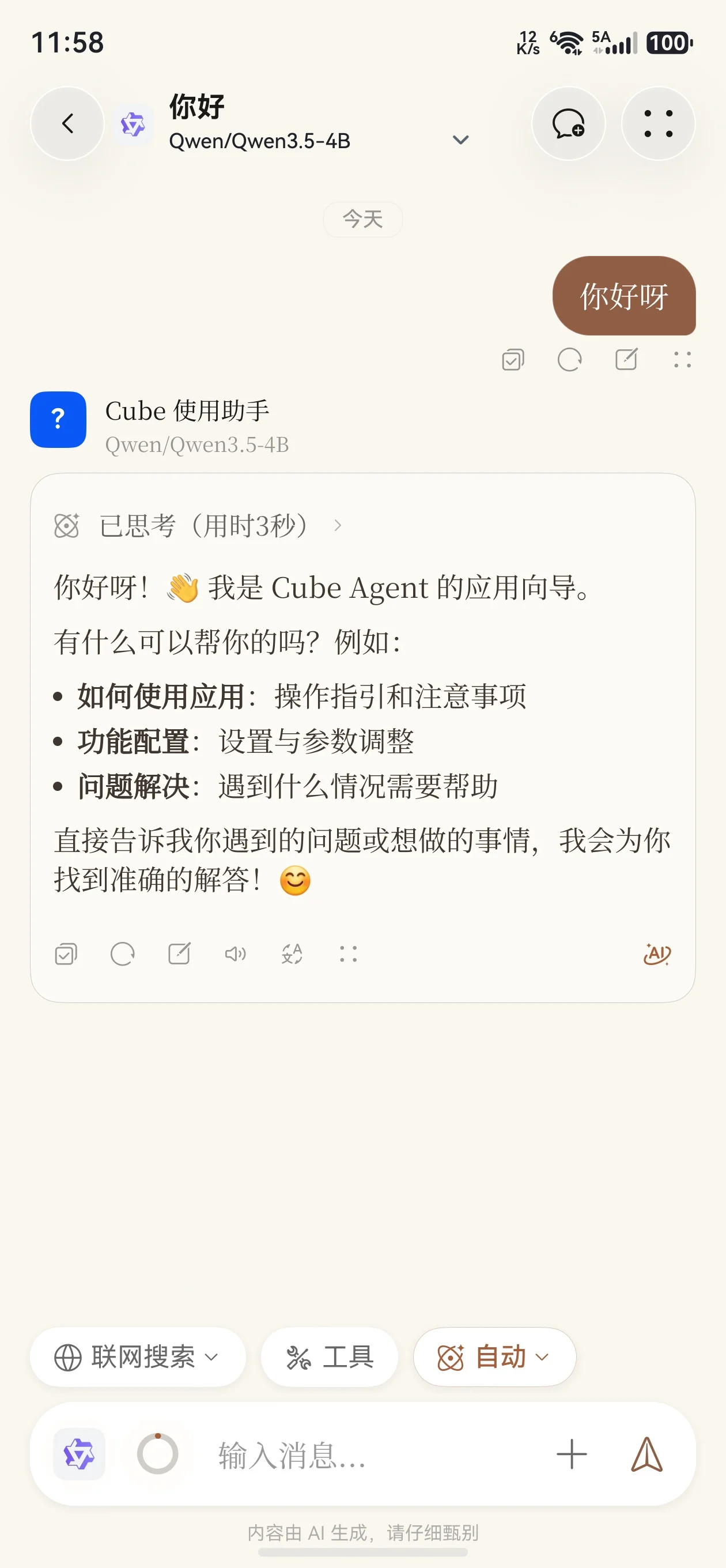
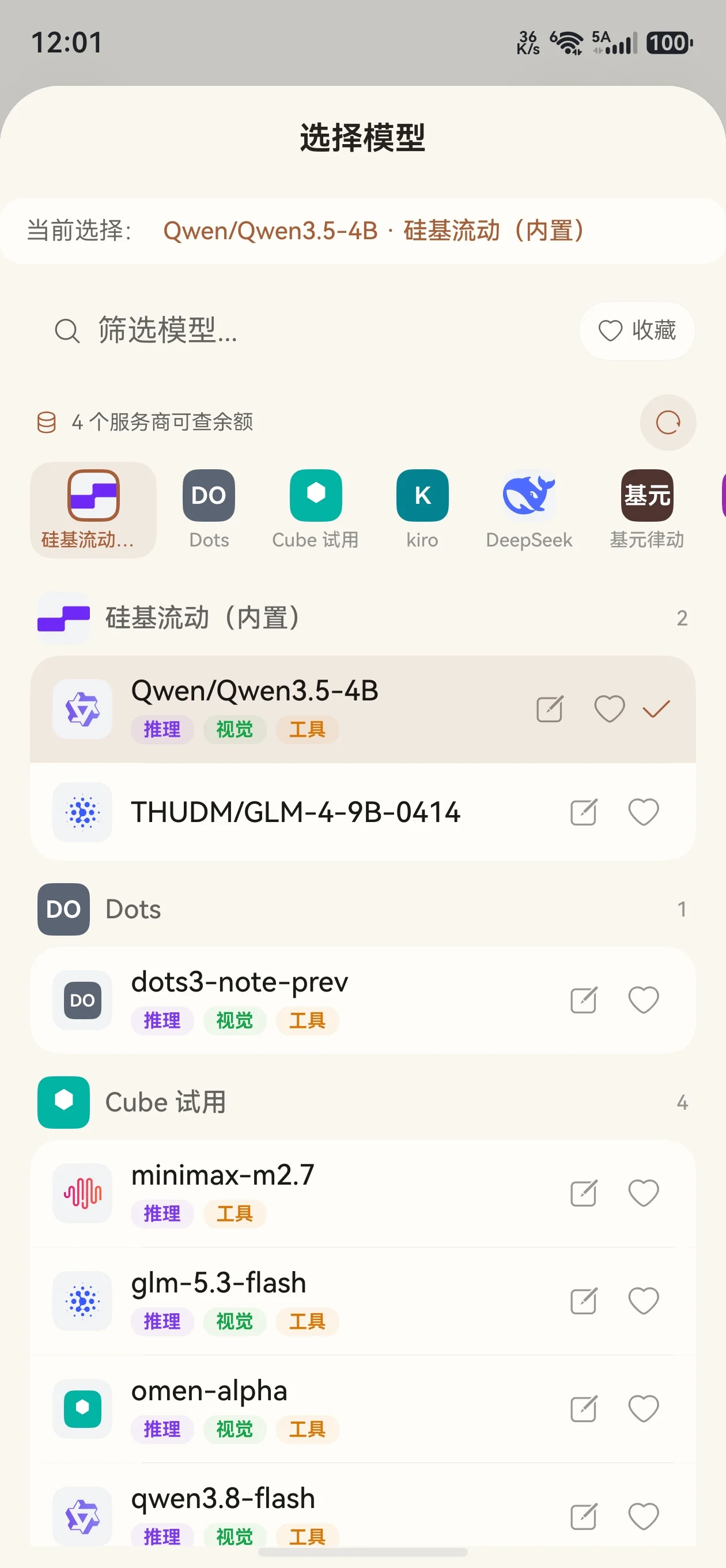
Create a new chat, open the model picker, and choose a chat model under「SiliconFlow (built-in)」.

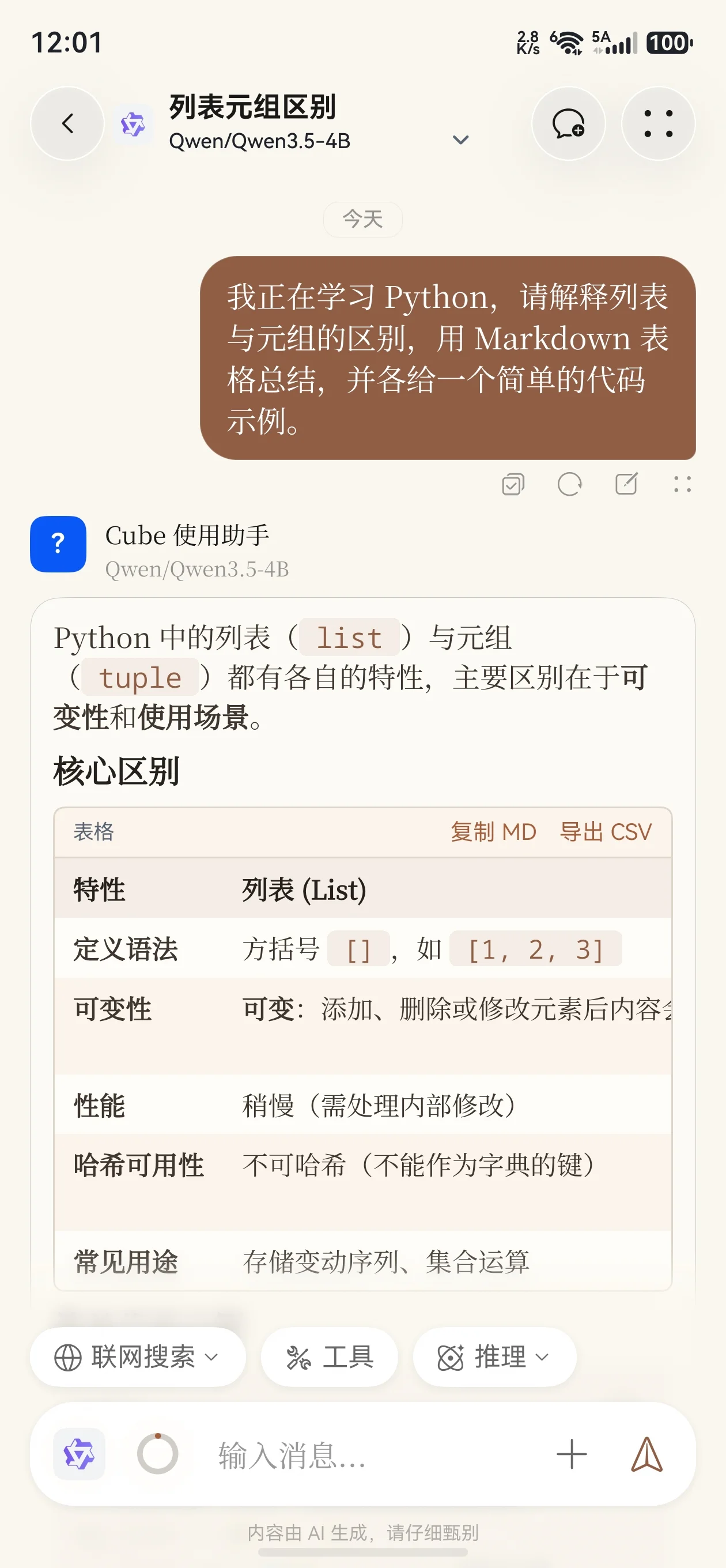
Send a message and confirm you get a reply, for example:

I'm learning Python. Please explain the difference between lists and tuples, summarize it in a Markdown table, and give one short code example for each.

Once you receive a reply, you can keep asking follow-ups, or use the model for writing polish, summarization, and study help.

Free models are delivered through online services; actual availability, access limits, and service status are subject to the app and SiliconFlow. The「SiliconFlow (built-in)」configuration is managed by the cloud service and requires no manual changes. To use a personal API Key, follow the next section and configure a separate「SiliconFlow」provider.

3. Configuring a Personal SiliconFlow API Key

When you need models beyond the partner catalog, you can configure your own SiliconFlow API Key. Your personal configuration and「SiliconFlow (built-in)」are two independent entries; both can be kept and switched as needed.

3.1 Get a SiliconFlow API Key

  1. Register on SiliconFlow via the dedicated Cube Agent invitation link. If you already have an account, log in to the SiliconFlow platform directly.
  2. Complete identity verification as required by the platform.
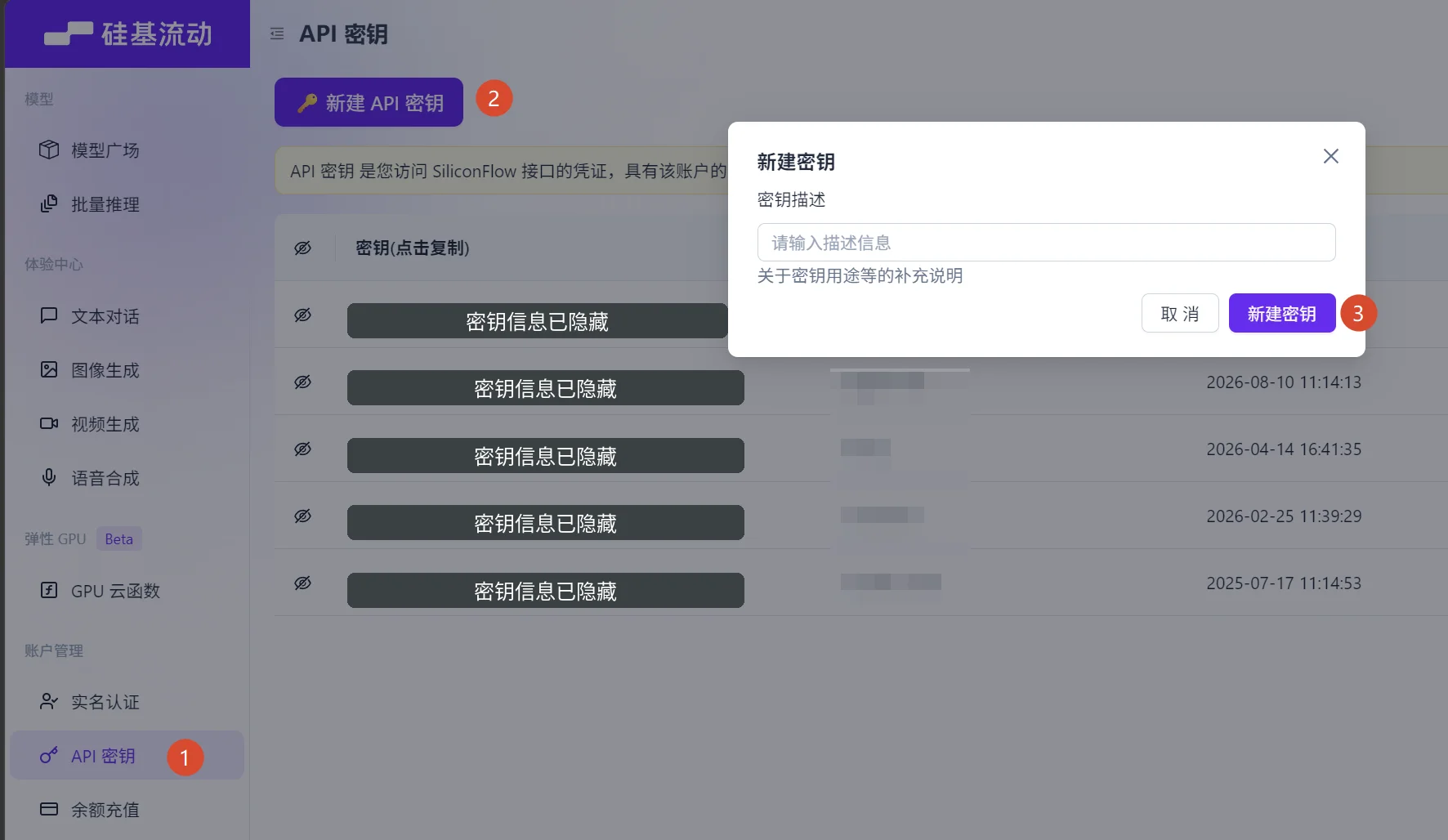
  3. Open the API key management page, click「New API key」, fill in a description (for example, Cube Agent), then click「Create key」. Copy the full key after it is created. For details, see the SiliconFlow quick start.

Invitation bonus: new users who register through the invitation link above and complete identity verification can, once the activity conditions are met, each receive a ¥16 voucher — both you and the inviter. This is a SiliconFlow platform referral reward and is separate from the built-in free models in Cube Agent; eligibility, activity period, and redemption rules are subject to the SiliconFlow referral program and the platform's activity pages.

An API Key is the credential for calling the service. Keep it safe: only paste it into the app's key field, never send it in chat, and never share screenshots or config files that contain the full key.

3.2 Enter the connection details in Cube Agent

Open「Settings」, go to「Provider management」under the「Model configuration」group, and select the regular「SiliconFlow」provider. If you can't find it, search by provider name or check the「Disabled」list.

Choose「SiliconFlow」here, not「SiliconFlow (built-in)」. The built-in entry does not provide editing for personal API Keys.

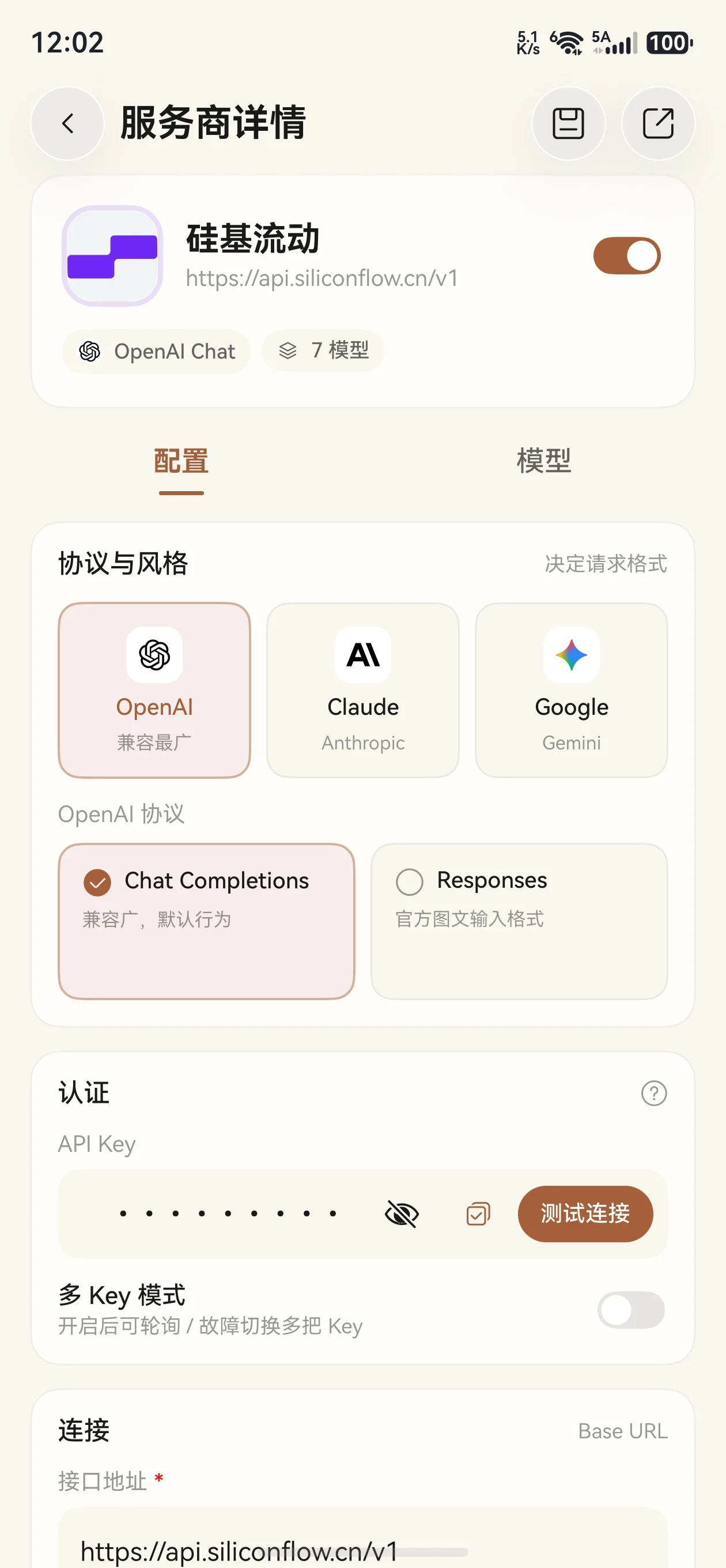
Fill in the following on the provider's「Configuration」tab:

FieldValue
ProtocolKeep the preset OpenAI → Chat Completions configuration
API KeyPaste the full key you just created on the SiliconFlow platform
Endpoint (Base URL)https://api.siliconflow.cn/v1 — usually preset; no change needed
API path (optional)Leave empty to use the default path

The endpoint follows the OpenAI-compatible configuration in the SiliconFlow docs. Do not put the full /chat/completions request URL into the Base URL, and do not add /v1 twice.

After filling it in, tap「Test connection」next to the API Key field. Continue once「Connection successful」appears.

3.3 Fetch models and save

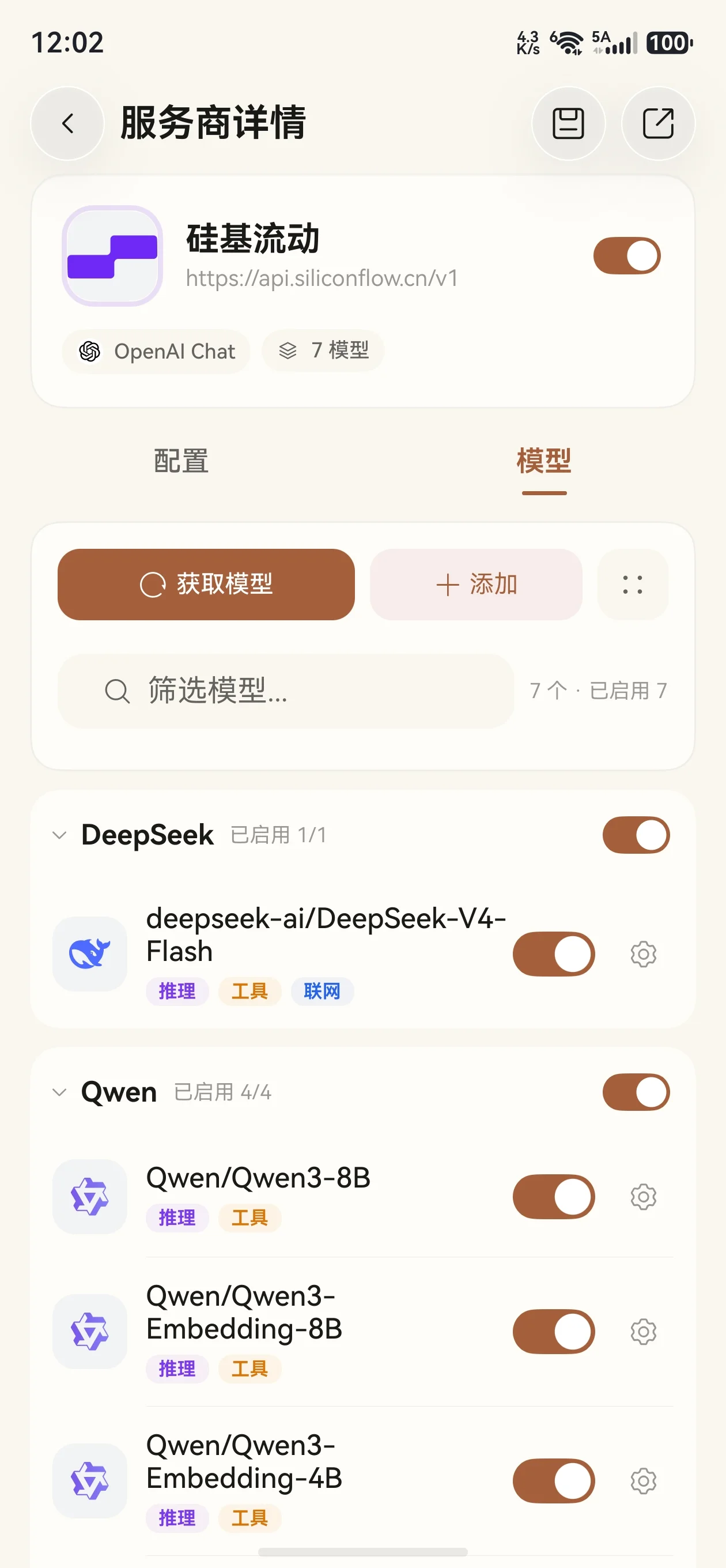
  1. Switch to the provider's「Models」tab and tap「Fetch models」.
  2. In the list, search for and check the chat models you want, then confirm.
  3. Make sure the selected models are enabled and that the「SiliconFlow」provider is enabled.
  4. Tap「Save」(the button or the save icon) to finish.

If a model you need is not in the list, tap「Add」on the「Models」tab and enter the model ID manually. Copy the exact ID from the SiliconFlow model plaza, keeping the organization prefix, casing, and full name — do not use abbreviated display names.

Whether a model can be called still depends on the services currently offered by SiliconFlow and your account permissions; adding a model manually does not grant extra access.

3.4 Verify with a chat

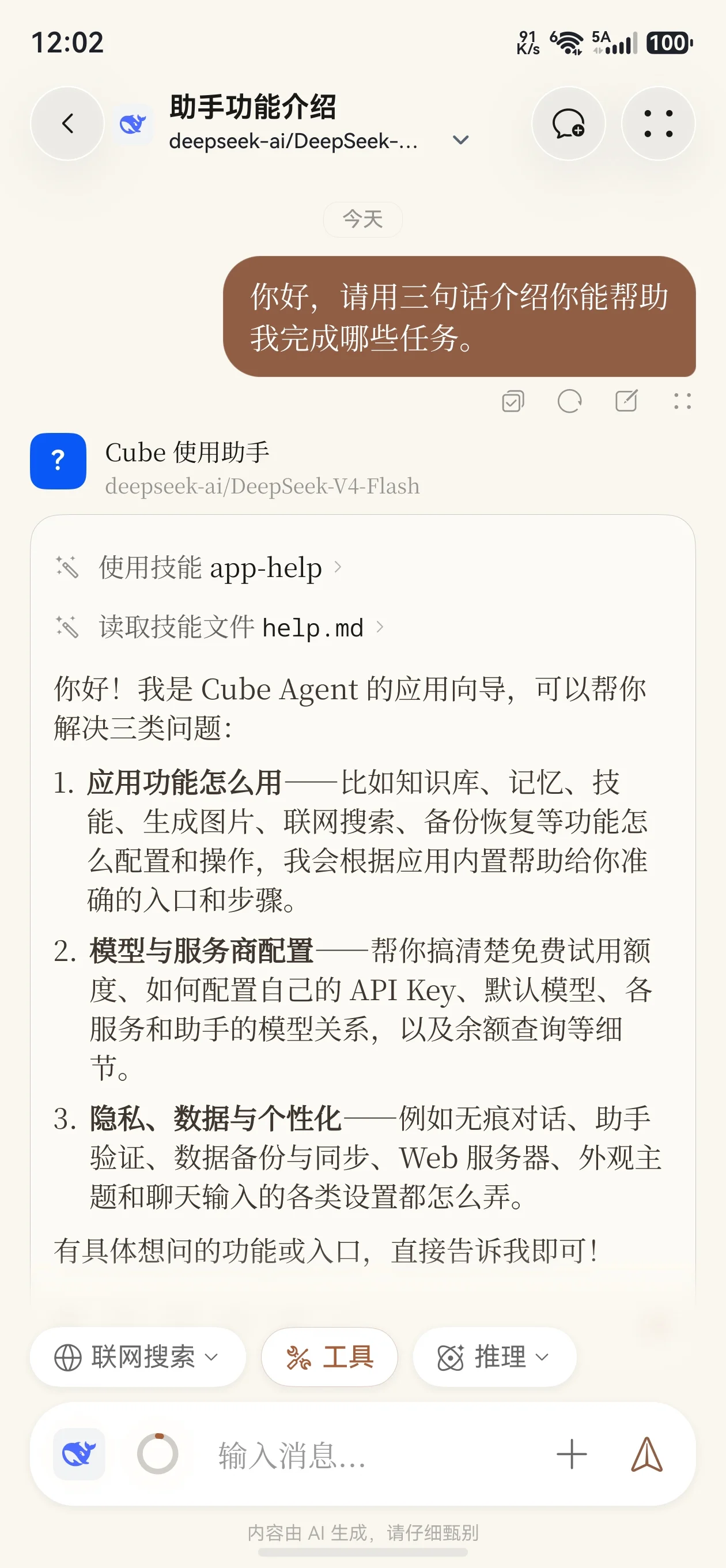
Go back to the chat page, create a new chat, pick the model you just enabled under the regular「SiliconFlow」provider in the model picker, and send:

Hello — in three sentences, describe what you can help me with.

A normal reply means your personal API Key is set up. You can enable more chat models under the same provider and switch between them for different tasks.

When using a personal API Key, requests are processed according to your SiliconFlow account and the rules of the selected models — it does not mean all models on the platform are free. For pricing, access limits, and availability, see the model plaza; billing and usage are subject to the records on the SiliconFlow platform.

4. FAQ

What if I can't see「SiliconFlow (built-in)」?

First make sure you are on an app version that includes the partner free model feature, and that Cube Agent cloud services are connected — not just HUAWEI ID verification. After checking your network, reopen the app to reload the configuration, and check whether the provider has been disabled manually.

After Cube Agent cloud services are disconnected, the built-in partner configuration is removed; reconnecting re-fetches it. Personal API Key configurations are independent and do not need to be moved into the built-in entry.

Are「SiliconFlow (built-in)」and the app's「Free model trial」the same service?

No. This guide covers the「SiliconFlow (built-in)」partner free models, which are a different service from the separate「Free model trial」quota in the app. Check the model catalog and instructions for the provider you have selected, and do not mix up the quotas or rules of the two.

What if the API key test or a chat fails?

First check that the API Key is complete, that the Base URL is https://api.siliconflow.cn/v1, and that the model ID is correct. A 401 usually means a key problem; a 403 points to identity verification or access permissions; a 429 means slowing down and retrying later. For model unavailability, account balance, or other messages, follow the specific error returned by the platform.

See SiliconFlow API error troubleshooting for more.

Why is chat still using my old model after saving?

Saving the provider configuration does not switch the model of the current chat. Reopen the model picker in the chat page and make sure the target provider and model are selected. This matters especially when both SiliconFlow entries are kept side by side — distinguish「SiliconFlow (built-in)」from the personal-key「SiliconFlow」.