Financial
Finance-related FAQs including balance top-up, consumption records, refund policy, and voucher usage.
1. How to recharge
- Log in to the SiliconFlow website via your computer.
- Click on the left sidebar "Real-name Authentication" to complete the authentication.
- Click on the left sidebar "Balance Recharge" to recharge.
The platform offers three balance recharge methods: Online Recharge, Alipay Auto-Recharge, and Corporate Bank Transfer.
Online Recharge
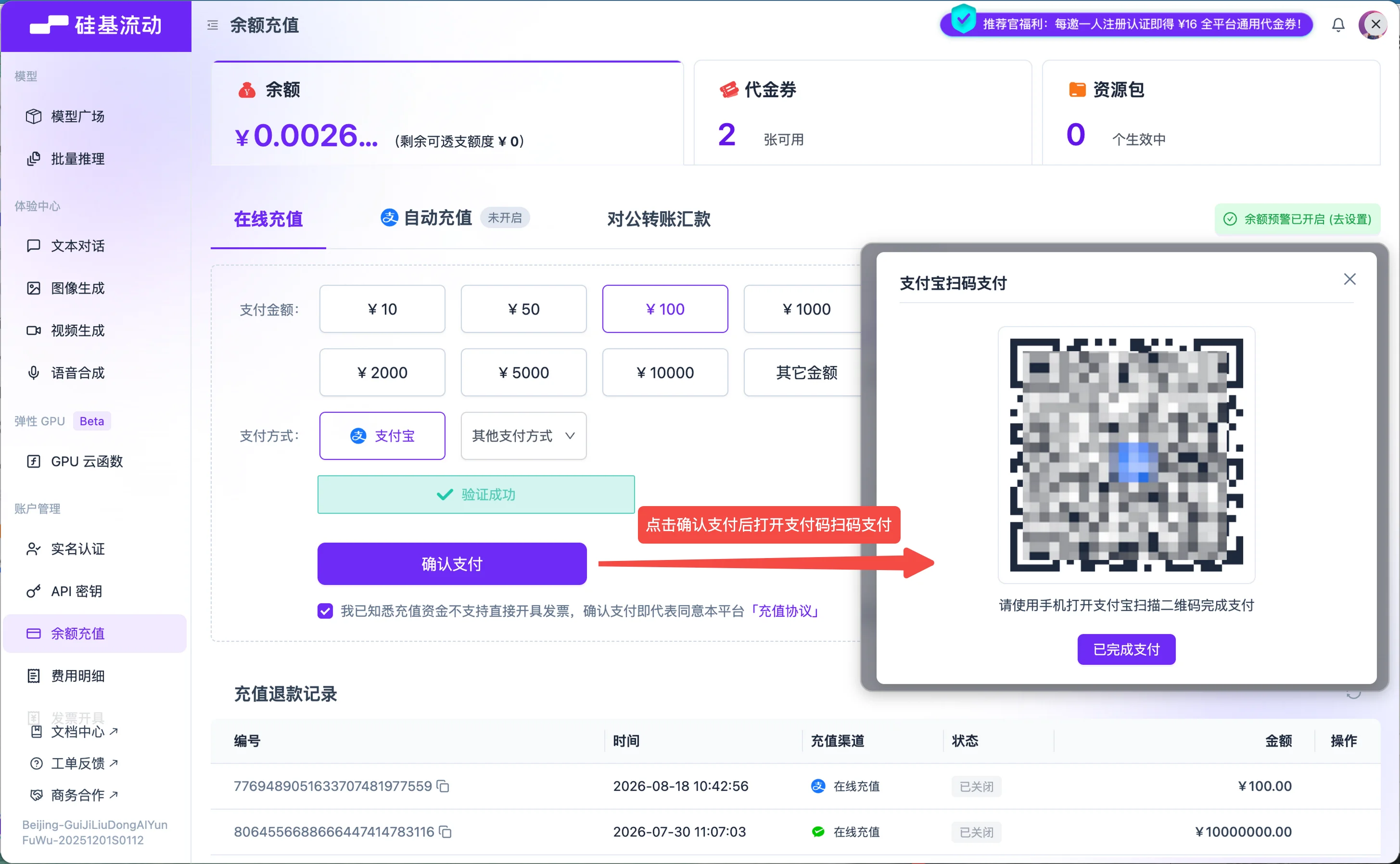
Online recharge is suitable for small to medium instant top-ups (maximum ¥100,000 per transaction). On desktop, a payment QR code is displayed for you to scan with your phone; on mobile, you will be redirected to a third-party payment app to complete the payment.
Steps
- On the balance recharge page, switch to the Online Recharge tab
- Select Payment Amount: choose from preset amounts or click "Other Amount" to enter a custom value
- Select Payment Method:
- Alipay
- Other payment methods (currently supports WeChat Pay)
- Complete security verification (click the "Click to verify" area)
- Check the box "I acknowledge that recharged funds cannot be directly invoiced, and by confirming payment I agree to the platform's Recharge Agreement"
- Click Confirm Payment:
- Desktop: The system generates a payment QR code. Scan it with Alipay or WeChat to complete the payment
- Mobile: The system automatically redirects to the corresponding third-party payment app. Follow the prompts to complete the payment
- After successful payment, the recharged amount will be credited to your account balance in real time

Notes
- If you encounter issues during payment, please check your network connection or try a different payment method
- If your balance is not updated promptly after a successful payment, please refresh the page later
Alipay Auto-Recharge
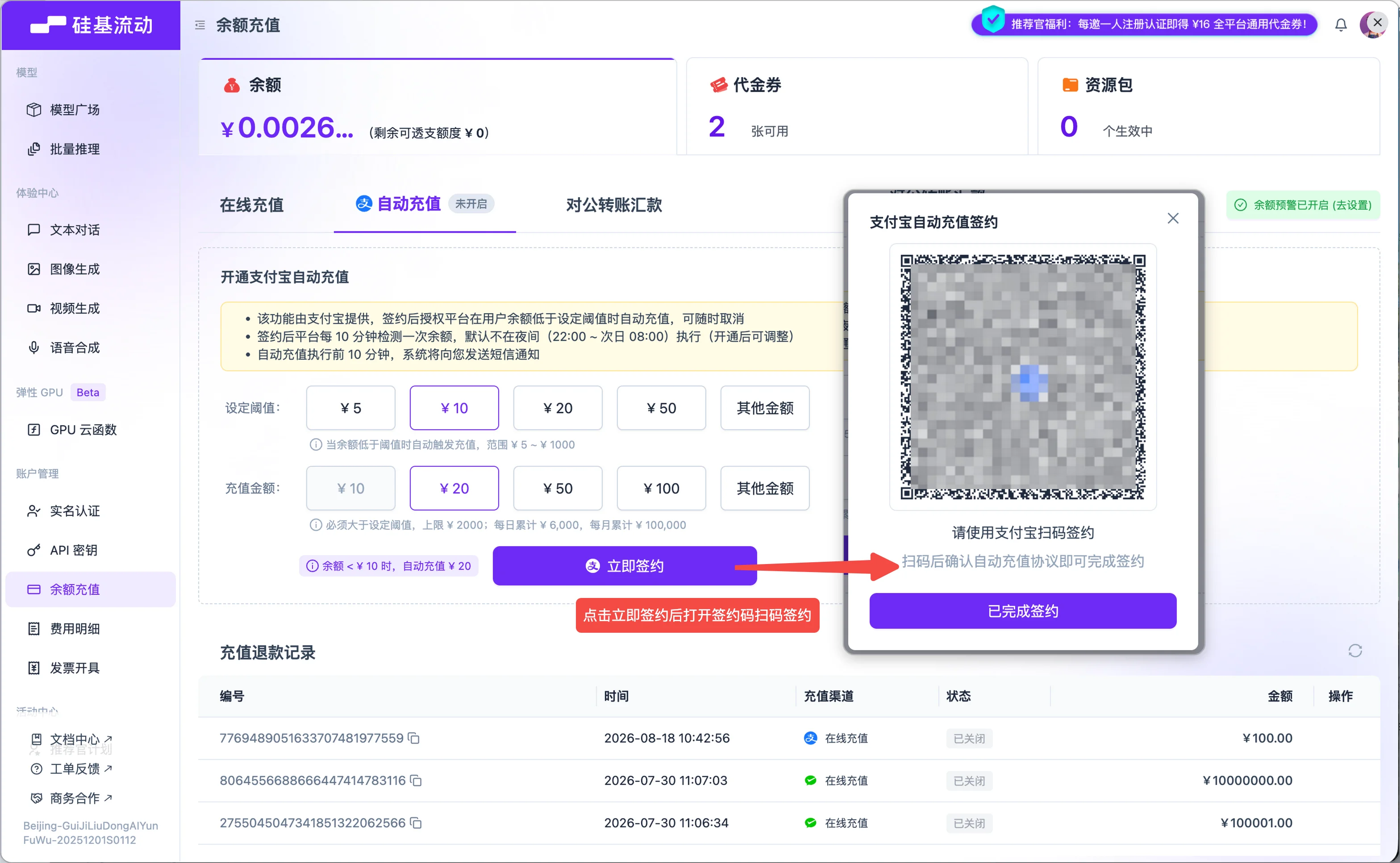
Alipay Auto-Recharge is a signing service provided by Alipay. Once enabled, the platform will automatically initiate a recharge when your account balance falls below a set threshold, requiring no manual operation. It can be canceled at any time.
Auto-Recharge Rules
- After signing, the platform checks your balance every 10 minutes
- When the balance falls below the set threshold, a recharge is automatically triggered
- Auto-recharge limits: ¥2,000 per transaction, ¥6,000 daily, ¥100,000 monthly
- Does not execute during nighttime (22:00 ~ 08:00) by default; can be adjusted in settings after activation
- The system sends an SMS notification 10 minutes before auto-recharge is executed
- Auto-recharge can be canceled at any time
Steps
- On the balance recharge page, switch to the Auto-Recharge tab
- Select Threshold and Recharge Amount
- Threshold: Choose from preset options or click "Other Amount" to customize, range: ¥5 ~ ¥1,000
- Auto-Recharge Amount: Choose from preset options or "Other Amount" to customize; must be greater than the threshold and less than ¥2,000
- Confirm the trigger rule displayed at the bottom of the page (e.g., when balance < ¥10, auto-recharge ¥20)
- Click Sign Now
- Scan the QR code with Alipay to complete the signing authorization
- Once signed, the auto-recharge feature is activated

Notes
- Auto-recharge is linked to your Alipay account. Please ensure sufficient balance in your Alipay account
- To adjust the threshold or recharge amount, cancel the existing contract first, then sign a new one
- If a deduction fails, auto-recharge will automatically stop. You need to manually cancel and re-sign
- After canceling, auto-recharge stops immediately; deductions already initiated are not affected
Corporate Bank Transfer
Corporate bank transfer is suitable for large-amount recharges by enterprise users (maximum ¥100 million per transaction). You must first complete enterprise authentication, create an order, then transfer funds to the platform's designated corporate account. After payment confirmation, the system automatically credits the amount to your account balance.
Steps
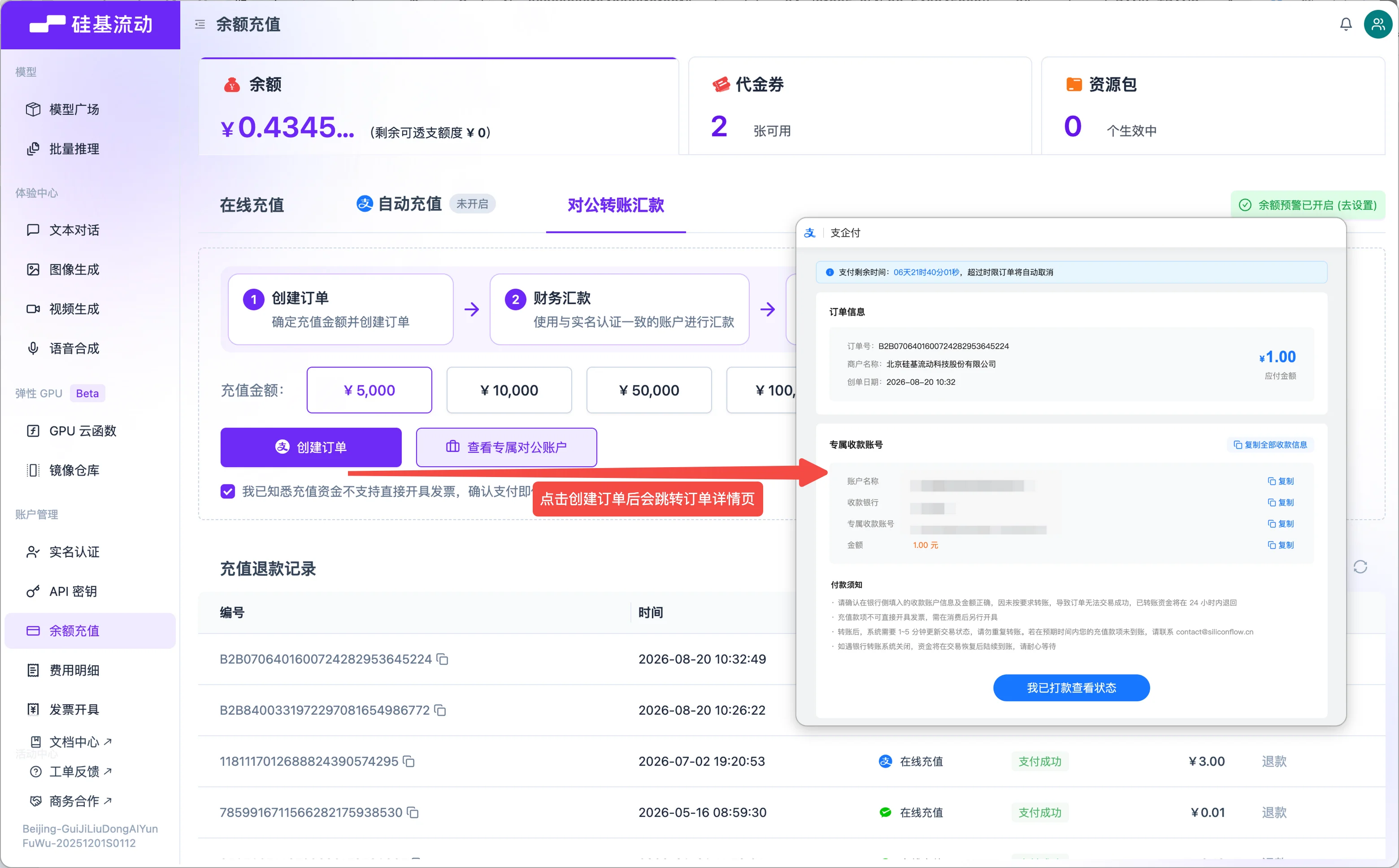
- On the balance recharge page, switch to the Corporate Bank Transfer tab
- Confirm that enterprise authentication is completed and the remitting account name matches the authenticated entity name
- Select Recharge Amount: choose from preset amounts or click "Other Amount" to customize
- Check the box "I acknowledge that recharged funds cannot be directly invoiced, and by confirming payment I agree to the platform's Recharge Agreement"
- Click Create Order
- The system redirects to the order detail page, displaying:
- Order number, merchant name, order creation date, payable amount
- Dedicated receiving account information (account name, bank name, account number, amount)
- Remaining payment time (orders must be paid within the validity period; overdue orders are automatically canceled)
- Click "Copy All Receiving Information" or copy item by item. You can also share the order link directly with your finance team for bank transfer
- After the transfer is completed, the system will update the transaction status within 1~5 minutes

Notes
- Before transferring to the dedicated corporate account, you must create an order first. The payment amount must exactly match the order amount
- Please use a bank account whose name matches the authenticated entity name for the transfer; otherwise, the recharge will fail
- If the transfer fails due to a change in the enterprise authentication name, please contact contact@siliconflow.cn
- After the transfer, the system typically takes 1~5 minutes to update the transaction status. Please do not transfer repeatedly
- If an order transaction fails due to non-compliant transfer, the transferred funds will usually be refunded within 24 hours
- If the bank transfer system is closed, funds will arrive after transactions resume. Please be patient
- If the recharge has not arrived within the expected time, please contact contact@siliconflow.cn
2. How to query usage bills
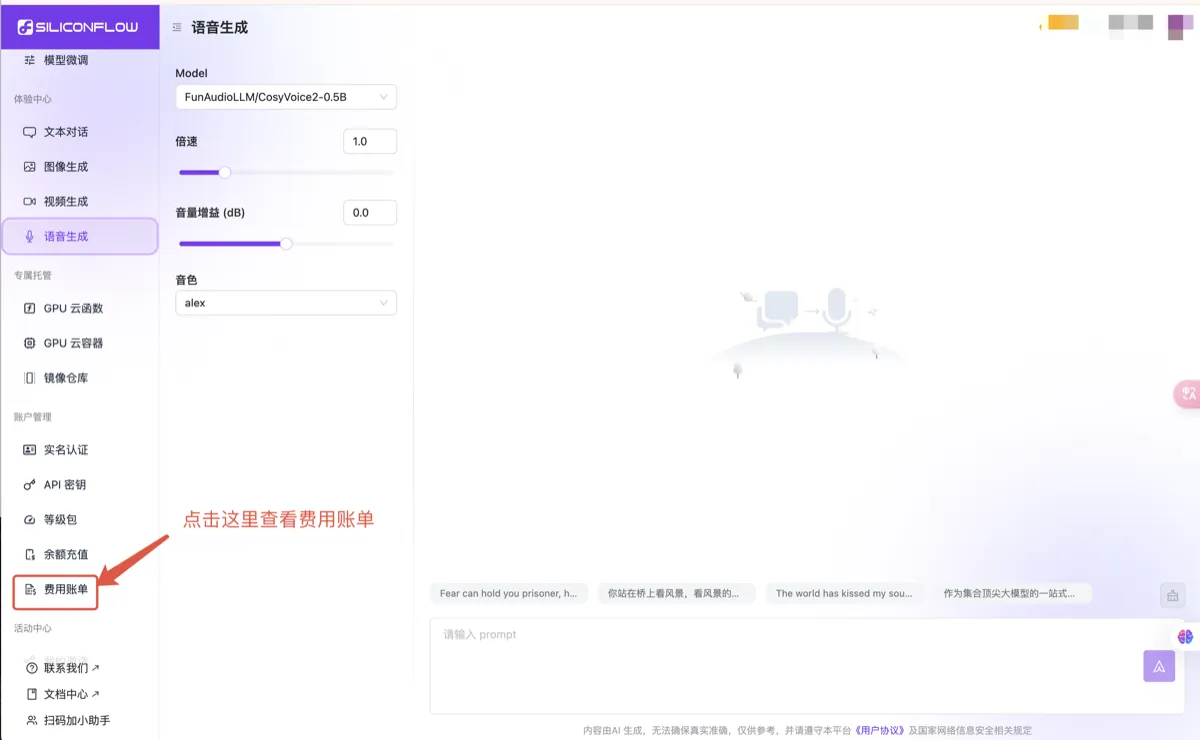
- Log in to the SiliconFlow website via your computer.
- Click on the left sidebar "Expense Bills" to view the details.
If you need an invoice, please send an email according to the Invoice Issuance guidelines, and we will issue an invoice based on your actual consumption.

3. Billing rules for model fine-tuning
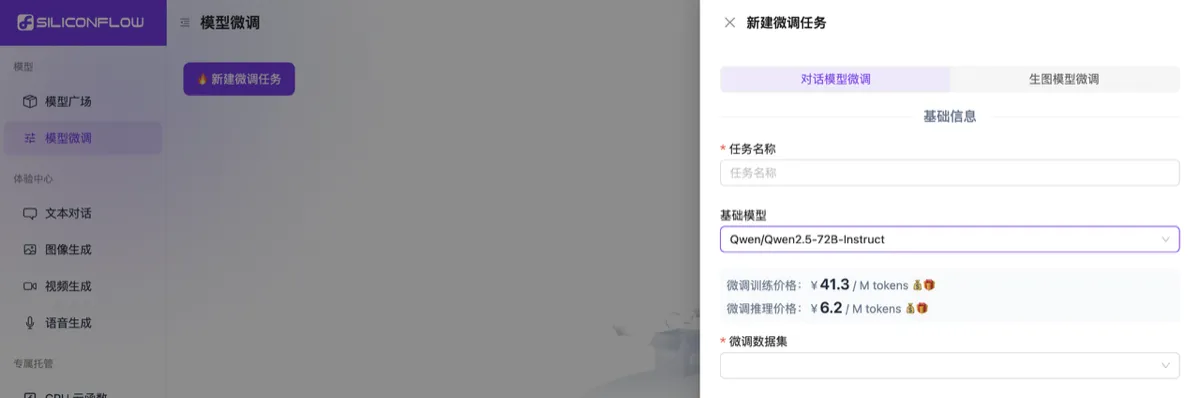
The model fine-tuning feature is billed separately for training and inference scenarios. To view the costs, go to Model Fine-tuning - Create a new fine-tuning task, select the desired "Base Model," and the page will display the corresponding "Fine-tuning Training Price" and "Fine-tuning Inference Price."