> ## Documentation Index
> Fetch the complete documentation index at: https://docs.siliconflow.cn/llms.txt
> Use this file to discover all available pages before exploring further.
# ToMemo
> Updated: February 18, 2025
ToMemo is a multifunctional app that combines a quick-access keyboard, clipboard history, and smart phrase shortcuts. It helps you quickly retrieve and input frequently used information such as email addresses, shipping addresses, ID numbers, and invoice headers.
## Adding SiliconFlow as a Provider
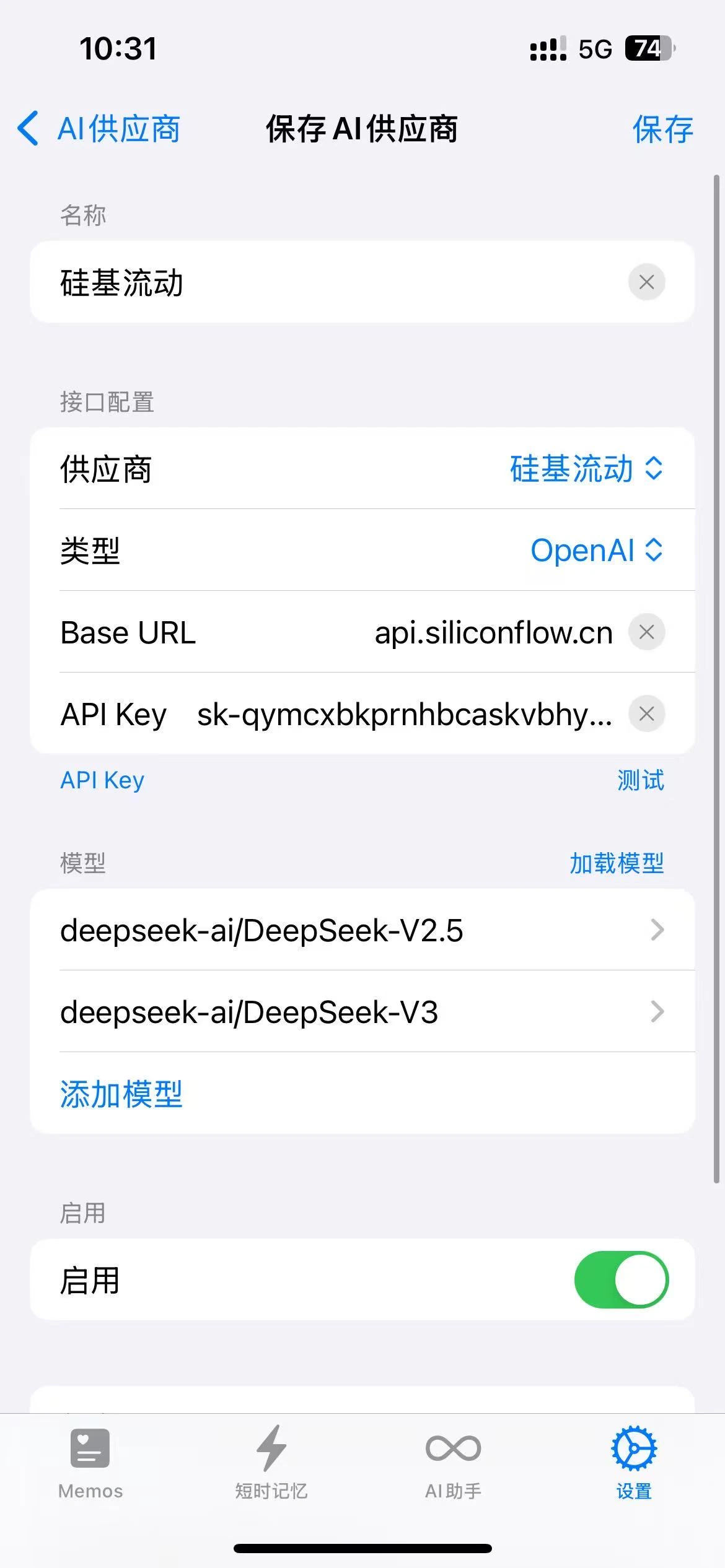
After entering the add page, directly click the "Provider" option and select SiliconFlow. This will automatically fill in the name, Base URL, and API type.
 ## Getting the SiliconFlow API Key
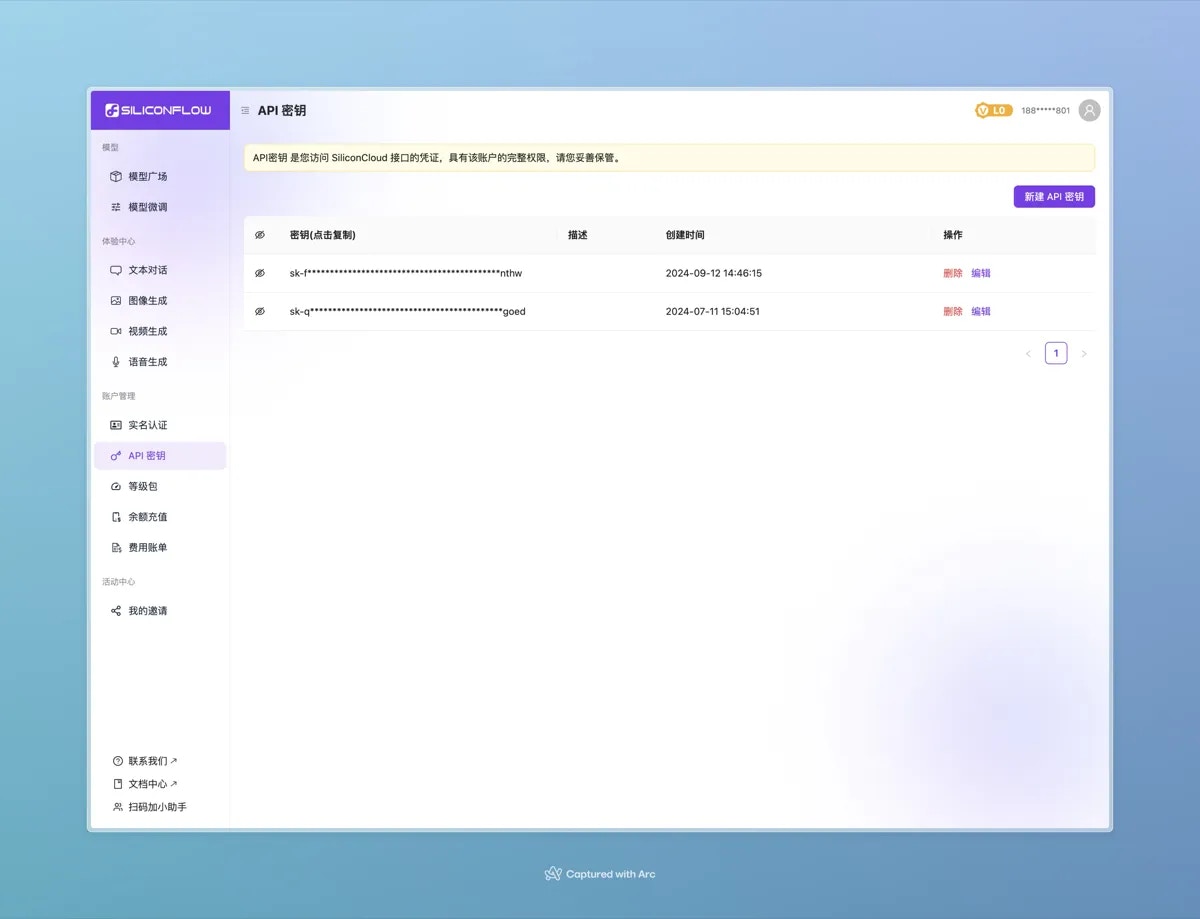
The link to get the SiliconFlow API Key: [Click to open](https://cloud.siliconflow.cn/account/ak)
After clicking, log in to access the page shown below.
Click the "Create API Key" button and follow the steps to create your key.
Be sure to **copy the API key** and store it safely.
## Getting the SiliconFlow API Key
The link to get the SiliconFlow API Key: [Click to open](https://cloud.siliconflow.cn/account/ak)
After clicking, log in to access the page shown below.
Click the "Create API Key" button and follow the steps to create your key.
Be sure to **copy the API key** and store it safely.
 ### Pulling Models
Enter the API Key you obtained into the API Key input field on this page.
Click the "Pull Models" button, and the models will be automatically fetched.
### Pulling Models
Enter the API Key you obtained into the API Key input field on this page.
Click the "Pull Models" button, and the models will be automatically fetched.
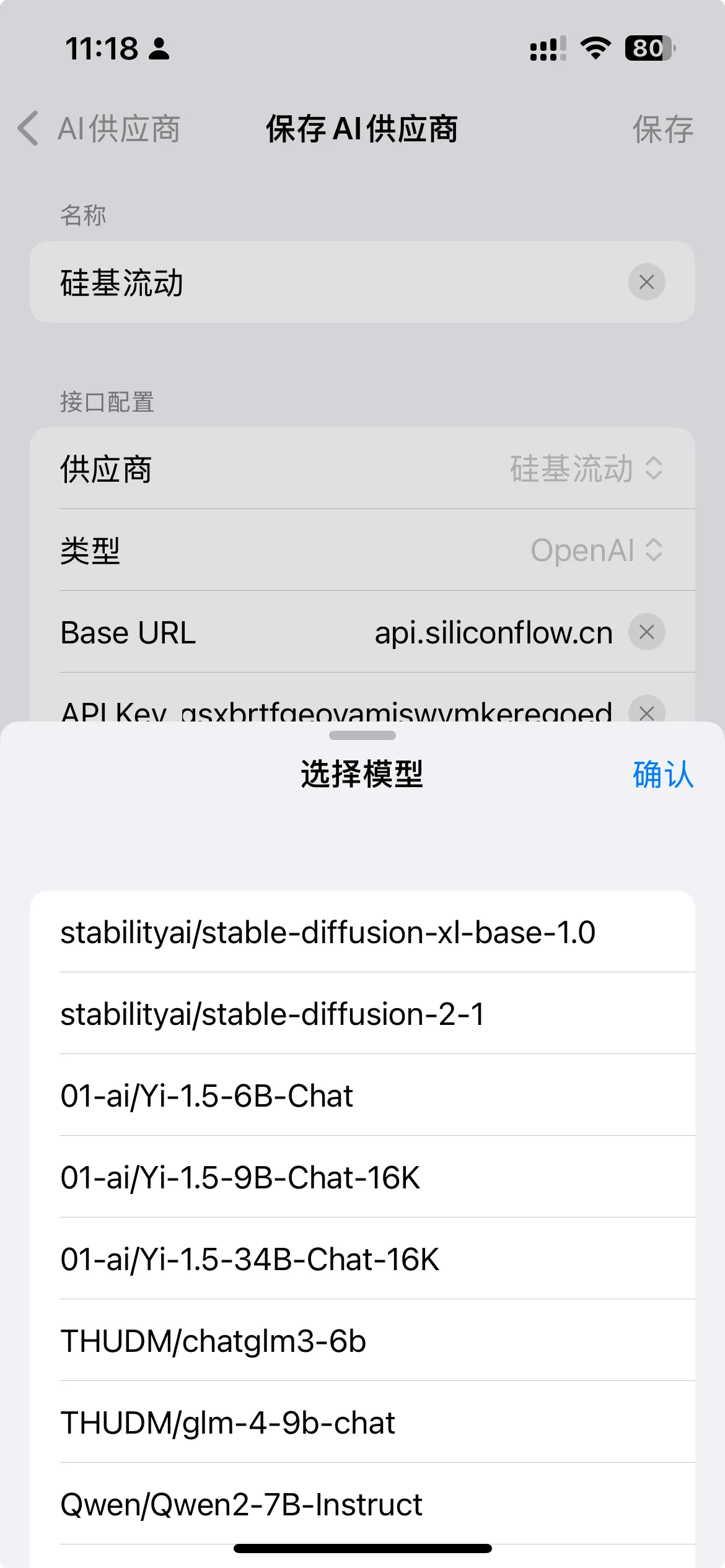 Then, choose the model you want to load, and click the "Save" button to complete the integration of SiliconFlow.
💡
**Tip**
Make sure to choose a text generation model, as the app currently does not support image input and output.
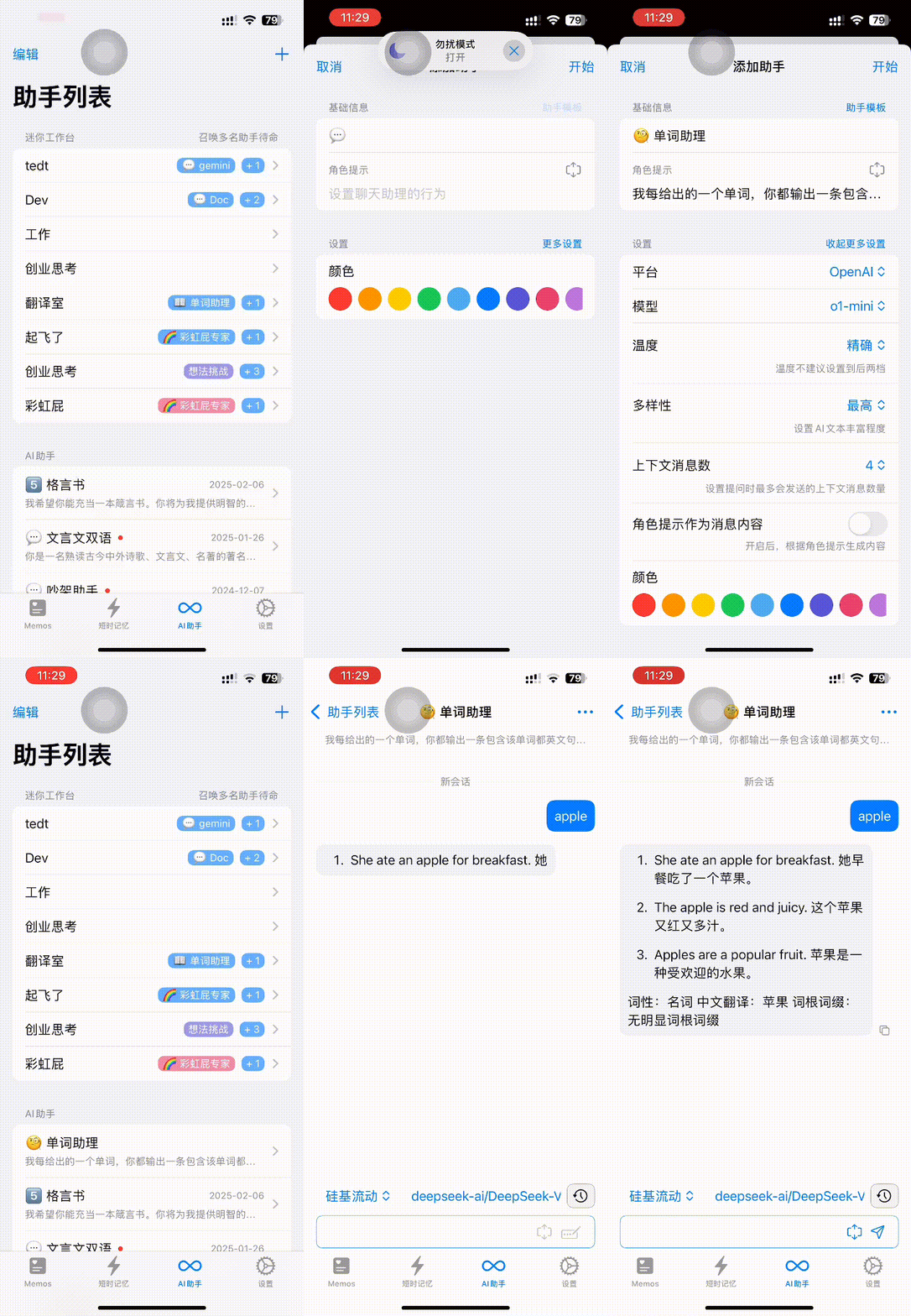
## Adding Word Assistant 🤓
Go to the "AI Assistant" page to start adding an AI assistant.
We will add the "Word Assistant 🤓" from the template.
Then, choose the model you want to load, and click the "Save" button to complete the integration of SiliconFlow.
💡
**Tip**
Make sure to choose a text generation model, as the app currently does not support image input and output.
## Adding Word Assistant 🤓
Go to the "AI Assistant" page to start adding an AI assistant.
We will add the "Word Assistant 🤓" from the template.
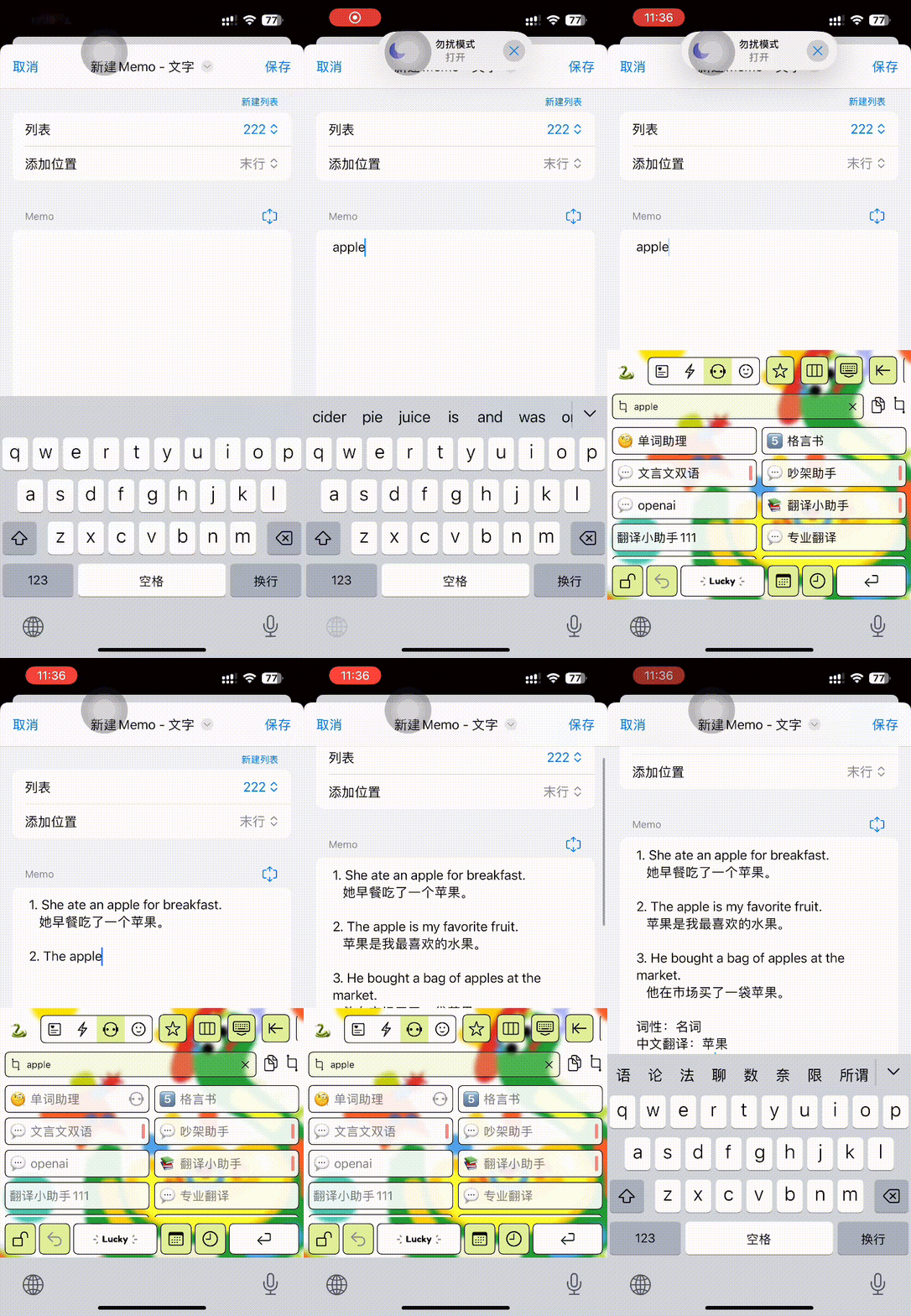
 ## Word Assistant 🤓 in the Keyboard
To use the "Word Assistant" in the keyboard, you need to first add the "Word Assistant" in the "AI Assistant" section.
## Word Assistant 🤓 in the Keyboard
To use the "Word Assistant" in the keyboard, you need to first add the "Word Assistant" in the "AI Assistant" section.