> ## Documentation Index
> Fetch the complete documentation index at: https://docs.siliconflow.cn/llms.txt
> Use this file to discover all available pages before exploring further.
# Refly
> Updated: July 23, 2025
[Refly](https://github.com/refly-ai/refly) is an **open-source AI workspace** supporting MCP, workflows, and agents. It is designed to transform creative ideas into reusable/shareable workflows, producing high-quality documents, slides, knowledge pages, and more.
> This guide explains how to use model capabilities provided by SiliconFlow in Refly.
## Accessing Refly
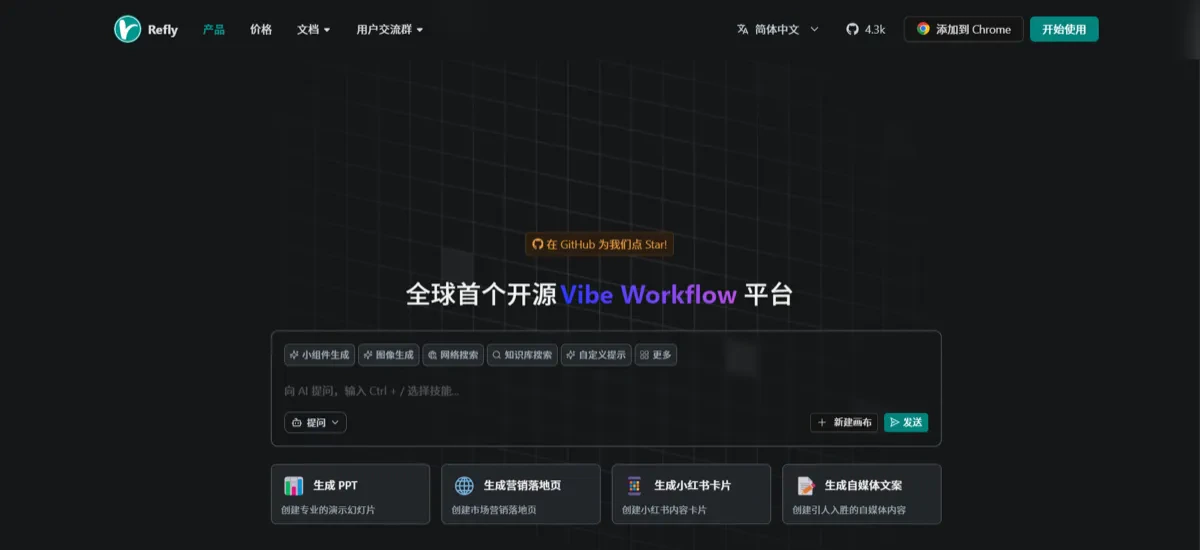 Visit [refly.ai](https://refly.ai) to register and log into your account to begin using Refly’s powerful AI workspace. The platform is fully web-based—no installation required—and supports the creation and management of multiple AI models and workflows. For the best experience, use the latest version of Chrome or Edge.
### Click to Get Started
Visit [refly.ai](https://refly.ai) to register and log into your account to begin using Refly’s powerful AI workspace. The platform is fully web-based—no installation required—and supports the creation and management of multiple AI models and workflows. For the best experience, use the latest version of Chrome or Edge.
### Click to Get Started
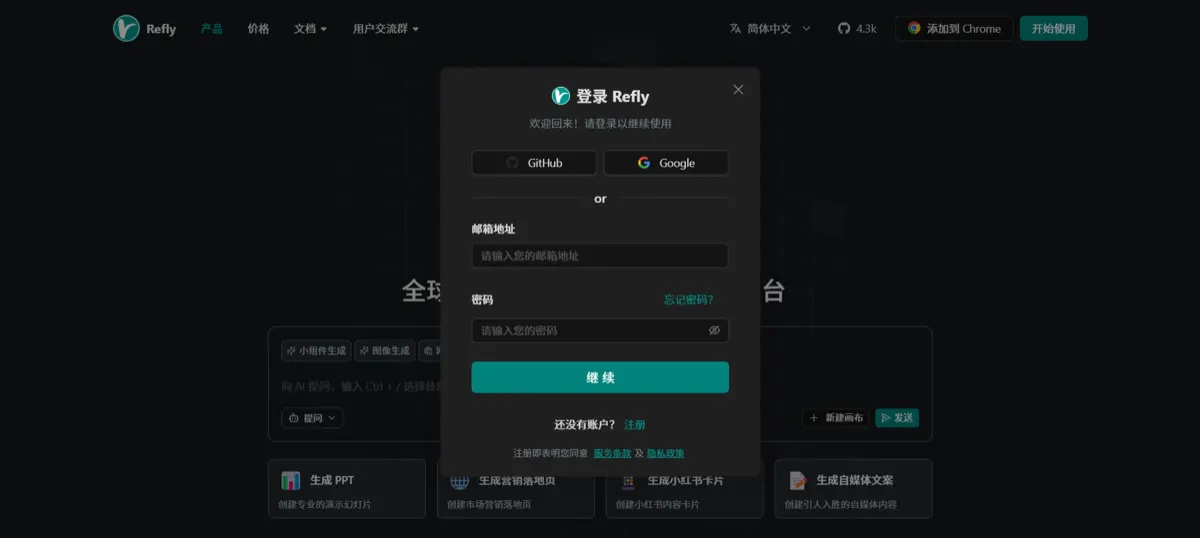 > Choose your login method
## Configuring SiliconFlow
### Step 1: Go to the Settings Page
> Choose your login method
## Configuring SiliconFlow
### Step 1: Go to the Settings Page
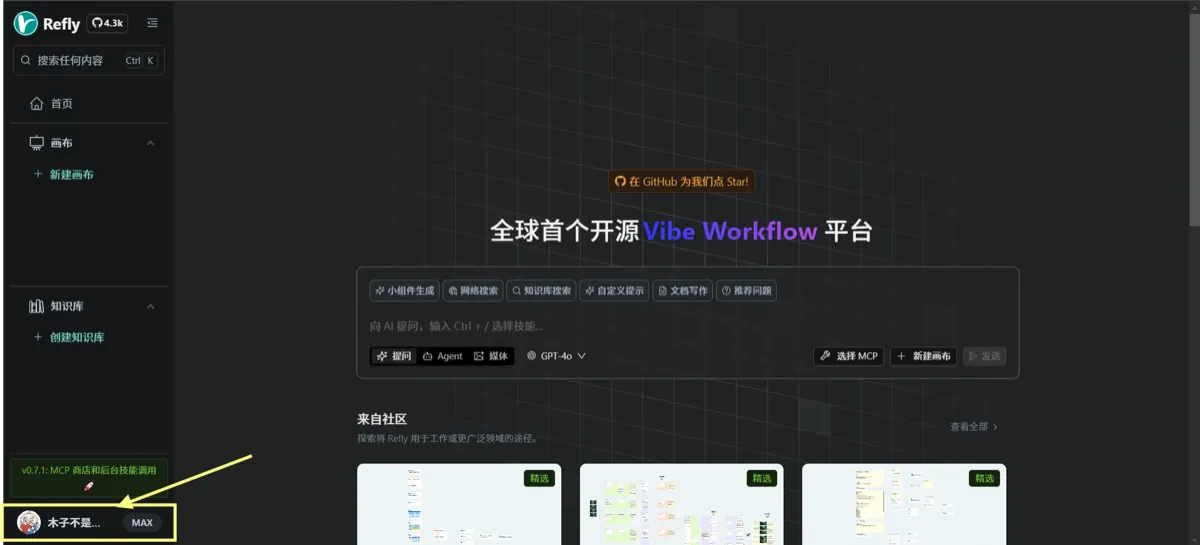 After logging into Refly, click your avatar at the bottom of the left sidebar to open your personal settings.
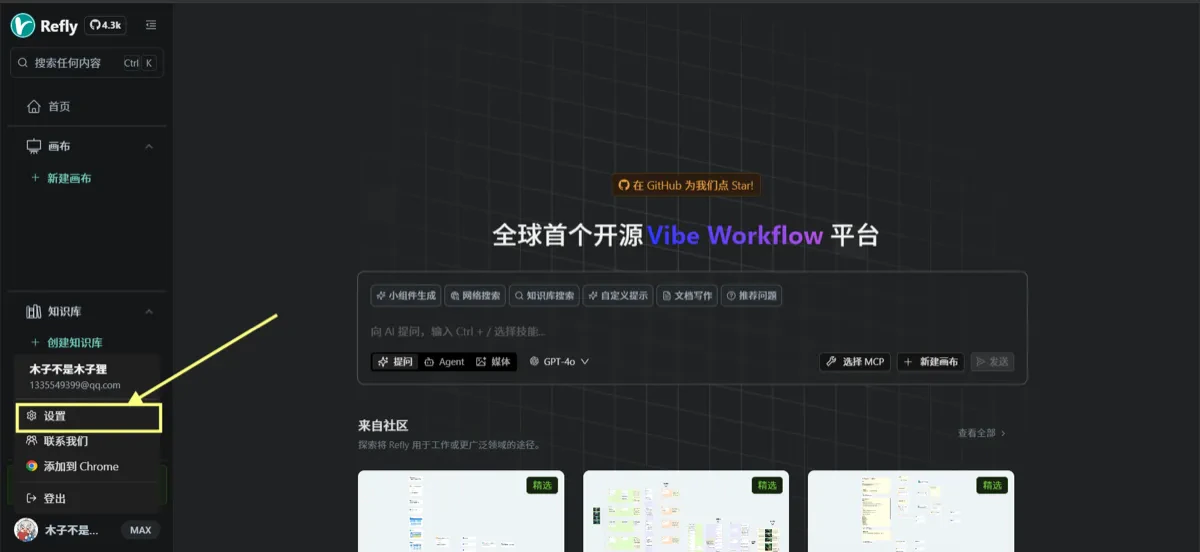 In the personal settings page, click the “Settings” option to access system configuration.
### Step 2: Access the Vendor Store
In the personal settings page, click the “Settings” option to access system configuration.
### Step 2: Access the Vendor Store
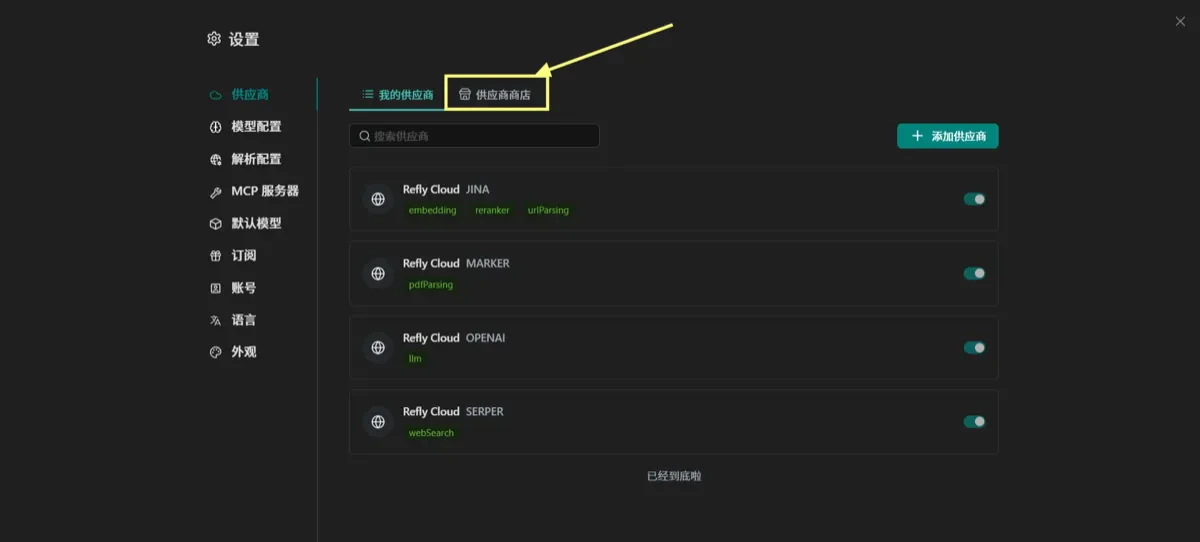 In the settings panel, click “Vendors” in the sidebar, then switch to the “Vendor Store” tab in the main content area. Here you'll find all available AI model providers.
### Step 3: Install SiliconFlow
In the settings panel, click “Vendors” in the sidebar, then switch to the “Vendor Store” tab in the main content area. Here you'll find all available AI model providers.
### Step 3: Install SiliconFlow
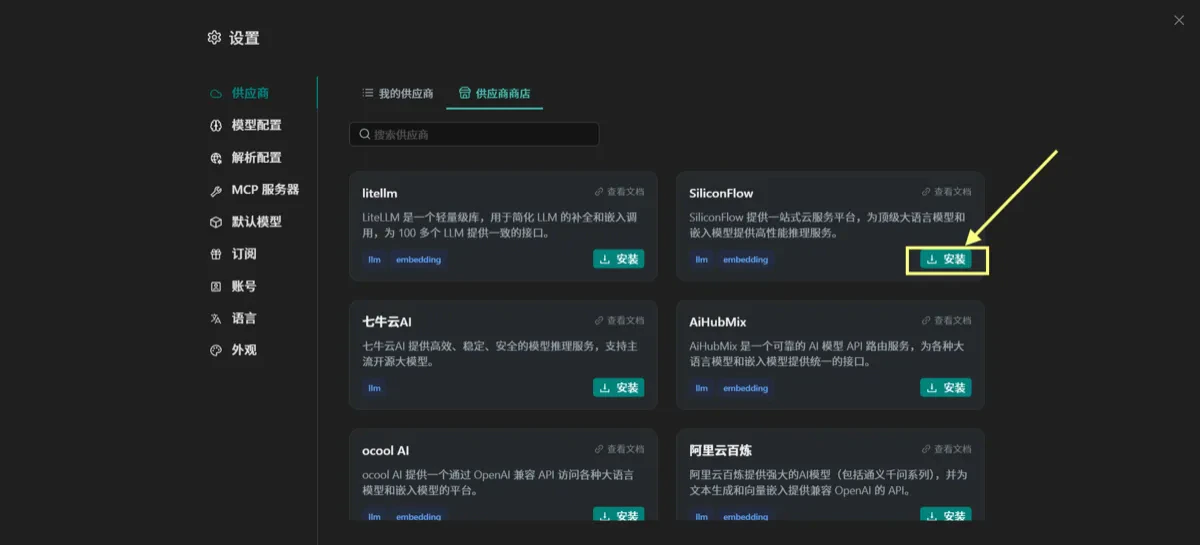 Locate the **SiliconFlow** card in the Vendor Store and click the “Install” button. SiliconFlow offers a unified cloud platform providing high-performance inference for top-tier LLMs and embedding models.
### Step 4: Configure the API Key
Locate the **SiliconFlow** card in the Vendor Store and click the “Install” button. SiliconFlow offers a unified cloud platform providing high-performance inference for top-tier LLMs and embedding models.
### Step 4: Configure the API Key
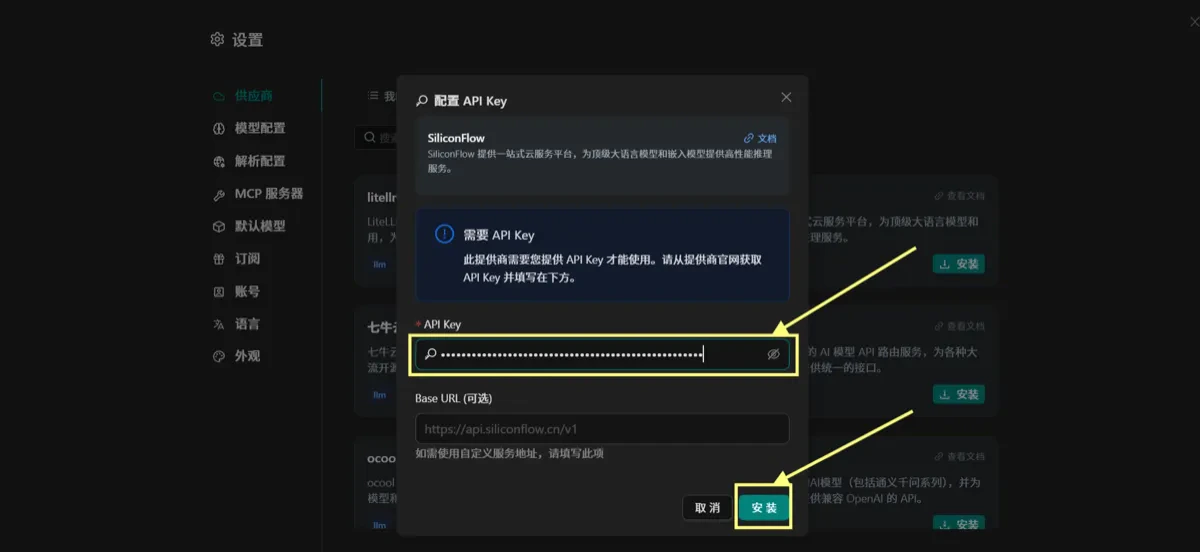
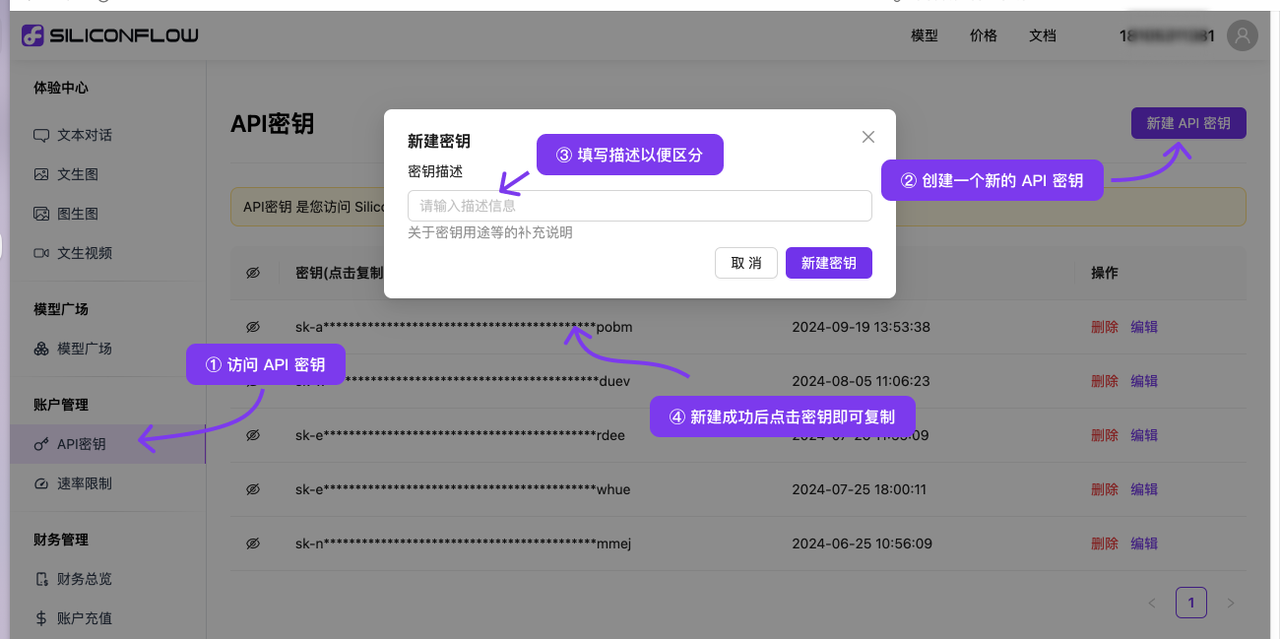 After installation, a dialog will prompt you to configure the API key:
1. **Get the API Key**: Visit SiliconFlow’s official website to retrieve your key
2. **Enter the API Key**: Paste the key into the input field
3. **Base URL (optional)**: Defaults to `https://api.siliconflow.cn/v1`; change it only if you use a custom endpoint
4. **Click Install**: After confirming, click the “Install” button
### Step 5: Verify Successful Installation
After installation, a dialog will prompt you to configure the API key:
1. **Get the API Key**: Visit SiliconFlow’s official website to retrieve your key
2. **Enter the API Key**: Paste the key into the input field
3. **Base URL (optional)**: Defaults to `https://api.siliconflow.cn/v1`; change it only if you use a custom endpoint
4. **Click Install**: After confirming, click the “Install” button
### Step 5: Verify Successful Installation
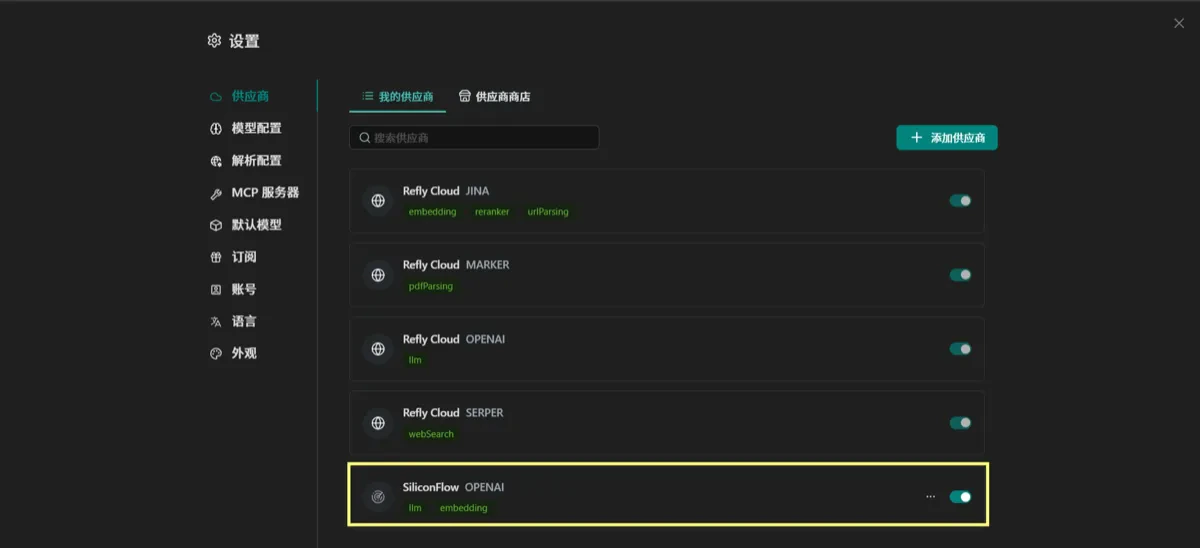 After successful installation, you’ll see **"SiliconFlow OPENAI"** listed under “My Vendors,” with the toggle set to enabled.
### Step 6: Configure the Model
After successful installation, you’ll see **"SiliconFlow OPENAI"** listed under “My Vendors,” with the toggle set to enabled.
### Step 6: Configure the Model
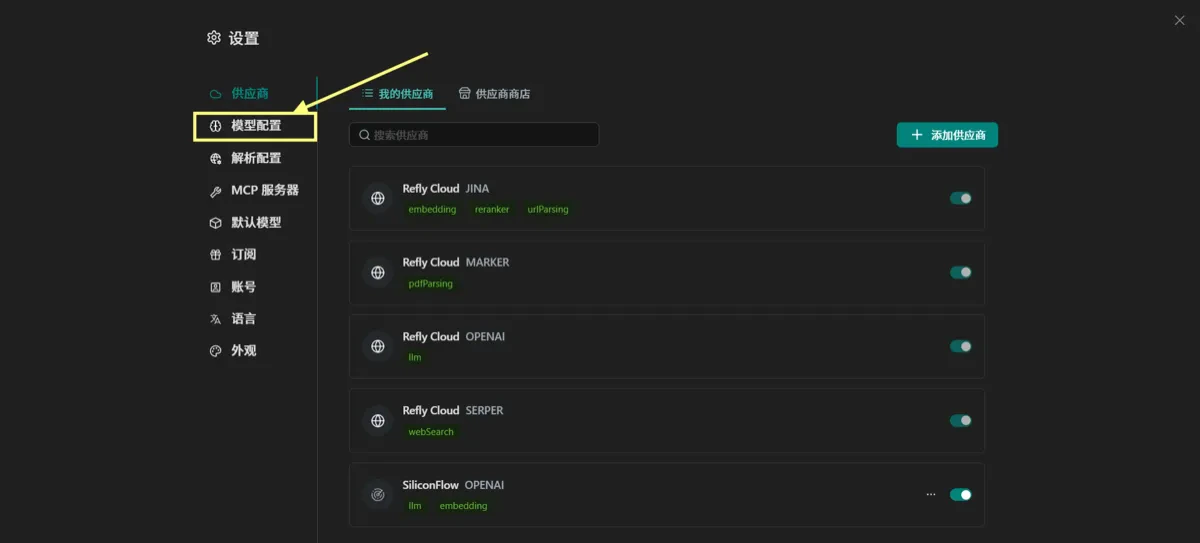 From the left sidebar, click **Model Configuration** to open the model management interface.
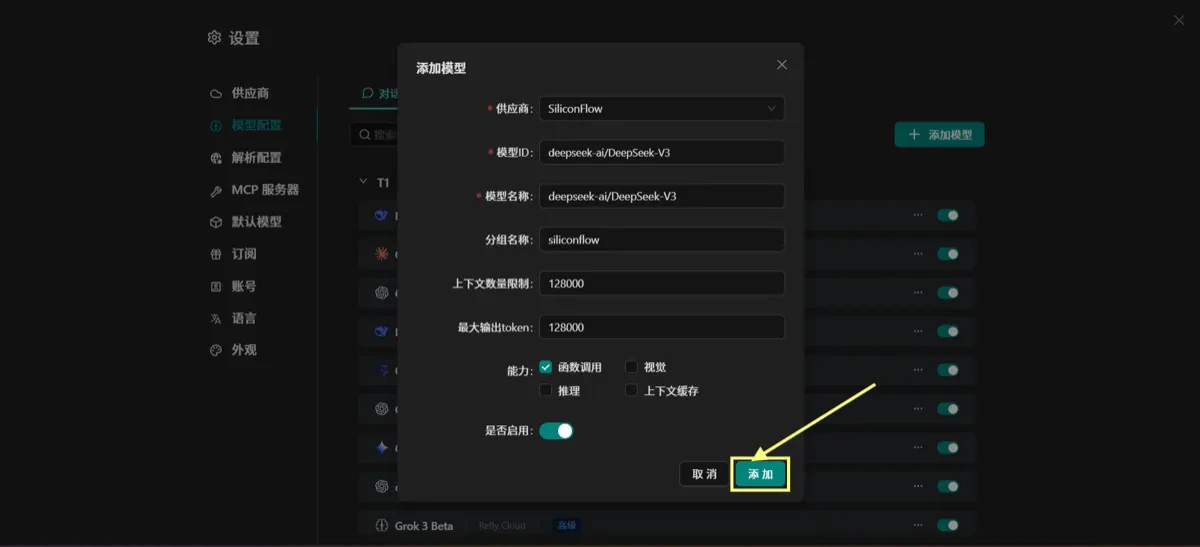 Click the “+ Add Model” button and configure the following:
* **Vendor**: Select "SiliconFlow"
* **Model ID**: `deepseek-ai/DeepSeek-V3`
* **Model Name**: `deepseek-ai/DeepSeek-V3`
* **Group Name**: `siliconflow`
* **Context Limit**: `128000`
* **Max Output Tokens**: `128000`
* **Capabilities**: Check options like “Function Calling”
* **Enabled**: Leave the switch turned on
### Step 7: Understand Model Capabilities
Click the “+ Add Model” button and configure the following:
* **Vendor**: Select "SiliconFlow"
* **Model ID**: `deepseek-ai/DeepSeek-V3`
* **Model Name**: `deepseek-ai/DeepSeek-V3`
* **Group Name**: `siliconflow`
* **Context Limit**: `128000`
* **Max Output Tokens**: `128000`
* **Capabilities**: Check options like “Function Calling”
* **Enabled**: Leave the switch turned on
### Step 7: Understand Model Capabilities
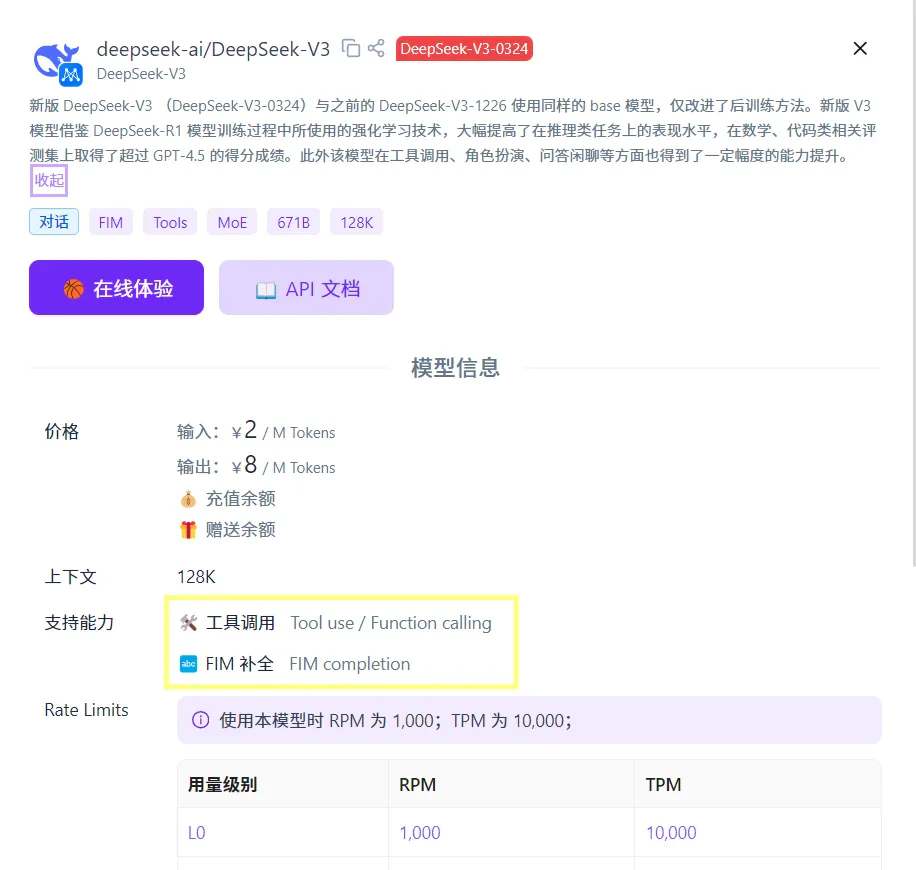 The **DeepSeek-V3-0324** model offers:
* **Pricing**: ¥2/M Tokens for input, ¥8/M Tokens for output
* **Context Window**: 128K tokens
* **Supported Features**:
* Tool calling / Function calling
* FIM (Fill-in-the-middle) completion
* **Rate Limits**:
* RPM: 1,000
* TPM: 10,000
## Recommendations
1. **API Key Security**: Keep your key secure and never share it
2. **Cost Monitoring**: Track API usage to avoid unexpected charges
3. **Model Selection**: Choose the right model and settings based on your use case
4. **Function Testing**: Run basic tests after setup to ensure everything works
## Frequently Asked Questions
**Q: How do I edit a model configuration?**\
**A:** Go to the model configuration page, click the “...” next to the model, then choose “Edit.”
**Q: How do I disable a vendor?**\
**A:** In the vendor list, toggle the switch to off for that provider.
***
Once setup is complete, you can fully utilize SiliconFlow’s powerful AI model capabilities right inside Refly!
The **DeepSeek-V3-0324** model offers:
* **Pricing**: ¥2/M Tokens for input, ¥8/M Tokens for output
* **Context Window**: 128K tokens
* **Supported Features**:
* Tool calling / Function calling
* FIM (Fill-in-the-middle) completion
* **Rate Limits**:
* RPM: 1,000
* TPM: 10,000
## Recommendations
1. **API Key Security**: Keep your key secure and never share it
2. **Cost Monitoring**: Track API usage to avoid unexpected charges
3. **Model Selection**: Choose the right model and settings based on your use case
4. **Function Testing**: Run basic tests after setup to ensure everything works
## Frequently Asked Questions
**Q: How do I edit a model configuration?**\
**A:** Go to the model configuration page, click the “...” next to the model, then choose “Edit.”
**Q: How do I disable a vendor?**\
**A:** In the vendor list, toggle the switch to off for that provider.
***
Once setup is complete, you can fully utilize SiliconFlow’s powerful AI model capabilities right inside Refly!