> ## Documentation Index
> Fetch the complete documentation index at: https://docs.siliconflow.cn/llms.txt
> Use this file to discover all available pages before exploring further.
# ComfyUI 提示词小助手
> Updated: September 5, 2025
## 1. About ComfyUI Prompt Assistant
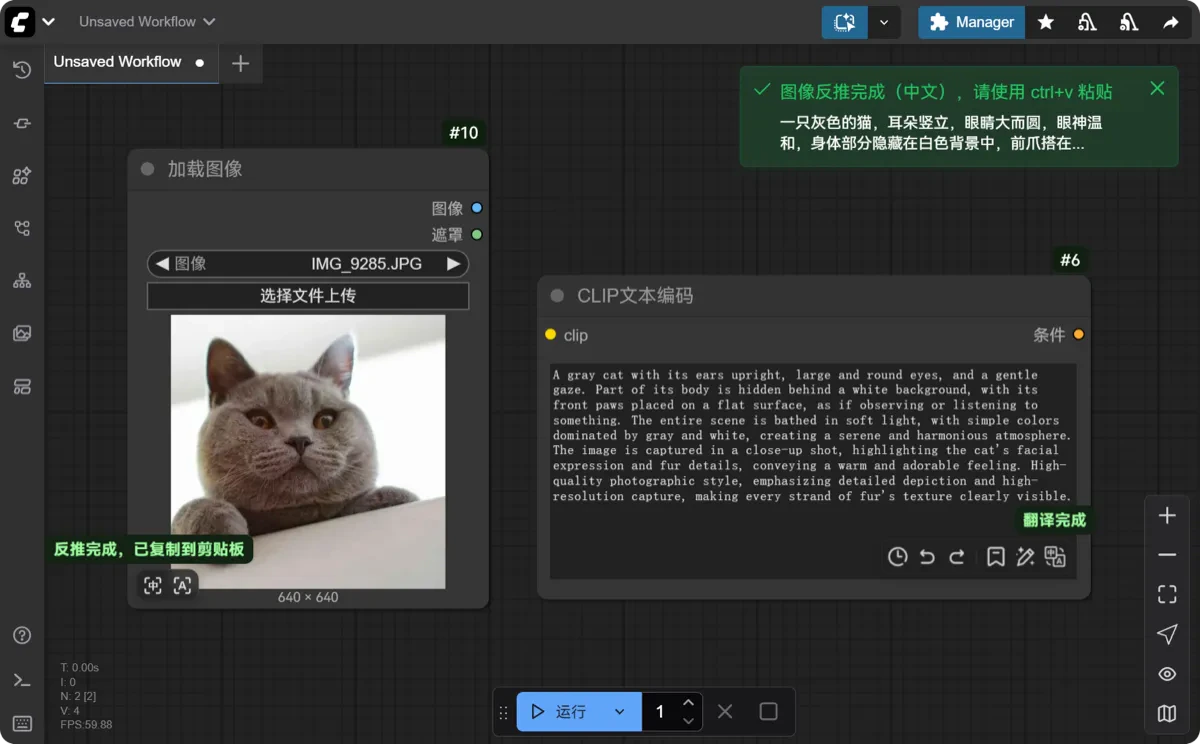
The Prompt Assistant is a very popular extension in ComfyUI. With the help of large model APIs provided by cloud service platforms such as SiliconFlow, it enables seamless prompt translation, expansion & refinement, and reverse-prompting from images directly within ComfyUI. It’s an essential tool for learning and using ComfyUI.
### Core Features
**Prompt Translation**: Instantly translate prompts between Chinese and English without manually setting source and target languages.
**Prompt Expansion & Refinement**: Define different rules based on the characteristics of image-generation or video-generation models, and expand & refine prompts with one click.
**Image-to-Prompt Conversion**: Use vision model APIs to convert image content into prompts with one click.
**Tag Presets**: Save commonly used prompt tags and trigger words as presets for quick insertion.
 ## 2. Installing Prompt Assistant in ComfyUI
**ComfyUI Desktop App or Portable Version**
Search for “提示词小助手” or “Prompt-Assistant” in the Manager (make sure to change DB: local → DB: Channel(remote) in the Manager to find it), then select the latest version to install.
**Akiha Launcher Version**
In the launcher interface, go to “Version Management” → “Install New Extension.”\
Enter `https://github.com/yawiii/comfyui_prompt_assistant.git` in the “Extension URL” field and click **Install**.
**Manual Installation**
Go to the [GitHub repository](https://github.com/yawiii/comfyui_prompt_assistant), download the source code, and place it into the `custom_nodes` directory.
## 3. Using SiliconFlow in Prompt Assistant
### 3.1 **Open the API Configuration Panel**
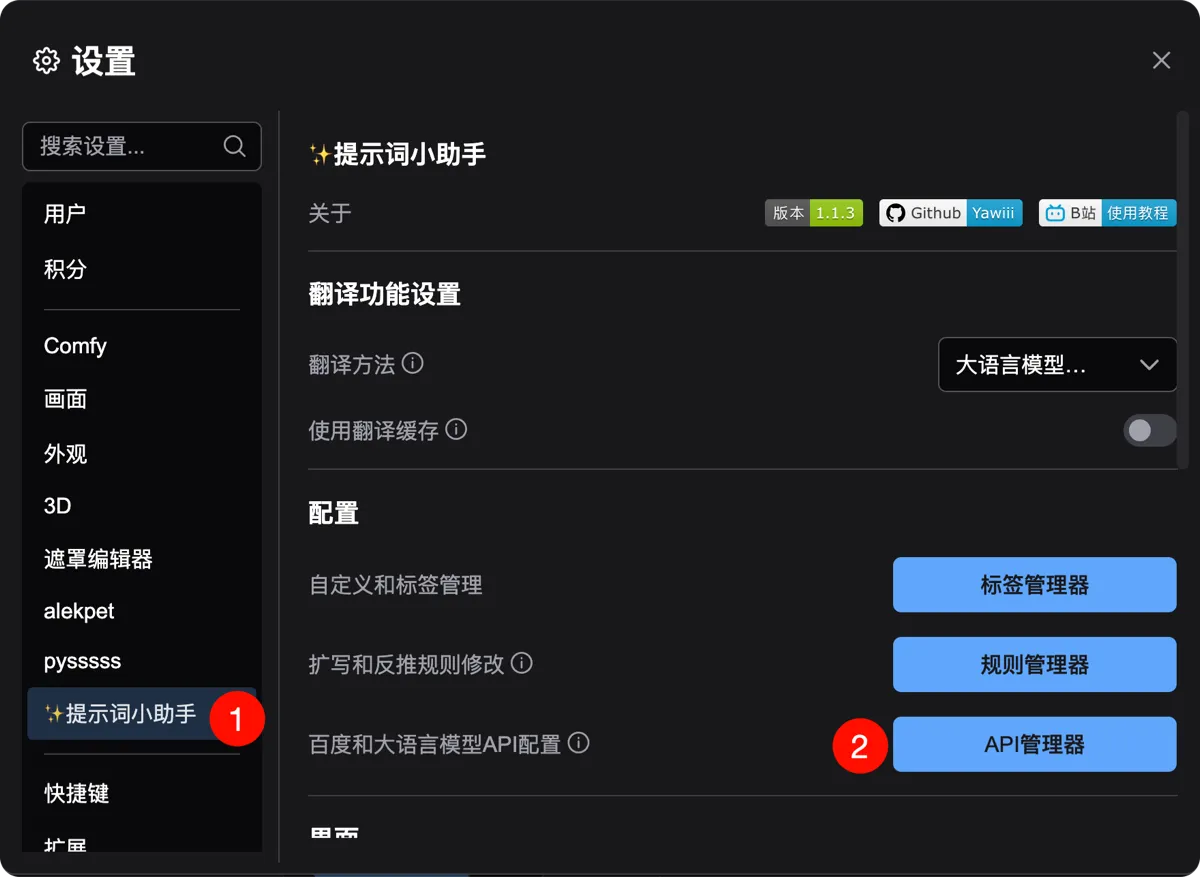
After installing Prompt Assistant, go to **ComfyUI Settings** and find the “✨Prompt Assistant” option. On the right panel, click the **API Manager** button to enter the API configuration panel.
## 2. Installing Prompt Assistant in ComfyUI
**ComfyUI Desktop App or Portable Version**
Search for “提示词小助手” or “Prompt-Assistant” in the Manager (make sure to change DB: local → DB: Channel(remote) in the Manager to find it), then select the latest version to install.
**Akiha Launcher Version**
In the launcher interface, go to “Version Management” → “Install New Extension.”\
Enter `https://github.com/yawiii/comfyui_prompt_assistant.git` in the “Extension URL” field and click **Install**.
**Manual Installation**
Go to the [GitHub repository](https://github.com/yawiii/comfyui_prompt_assistant), download the source code, and place it into the `custom_nodes` directory.
## 3. Using SiliconFlow in Prompt Assistant
### 3.1 **Open the API Configuration Panel**
After installing Prompt Assistant, go to **ComfyUI Settings** and find the “✨Prompt Assistant” option. On the right panel, click the **API Manager** button to enter the API configuration panel.
 ### 3.2 **Select SiliconFlow Service**
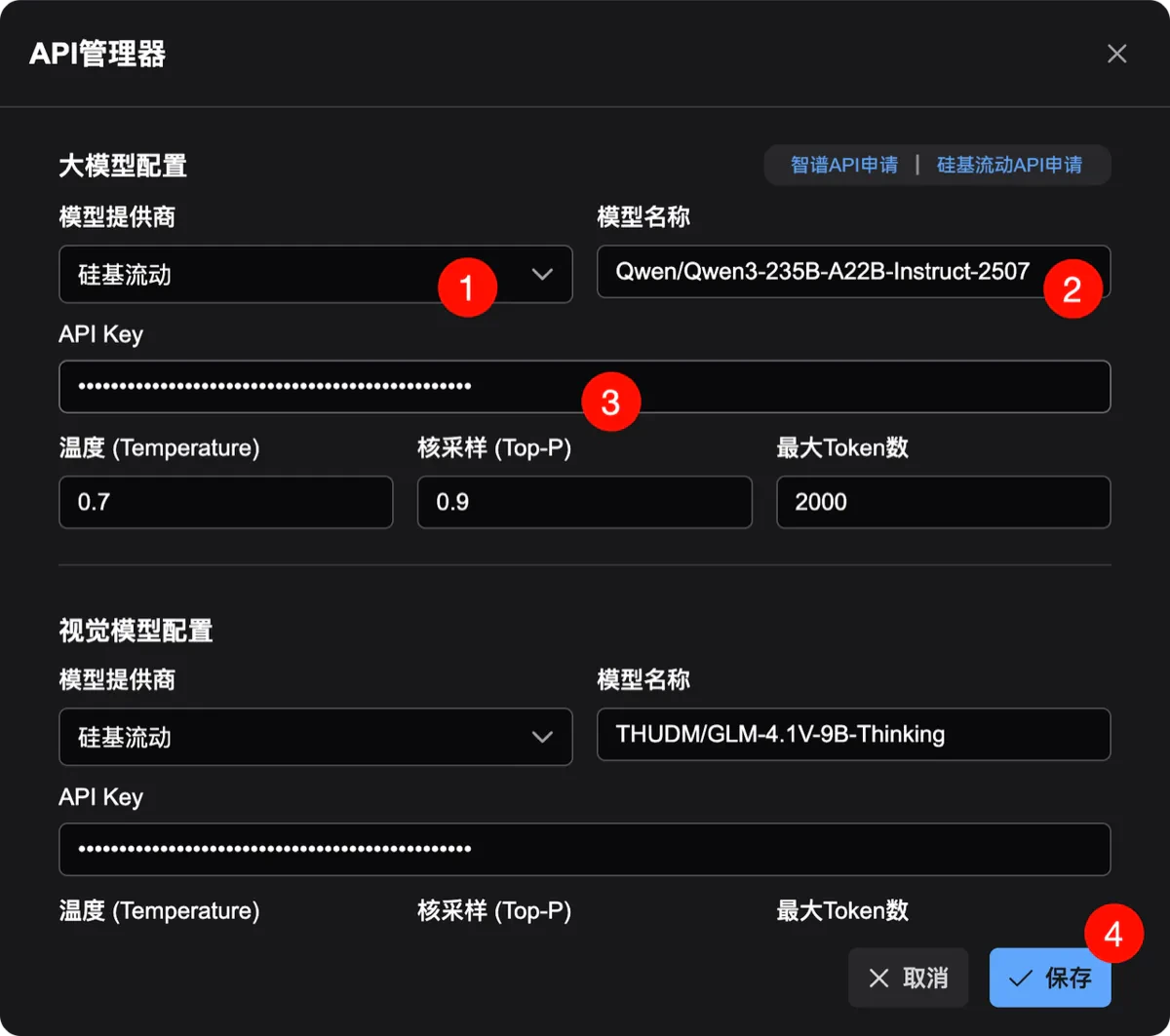
In the provider dropdown menus for both LLM and Vision model configurations, change the selection to **SiliconFlow**.
### 3.3 **Fill in Model Information**
By default, the model field is pre-filled with the free **Qwen/Qwen2.5-7B-Instruct** model. For better performance and faster responses, click the **SiliconFlow API Application** link in the interface, go to the SiliconFlow homepage, choose a suitable model from the **Model Hub**, copy the model name, and paste it into the field.
### 3.4 **Enter API Key**
On the SiliconFlow **API Keys** page, create a new key. Copy the key, paste it into the **API Key** input box, and click **Save**. You’re ready to go!
### 3.2 **Select SiliconFlow Service**
In the provider dropdown menus for both LLM and Vision model configurations, change the selection to **SiliconFlow**.
### 3.3 **Fill in Model Information**
By default, the model field is pre-filled with the free **Qwen/Qwen2.5-7B-Instruct** model. For better performance and faster responses, click the **SiliconFlow API Application** link in the interface, go to the SiliconFlow homepage, choose a suitable model from the **Model Hub**, copy the model name, and paste it into the field.
### 3.4 **Enter API Key**
On the SiliconFlow **API Keys** page, create a new key. Copy the key, paste it into the **API Key** input box, and click **Save**. You’re ready to go!
 ## 4. User Guide
Using Prompt Assistant is very simple—no need to add extra nodes or run additional startup steps. As long as a node contains a prompt input box or image content, the assistant will automatically appear.
When you need to translate, expand, or reverse a prompt, simply click the corresponding button in the assistant’s UI to get it done effortlessly.
For more detailed tips on using Prompt Assistant, visit the author’s homepage: [诶-阿伟哥](https://space.bilibili.com/520680644).
## 4. User Guide
Using Prompt Assistant is very simple—no need to add extra nodes or run additional startup steps. As long as a node contains a prompt input box or image content, the assistant will automatically appear.
When you need to translate, expand, or reverse a prompt, simply click the corresponding button in the assistant’s UI to get it done effortlessly.
For more detailed tips on using Prompt Assistant, visit the author’s homepage: [诶-阿伟哥](https://space.bilibili.com/520680644).