> ## Documentation Index
> Fetch the complete documentation index at: https://docs.siliconflow.cn/llms.txt
> Use this file to discover all available pages before exploring further.
# PDFMathTranslate Next
> Updated: August 5, 2025
## 1. About PDFMathTranslate Next
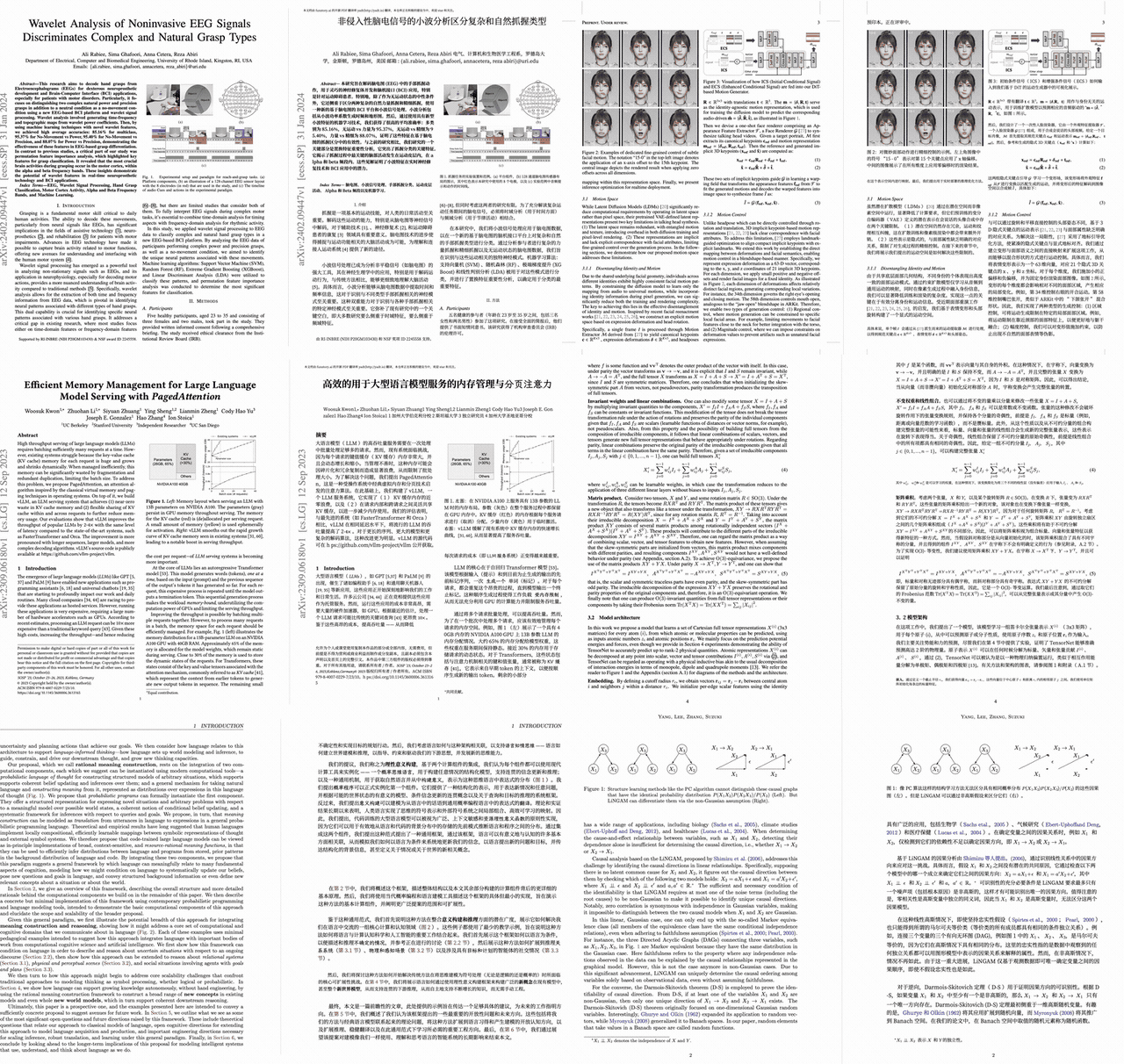
[PDFMathTranslate Next](https://pdf2zh-next.com) is an open-source PDF translator that preserves the original layout. Its translation functionality is based on the [BabelDOC](https://github.com/funstory-ai/BabelDOC) project open-sourced by funstory.ai, and provides easy-to-use CLI and GUI interfaces built on top of it. It is also the officially recommended local self-deployment method for BabelDOC.
 ## 2. Installation
1. [**Windows EXE**](https://pdf2zh-next.com/getting-started/INSTALLATION_winexe.html) Recommended for Windows
2. [**Docker**](https://pdf2zh-next.com/getting-started/INSTALLATION_docker.html) Recommended for Linux
3. [**uv** (A Python project management tool)](https://pdf2zh-next.com/getting-started/INSTALLATION_uv.html) Recommended for macOS
## 3. Usage
For the latest usage tutorial, please refer to [PDFMathTranslate Next SiliconFlow Usage Guide](https://pdf2zh-next.com/advanced/TranslationServices/SiliconFlow.html).
### Free Translation Service
#### cli
```bash theme={null}
pdf2zh_next --siliconflowfree example.pdf
```
#### webui
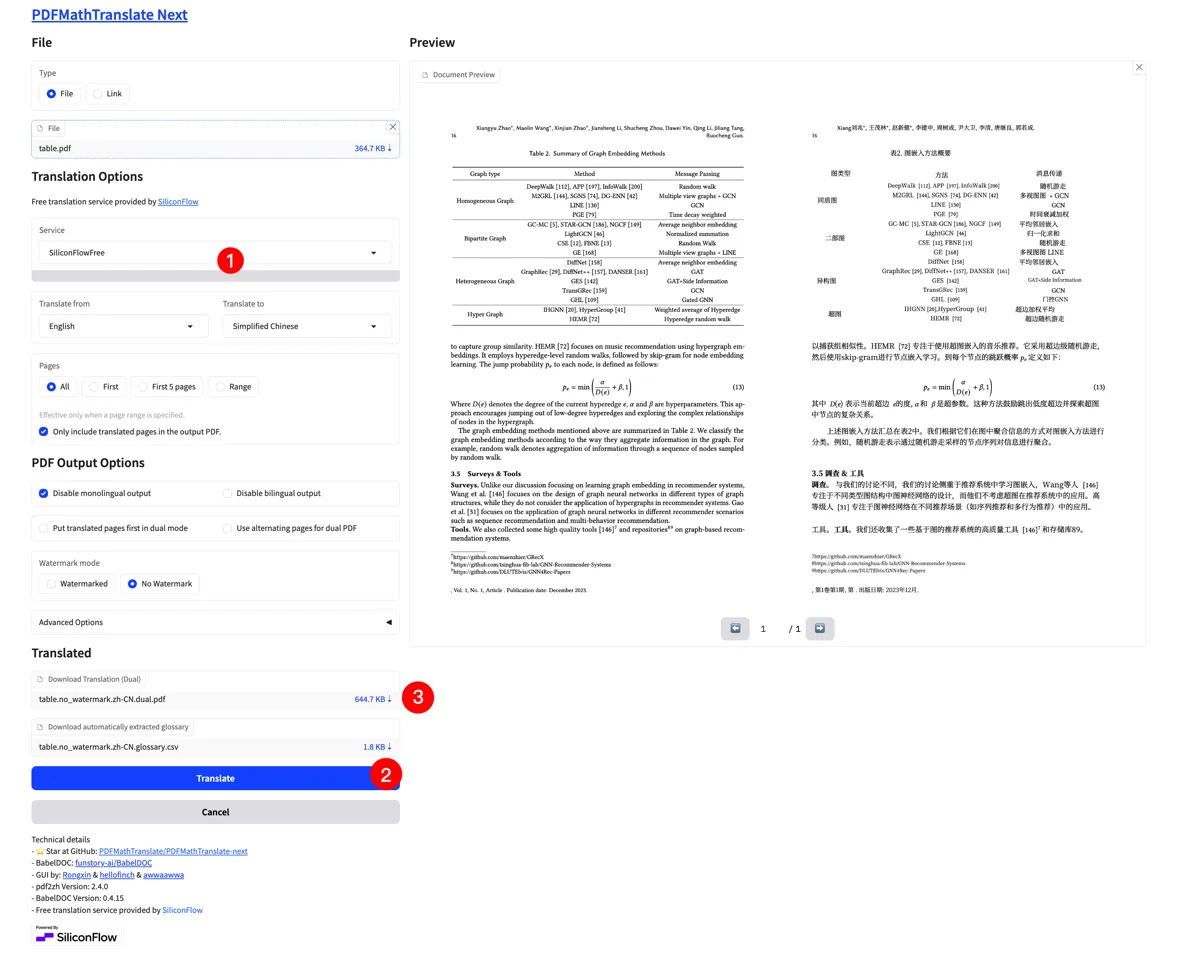
1. Select "SiliconFlowFree" from the "Translation Options" - "Service" dropdown list.
2. Click the Translate button at the bottom of the page to start translation.
3. After translation is complete, you can find the translated PDF file in the "Translated" section at the bottom of the page.
## 2. Installation
1. [**Windows EXE**](https://pdf2zh-next.com/getting-started/INSTALLATION_winexe.html) Recommended for Windows
2. [**Docker**](https://pdf2zh-next.com/getting-started/INSTALLATION_docker.html) Recommended for Linux
3. [**uv** (A Python project management tool)](https://pdf2zh-next.com/getting-started/INSTALLATION_uv.html) Recommended for macOS
## 3. Usage
For the latest usage tutorial, please refer to [PDFMathTranslate Next SiliconFlow Usage Guide](https://pdf2zh-next.com/advanced/TranslationServices/SiliconFlow.html).
### Free Translation Service
#### cli
```bash theme={null}
pdf2zh_next --siliconflowfree example.pdf
```
#### webui
1. Select "SiliconFlowFree" from the "Translation Options" - "Service" dropdown list.
2. Click the Translate button at the bottom of the page to start translation.
3. After translation is complete, you can find the translated PDF file in the "Translated" section at the bottom of the page.
 #### Zotero
Refer to the instructions in [zotero-pdf2zh](https://github.com/guaguastandup/zotero-pdf2zh/blob/main/README_babeldoc.md) to configure the translation service as "SiliconFlowFree".
#### Privacy Notice for Free Service
The file content will be sent to the server of the project maintainer [@awwaawwa](https://github.com/awwaawwa), and then forwarded to SiliconFlow for translation.
The maintainers of this project will only collect error information returned by SiliconFlow for debugging related services. Your file content will not be collected.
[SiliconFlow Privacy Policy](https://docs.siliconflow.cn/en/legals/privacy-policy)
### Using Other Models Provided by SiliconFlow
1. Register a SiliconFlow account: [SiliconFlow](https://siliconflow.cn)
2. Create an API key: [SiliconFlow API Key](https://cloud.siliconflow.cn/me/account/ak). Then, click the key to copy it.
#### cli
```bash theme={null}
pdf2zh_next --siliconflow --siliconflow-model "Pro/deepseek-ai/DeepSeek-V3" --siliconflow-api-key example.pdf
```
#### webui
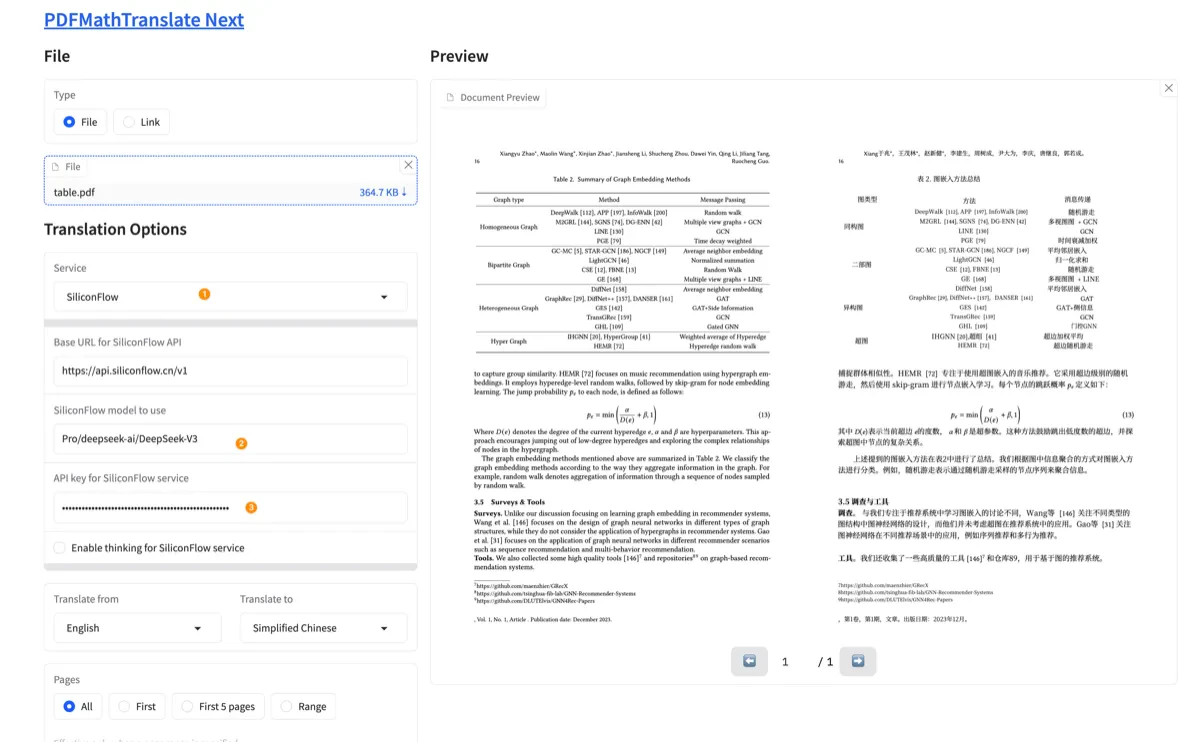
1. "Translation Options" - **"Service"** dropdown list: Select "SiliconFlow"
2. "Translation Options" - **"Base URL for SiliconFlow API"**: Keep default
3. "Translation Options" - **"SiliconFlow model to use"**: Enter "Pro/deepseek-ai/DeepSeek-V3" or other models
4. "Translation Options" - **"API key for SiliconFlow service"**: Paste your API key
5. Click the Translate button at the bottom of the page to start translation
6. After translation is complete, you can find the translated PDF file in the "Translated" section at the bottom of the page.
#### Zotero
Refer to the instructions in [zotero-pdf2zh](https://github.com/guaguastandup/zotero-pdf2zh/blob/main/README_babeldoc.md) to configure the translation service as "SiliconFlowFree".
#### Privacy Notice for Free Service
The file content will be sent to the server of the project maintainer [@awwaawwa](https://github.com/awwaawwa), and then forwarded to SiliconFlow for translation.
The maintainers of this project will only collect error information returned by SiliconFlow for debugging related services. Your file content will not be collected.
[SiliconFlow Privacy Policy](https://docs.siliconflow.cn/en/legals/privacy-policy)
### Using Other Models Provided by SiliconFlow
1. Register a SiliconFlow account: [SiliconFlow](https://siliconflow.cn)
2. Create an API key: [SiliconFlow API Key](https://cloud.siliconflow.cn/me/account/ak). Then, click the key to copy it.
#### cli
```bash theme={null}
pdf2zh_next --siliconflow --siliconflow-model "Pro/deepseek-ai/DeepSeek-V3" --siliconflow-api-key example.pdf
```
#### webui
1. "Translation Options" - **"Service"** dropdown list: Select "SiliconFlow"
2. "Translation Options" - **"Base URL for SiliconFlow API"**: Keep default
3. "Translation Options" - **"SiliconFlow model to use"**: Enter "Pro/deepseek-ai/DeepSeek-V3" or other models
4. "Translation Options" - **"API key for SiliconFlow service"**: Paste your API key
5. Click the Translate button at the bottom of the page to start translation
6. After translation is complete, you can find the translated PDF file in the "Translated" section at the bottom of the page.
 #### Zotero
Refer to the instructions in [zotero-pdf2zh](https://github.com/guaguastandup/zotero-pdf2zh/blob/main/README_babeldoc.md) to configure the translation service as "SiliconFlow" and fill in the corresponding parameters.
## 4. Advanced Options
Please refer to [PDFMathTranslate Next Advanced Options](https://pdf2zh-next.com/advanced/advanced.html).
#### Zotero
Refer to the instructions in [zotero-pdf2zh](https://github.com/guaguastandup/zotero-pdf2zh/blob/main/README_babeldoc.md) to configure the translation service as "SiliconFlow" and fill in the corresponding parameters.
## 4. Advanced Options
Please refer to [PDFMathTranslate Next Advanced Options](https://pdf2zh-next.com/advanced/advanced.html).