> ## Documentation Index
> Fetch the complete documentation index at: https://docs.siliconflow.cn/llms.txt
> Use this file to discover all available pages before exploring further.
# Next AI Draw.io
> Updated on: December 30, 2025
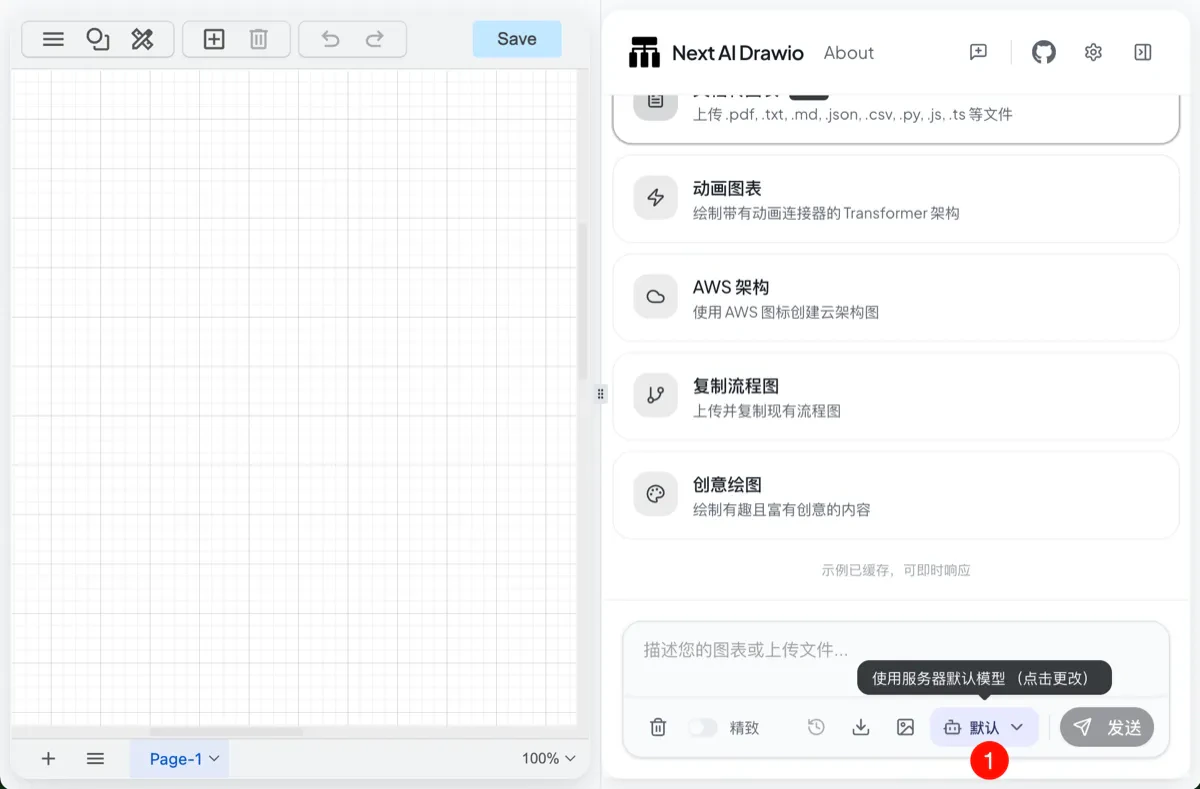
[Next AI Draw.io](https://github.com/DayuanJiang/next-ai-draw-io) is an AI-powered diagram creation tool that allows you to create and modify draw\.io diagrams using natural language commands. Simply describe what you want in text, and it will automatically generate professional diagrams such as flowcharts, architecture diagrams, UML diagrams, and more.
## How to Use
### Option 1: Use Online (Recommended)
Open [https://next-ai-drawio.jiang.jp/zh](https://next-ai-drawio.jiang.jp/zh) and start using it directly in your browser without any installation.
### Option 2: Download the Desktop App
#### 1. Download the Installer
Visit the [Releases page](https://github.com/DayuanJiang/next-ai-draw-io/releases) to download the installer for your platform:
| Platform | Download File |
| -------- | ----------------------------------- |
| macOS | `.dmg` (Intel & Apple Silicon) |
| Windows | `.exe` installer (x64 & ARM64) |
| Linux | `.AppImage` or `.deb` (x64 & ARM64) |
#### 2. Install and Launch
* **macOS**: Double-click the `.dmg` file and drag the app into the Applications folder
* **Windows**: Run the `.exe` installer
* **Linux**: Run the `.AppImage` file or install with `dpkg -i xxx.deb`
### Video Tutorial
Video tutorial: [Click here](https://github.com/user-attachments/assets/9d60a3e8-4a1c-4b5e-acbb-26af2d3eabd1)
## Configure AI
### Open the app and go to the Settings page
 ### Select an AI provider and enter the API Key
 1. Click the **Add Model** button
2. Select **SiliconFlow**
3. Enter your API Key
4. Enter the model name
5. Click **Save**
6. Test the model availability
**When a plus sign appears in front of the model, it indicates that the model is available.**
## FAQ
**Q: Why is the quality of the generated diagrams not good?**
A: Diagram generation requires strong model capabilities. Please use large-scale coding models (such as GLM-4.7, Minimax-M2, etc.) for better results.
**Q: What types of diagrams are supported?**
A: All diagram types supported by draw\.io are supported, including flowcharts, architecture diagrams, UML diagrams, mind maps, and cloud architecture diagrams (AWS/GCP/Azure).
## Related Links
* [Online Demo](https://next-ai-drawio.jiang.jp/)
* [GitHub Repository](https://github.com/DayuanJiang/next-ai-draw-io)
1. Click the **Add Model** button
2. Select **SiliconFlow**
3. Enter your API Key
4. Enter the model name
5. Click **Save**
6. Test the model availability
**When a plus sign appears in front of the model, it indicates that the model is available.**
## FAQ
**Q: Why is the quality of the generated diagrams not good?**
A: Diagram generation requires strong model capabilities. Please use large-scale coding models (such as GLM-4.7, Minimax-M2, etc.) for better results.
**Q: What types of diagrams are supported?**
A: All diagram types supported by draw\.io are supported, including flowcharts, architecture diagrams, UML diagrams, mind maps, and cloud architecture diagrams (AWS/GCP/Azure).
## Related Links
* [Online Demo](https://next-ai-drawio.jiang.jp/)
* [GitHub Repository](https://github.com/DayuanJiang/next-ai-draw-io)