> ## Documentation Index
> Fetch the complete documentation index at: https://docs.siliconflow.cn/llms.txt
> Use this file to discover all available pages before exploring further.
# LazyCraft
> Updated: November 11, 2025
LazyCraft is an application orchestration platform built on LazyLLM. It supports large model invocation and custom code blocks, offering powerful resource management and dataset integration capabilities. Combined with RAG technology, it supports both custom offline computation and online invocation. In LazyCraft, SiliconFlow models are used, leveraging SiliconFlow's rich model library and fast performance to quickly build diverse AI applications.
## 1. Obtain SiliconFlow API Key
* Sign up for a SiliconFlow account. [Register here](https://cloud.siliconflow.cn/i/TR9Ym0c4)
* Go to the console to [retrieve your API key](https://cloud.siliconflow.cn/account/ak).
* Click on the key to copy it for use in LazyCraft.
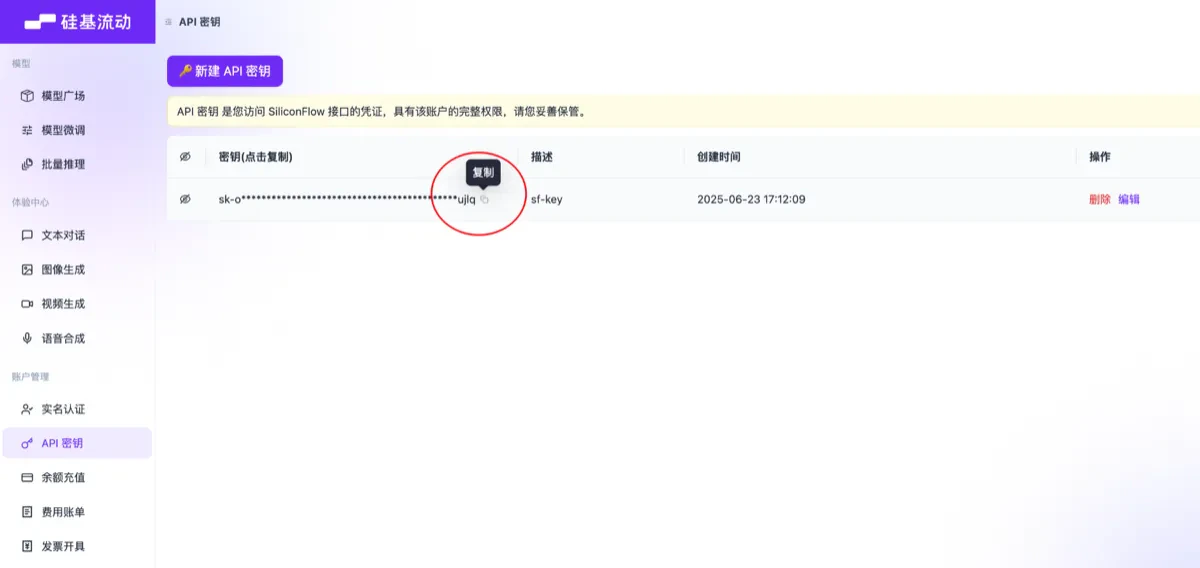 > 💡 **TIP**:The API Key is your credential to access SiliconFlow services. Please keep it safe and do not share it with others.
## 2. Configure SiliconFlow in LazyCraft
### 2.1 Configure API Key
**Configuration via the Model Management Page**
1. **Go to Cloud Services Page**
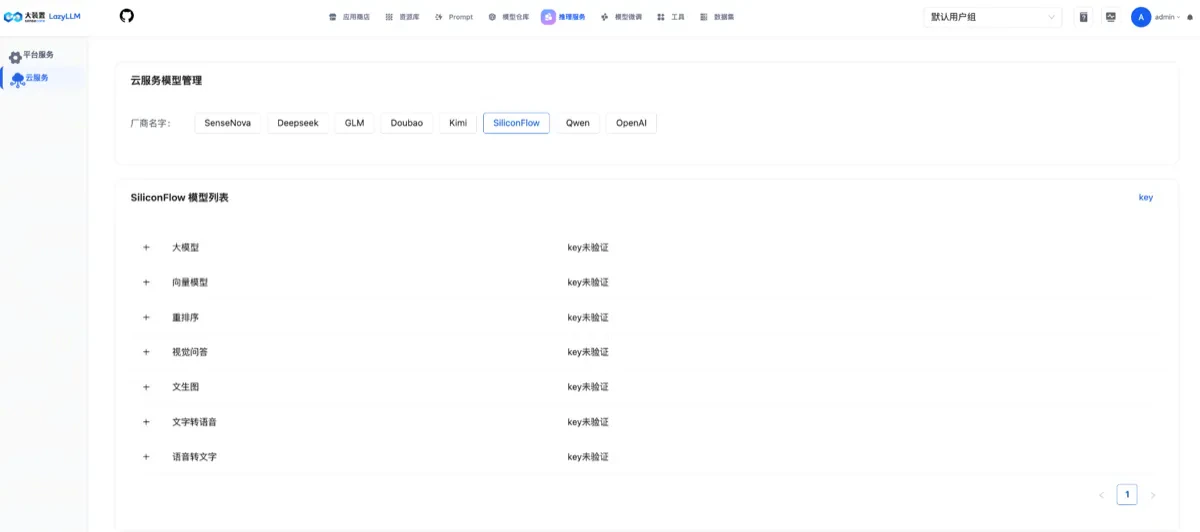
* After logging into LazyCraft, click on the **"Inference Services"** menu in the top navigation bar.
* Go to the **"Cloud Services"** page on the left-hand side.
> 💡 **TIP**:The API Key is your credential to access SiliconFlow services. Please keep it safe and do not share it with others.
## 2. Configure SiliconFlow in LazyCraft
### 2.1 Configure API Key
**Configuration via the Model Management Page**
1. **Go to Cloud Services Page**
* After logging into LazyCraft, click on the **"Inference Services"** menu in the top navigation bar.
* Go to the **"Cloud Services"** page on the left-hand side.
 2. **Configure API Key**
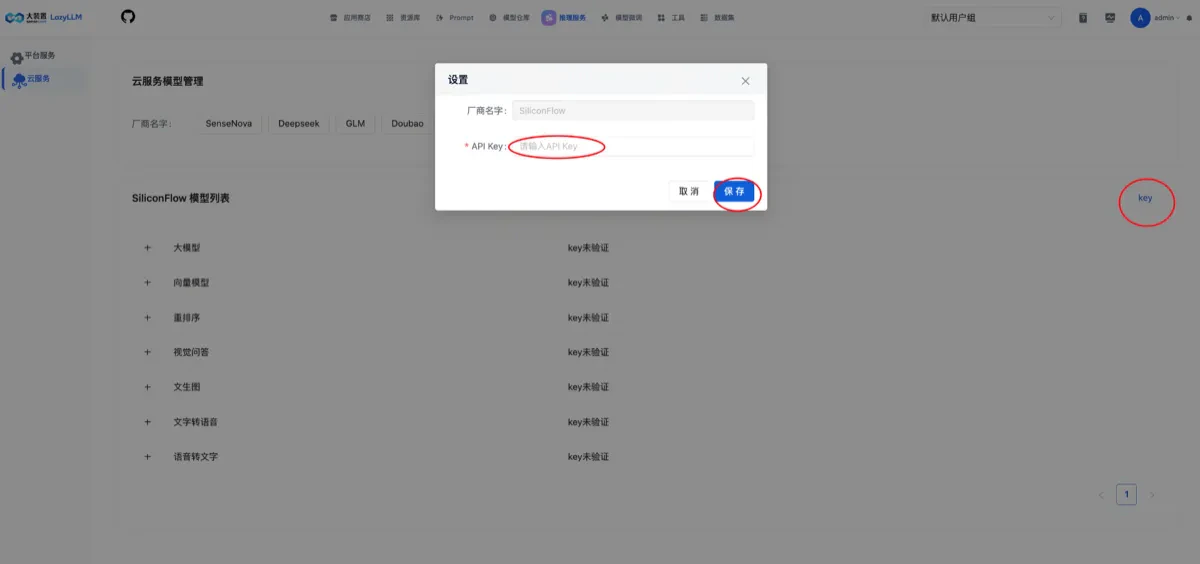
* Select **"SiliconFlow"** cloud model from the manufacturer list.
* On the far right of the SiliconFlow model list, find the **"key"** button.
* Click to enter the configuration page.
* Paste the previously copied API Key into the input field.
* Click **"Save"**.
2. **Configure API Key**
* Select **"SiliconFlow"** cloud model from the manufacturer list.
* On the far right of the SiliconFlow model list, find the **"key"** button.
* Click to enter the configuration page.
* Paste the previously copied API Key into the input field.
* Click **"Save"**.
 3. **Verify Configuration**
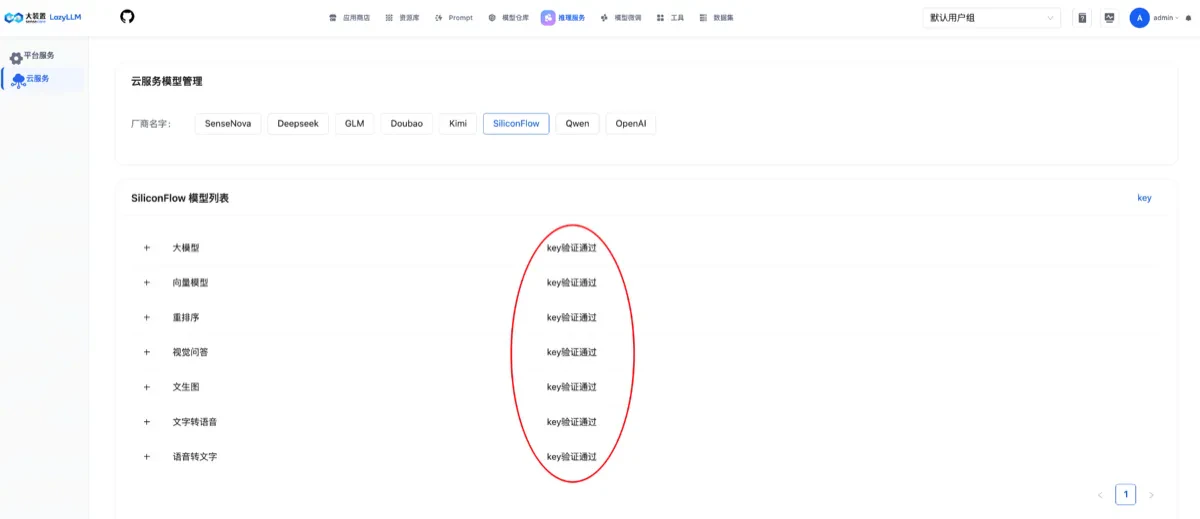
* After successful configuration, the system will automatically verify the validity of the API Key.
* Once verified, you can use SiliconFlow's models in your applications.
3. **Verify Configuration**
* After successful configuration, the system will automatically verify the validity of the API Key.
* Once verified, you can use SiliconFlow's models in your applications.
 ### 2.2 Manage Model Inventory
LazyCraft includes a built-in inventory of SiliconFlow models, supporting the following model types:
#### Supported Model Types
| Model Type | Description | Representative Models |
| ------------- | ------------------------- | ---------------------------------------------------------- |
| **LLM** | Large Language Models | Qwen/Qwen3-32B, DeepSeek-V3, GLM-4.6, etc. |
| **Embedding** | Vector Models | BAAI/bge-m3, Qwen/Qwen3-Embedding-8B, etc. |
| **Reranker** | Ranking Models | BAAI/bge-reranker-v2-m3, Qwen/Qwen3-Reranker-8B, etc. |
| **VQA** | Visual Question Answering | Qwen/Qwen3-VL-32B-Instruct, deepseek-ai/deepseek-vl2, etc. |
| **SD** | Text-to-Image | Qwen/Qwen-Image, Kwai-Kolors/Kolors, etc. |
| **TTS** | Text-to-Speech | fnlp/MOSS-TTSD-v0.5, FunAudioLLM/CosyVoice2-0.5B, etc. |
| **STT** | Speech-to-Text | FunAudioLLM/SenseVoiceSmall, TeleAI/TeleSpeechASR, etc. |
#### Modify Model Inventory
**Modify Model Inventory via Cloud Services Page**
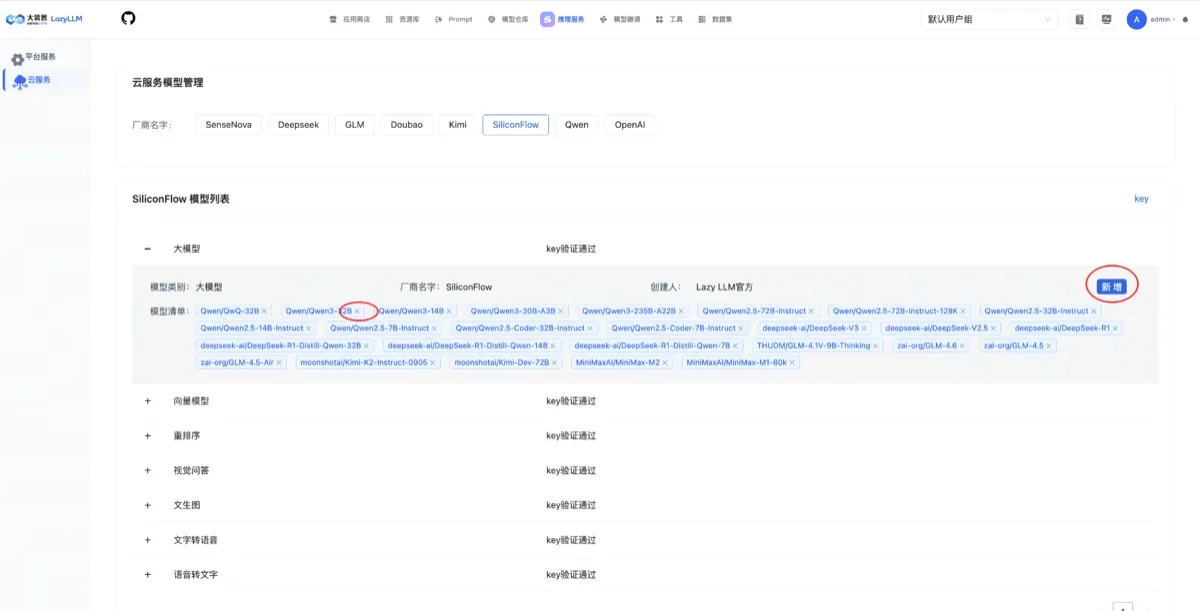
* Go to **"Inference Services"** → **"Cloud Models"**.
* Select **"SiliconFlow"** from the manufacturer list.
* View the available SiliconFlow model types and the models within each type.
* You can add or delete models based on actual needs.
* Enter the model name (which must match the model name in SiliconFlow platform) [SiliconFlow Model List](https://docs.siliconflow.cn/cn/api-reference/models/get-model-list).
### 2.2 Manage Model Inventory
LazyCraft includes a built-in inventory of SiliconFlow models, supporting the following model types:
#### Supported Model Types
| Model Type | Description | Representative Models |
| ------------- | ------------------------- | ---------------------------------------------------------- |
| **LLM** | Large Language Models | Qwen/Qwen3-32B, DeepSeek-V3, GLM-4.6, etc. |
| **Embedding** | Vector Models | BAAI/bge-m3, Qwen/Qwen3-Embedding-8B, etc. |
| **Reranker** | Ranking Models | BAAI/bge-reranker-v2-m3, Qwen/Qwen3-Reranker-8B, etc. |
| **VQA** | Visual Question Answering | Qwen/Qwen3-VL-32B-Instruct, deepseek-ai/deepseek-vl2, etc. |
| **SD** | Text-to-Image | Qwen/Qwen-Image, Kwai-Kolors/Kolors, etc. |
| **TTS** | Text-to-Speech | fnlp/MOSS-TTSD-v0.5, FunAudioLLM/CosyVoice2-0.5B, etc. |
| **STT** | Speech-to-Text | FunAudioLLM/SenseVoiceSmall, TeleAI/TeleSpeechASR, etc. |
#### Modify Model Inventory
**Modify Model Inventory via Cloud Services Page**
* Go to **"Inference Services"** → **"Cloud Models"**.
* Select **"SiliconFlow"** from the manufacturer list.
* View the available SiliconFlow model types and the models within each type.
* You can add or delete models based on actual needs.
* Enter the model name (which must match the model name in SiliconFlow platform) [SiliconFlow Model List](https://docs.siliconflow.cn/cn/api-reference/models/get-model-list).
 ## 3. Create Applications in the Canvas
LazyCraft provides a powerful visual canvas feature. Below is how to create applications using different types of SiliconFlow models.
### 3.1 Large Language Model (LLM) Application Example
#### Scenario: Intelligent Dialogue Assistant
**Model Used**: `Qwen/Qwen3-32B` or `deepseek-ai/DeepSeek-V3`
**Steps to Create**:
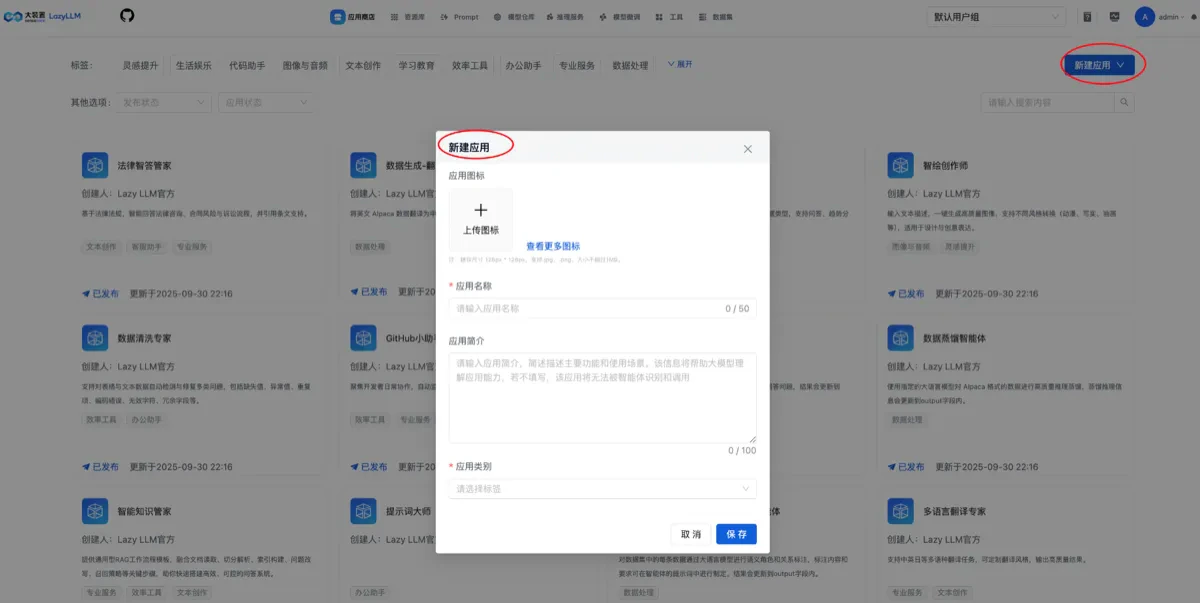
1. **Create a New Application**
* Click **"App Store"** → **"Create New Application"**.
* Choose **"Create Blank Application"**.
## 3. Create Applications in the Canvas
LazyCraft provides a powerful visual canvas feature. Below is how to create applications using different types of SiliconFlow models.
### 3.1 Large Language Model (LLM) Application Example
#### Scenario: Intelligent Dialogue Assistant
**Model Used**: `Qwen/Qwen3-32B` or `deepseek-ai/DeepSeek-V3`
**Steps to Create**:
1. **Create a New Application**
* Click **"App Store"** → **"Create New Application"**.
* Choose **"Create Blank Application"**.
 2. **Add LLM Node**
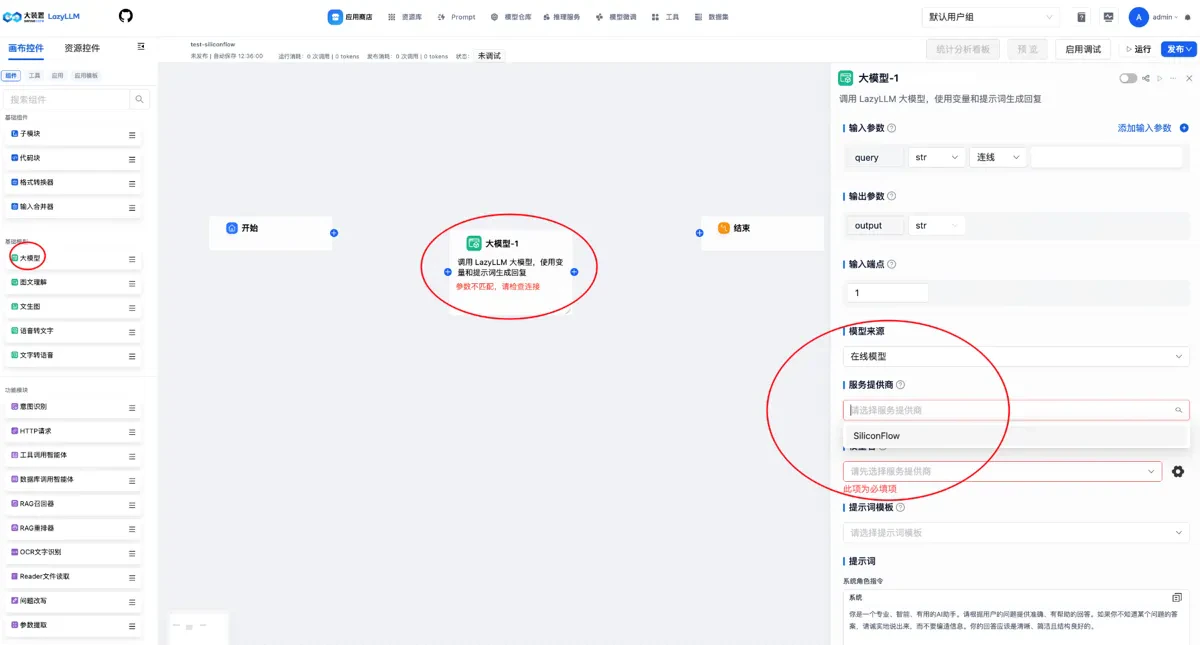
* Drag the **"Large Model"** node onto the canvas.
* Click the node to configure:
* **Model Source**: Choose `Online Model`.
* **Service Provider**: Choose `SiliconFlow`.
* **Model Name**: Choose `Qwen/Qwen3-32B` or `DeepSeek-V3`.
* You can adjust other parameters like the prompt template or use the default ones.
2. **Add LLM Node**
* Drag the **"Large Model"** node onto the canvas.
* Click the node to configure:
* **Model Source**: Choose `Online Model`.
* **Service Provider**: Choose `SiliconFlow`.
* **Model Name**: Choose `Qwen/Qwen3-32B` or `DeepSeek-V3`.
* You can adjust other parameters like the prompt template or use the default ones.
 3. **Connect the Nodes**
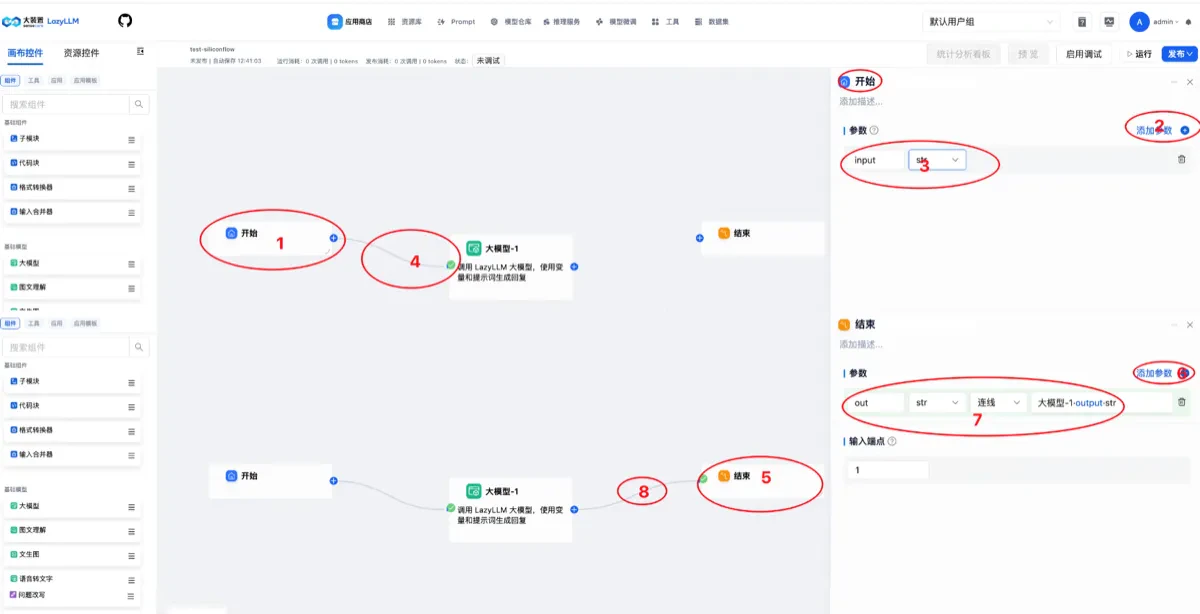
* Click the **"Start"** node to add input parameters and connect it to the **"Large Model-1"** node.
* Click the **"End"** node to add output parameters and connect it to the **"End"** node.
3. **Connect the Nodes**
* Click the **"Start"** node to add input parameters and connect it to the **"Large Model-1"** node.
* Click the **"End"** node to add output parameters and connect it to the **"End"** node.
 4. **Test the Application**
* Click the **"Enable Debugging"** button in the top-right corner.
* Click the **"Run"** button and enter a test question, such as: "Please introduce the history of artificial intelligence."
* View the model's returned result.
4. **Test the Application**
* Click the **"Enable Debugging"** button in the top-right corner.
* Click the **"Run"** button and enter a test question, such as: "Please introduce the history of artificial intelligence."
* View the model's returned result.
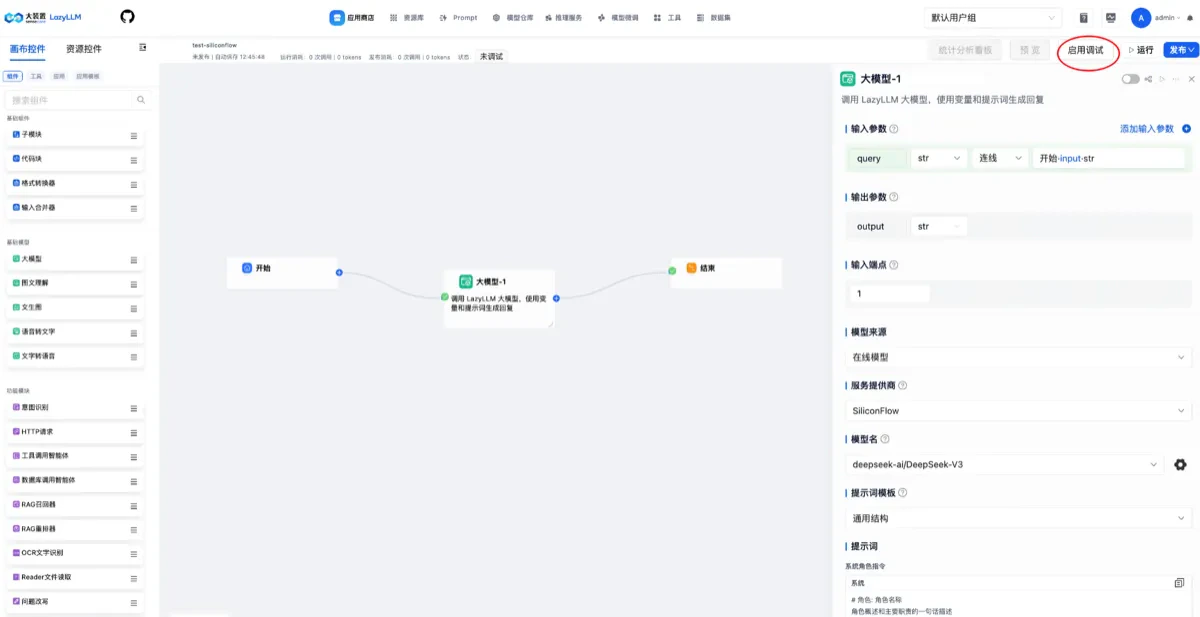 *Enable Debugging for the App*
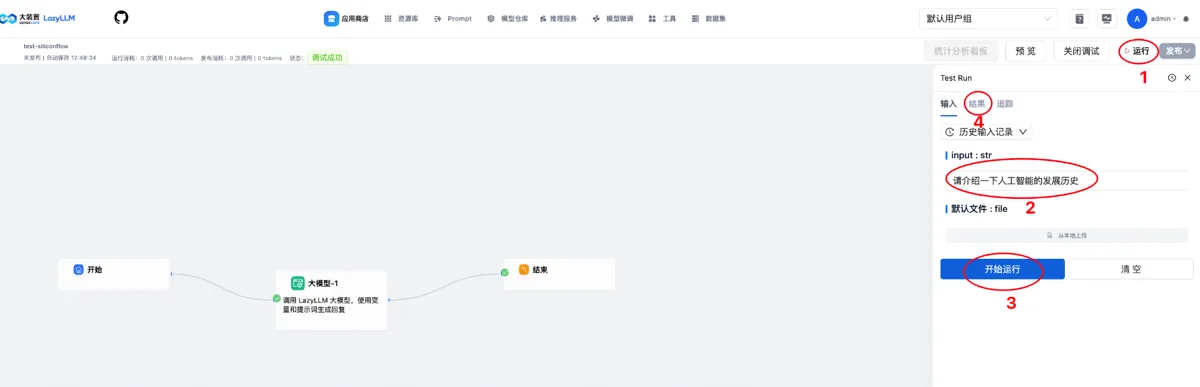 *View the Model's Response*
5. **Publish the Application**
* Click the **"Publish"** button in the top-right corner.
* Confirm the version number in the pop-up and click **"Confirm"**.
* The application is successfully published.
* You can view the published app in the **"App Store"**.
* The app's service capability can be started or stopped at any time.
*View the Model's Response*
5. **Publish the Application**
* Click the **"Publish"** button in the top-right corner.
* Confirm the version number in the pop-up and click **"Confirm"**.
* The application is successfully published.
* You can view the published app in the **"App Store"**.
* The app's service capability can be started or stopped at any time.
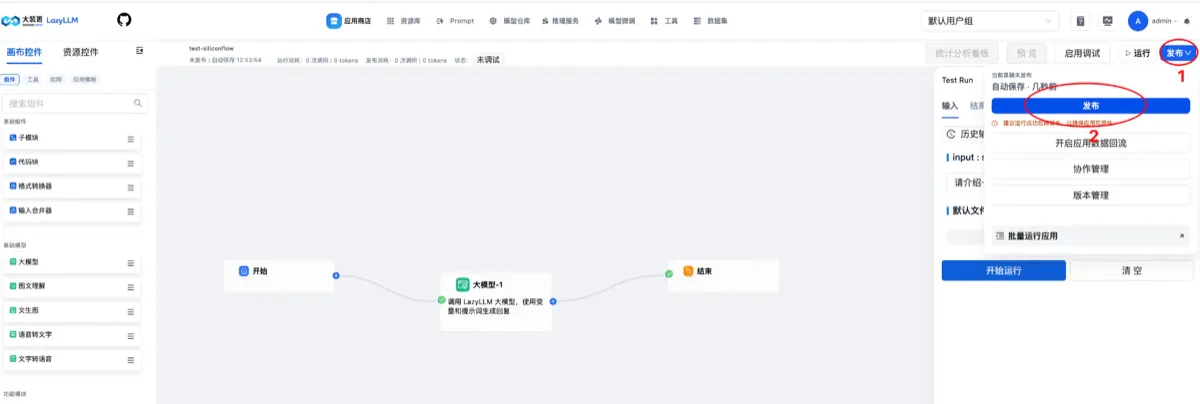 *Application Published*
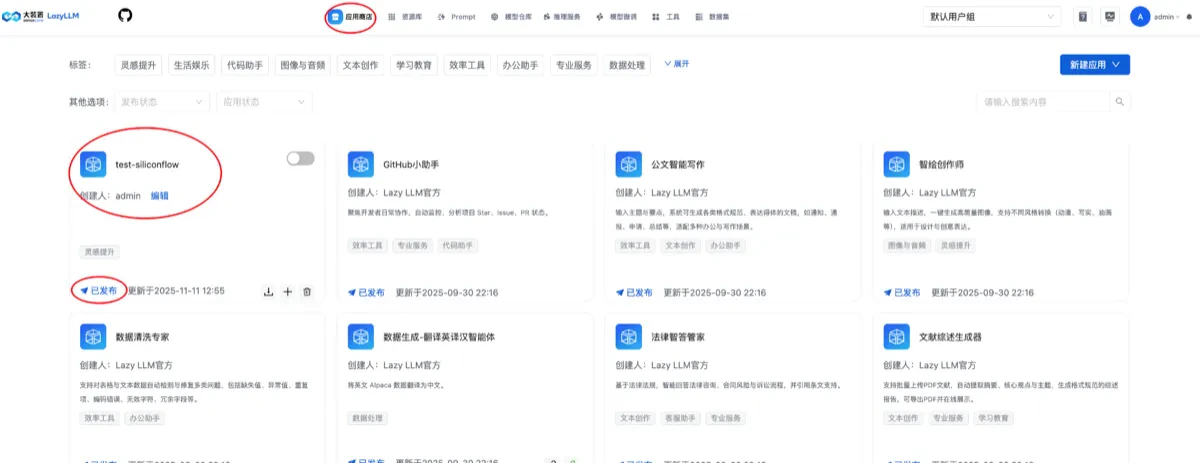 *Application Published View*
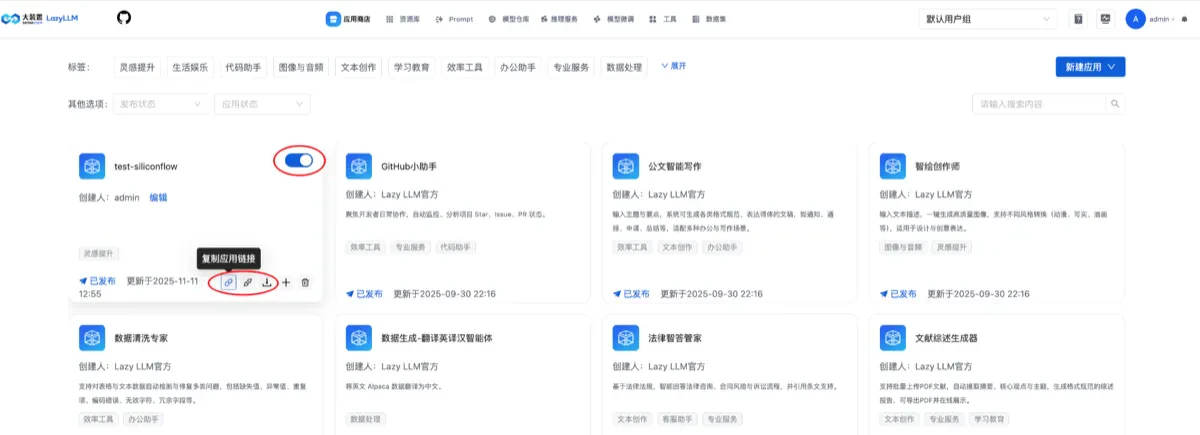 *Application Service Capability Available*
### 3.2 Other Model Application Examples
#### Scenario: For other types of models, you can refer to the configuration method used for large models and experience configuring them yourself.
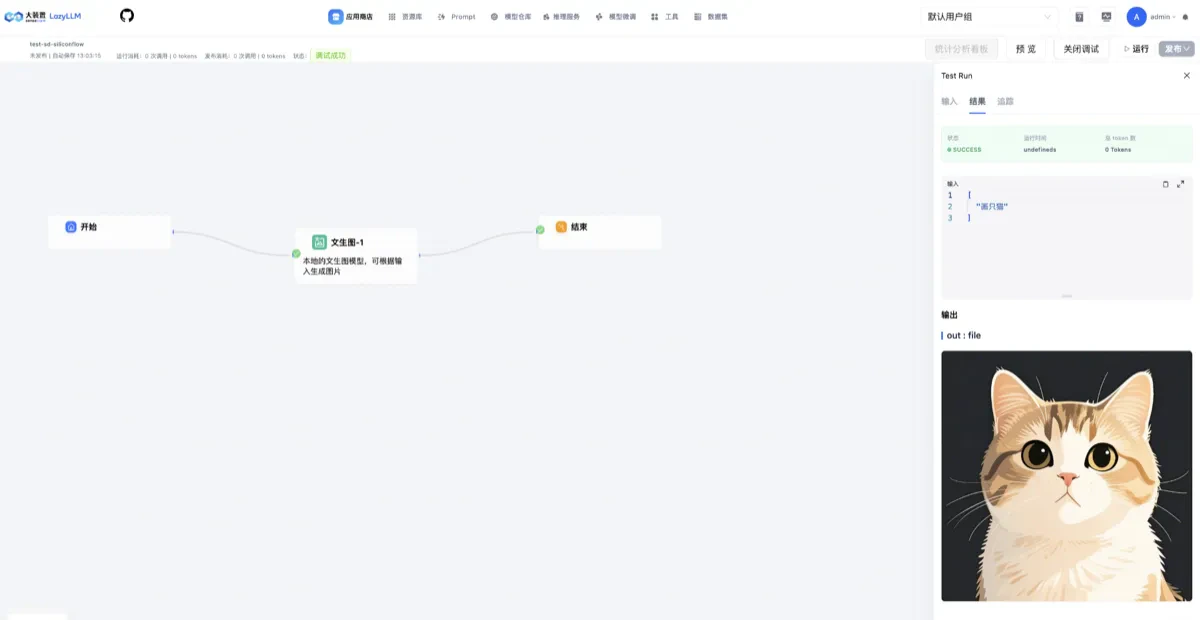
For example, text-to-image usage looks as follows:
*Application Service Capability Available*
### 3.2 Other Model Application Examples
#### Scenario: For other types of models, you can refer to the configuration method used for large models and experience configuring them yourself.
For example, text-to-image usage looks as follows:
 **Related Links**:
* [SiliconFlow Official Website](https://cloud.siliconflow.cn/)
* [LazyCraft GitHub](https://github.com/LazyAGI/LazyCraft)
* [LazyLLM GitHub](https://github.com/LazyAGI/LazyLLM)
**Related Links**:
* [SiliconFlow Official Website](https://cloud.siliconflow.cn/)
* [LazyCraft GitHub](https://github.com/LazyAGI/LazyCraft)
* [LazyLLM GitHub](https://github.com/LazyAGI/LazyLLM)