> ## Documentation Index
> Fetch the complete documentation index at: https://docs.siliconflow.cn/llms.txt
> Use this file to discover all available pages before exploring further.
# eechat
> Updated: May 19, 2025
## About eechat
[eechat](https://github.com/Lucassssss/eechat) is a free and open-source AI application developed in China. It supports Windows, macOS, and Linux, and integrates multiple functional modules including chat, multimodal command execution (MCP), knowledge base Q\&A (RAG), automatic speech recognition (ASR), and text-to-speech (TTS).
* **Ready to use**: No coding required, suitable for non-technical users.
* **Free and open source**: A domestic open-source app with all data stored locally.
* **Multi-model support**: Supports both API and local models, allowing custom model configuration.
* **Rich features**: Includes MCP, RAG, and plugin support.
This document demonstrates how to use SiliconFlow with eechat.
## Download eechat
* **[Official Website](https://ee.chat)**
* **[GitHub Releases](https://github.com/Lucassssss/eechat/releases)**
## Install eechat and Configure SiliconFlow Models
### 1. Install eechat (Example: Windows)
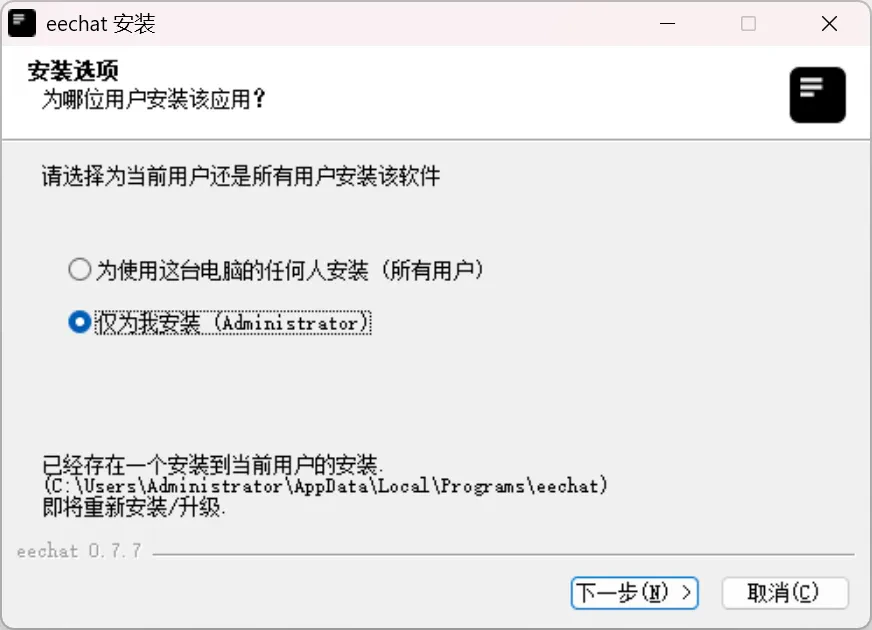
* Download and run the installer, then click "Install".
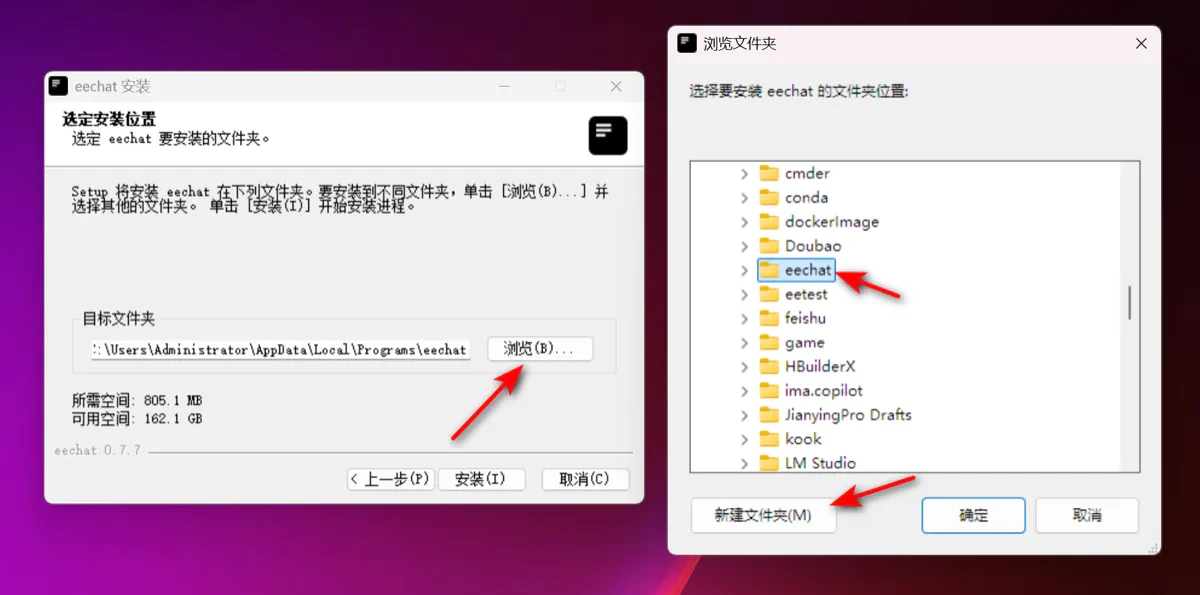
 * Click "Browse" to choose the installation path, then confirm to proceed.
 * After installation, open eechat and follow the steps below:
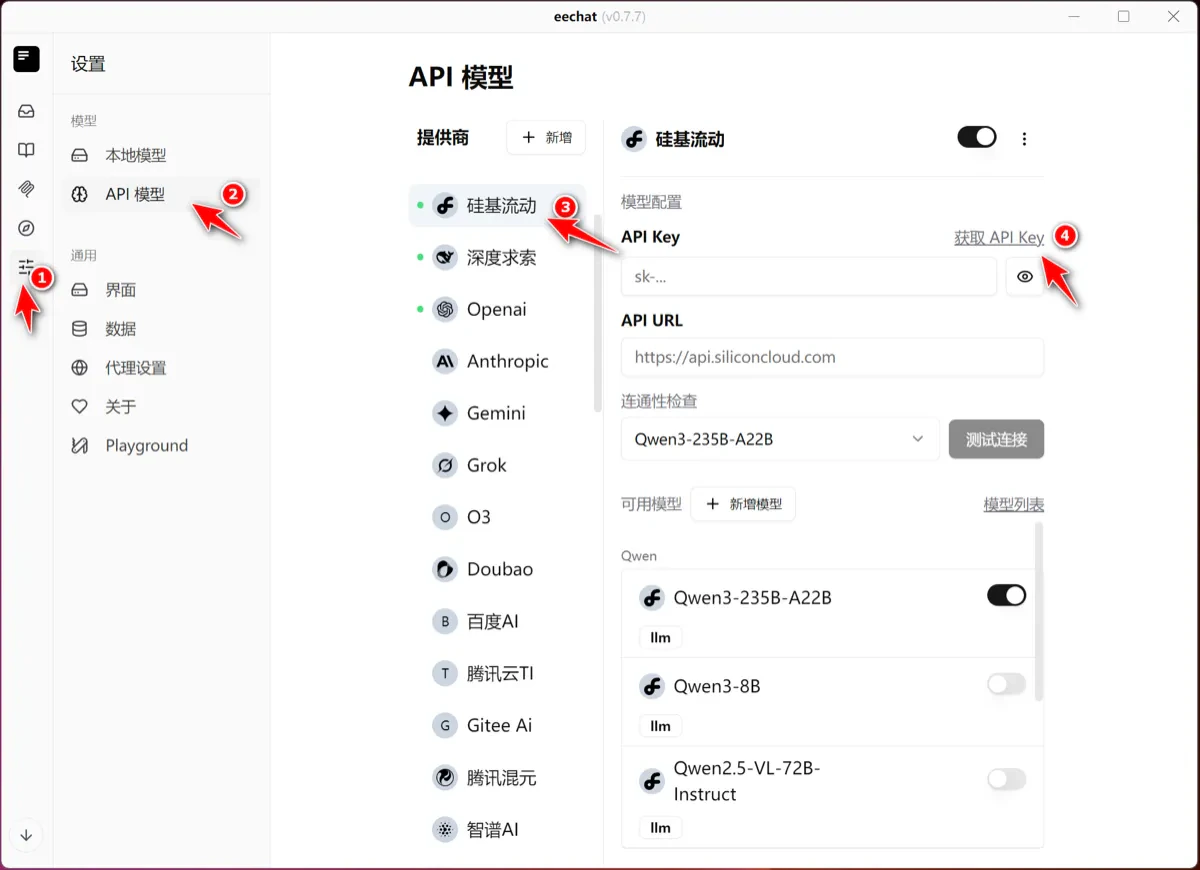 1. Click the last icon "Settings" in the left menu.
2. Select "API Models" under Settings.
3. Choose "SiliconFlow" as the API model provider.
4. Click "Get API Key" to open the SiliconFlow login page. If already logged in, it will redirect to the SiliconFlow console.
### 2. Get Your API Key
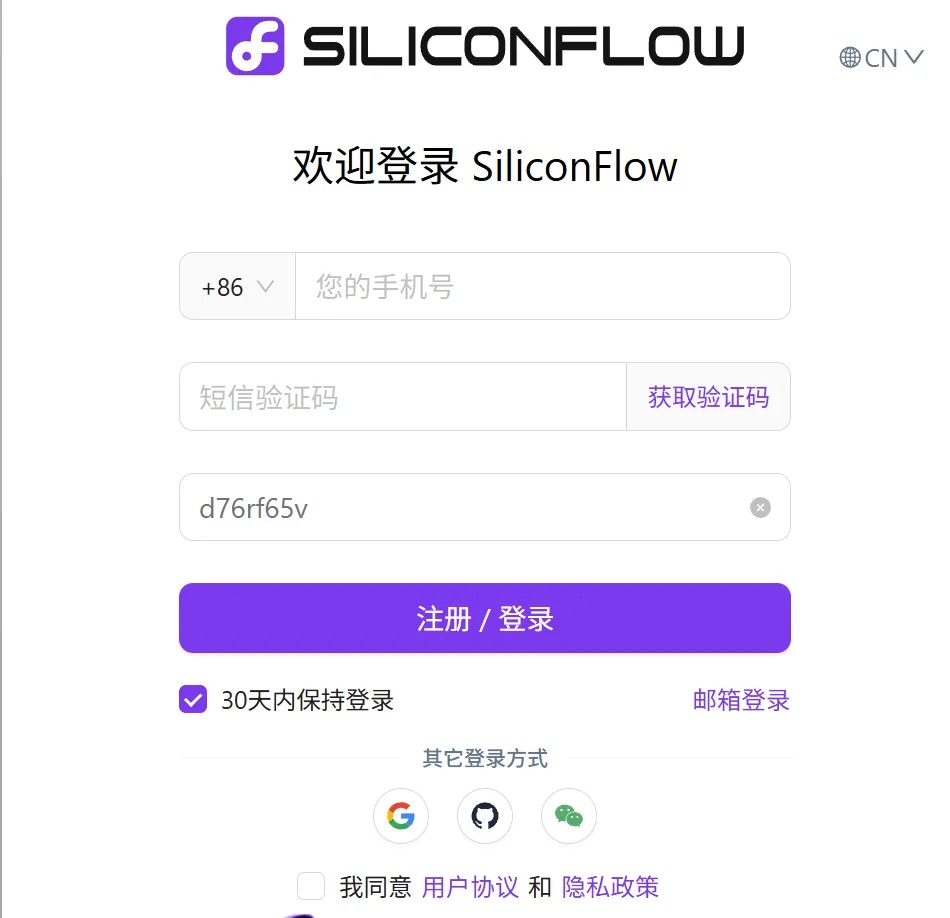
* After clicking "Get API Key", your browser will open the SiliconFlow login page. Log in with your account credentials.
1. Click the last icon "Settings" in the left menu.
2. Select "API Models" under Settings.
3. Choose "SiliconFlow" as the API model provider.
4. Click "Get API Key" to open the SiliconFlow login page. If already logged in, it will redirect to the SiliconFlow console.
### 2. Get Your API Key
* After clicking "Get API Key", your browser will open the SiliconFlow login page. Log in with your account credentials.
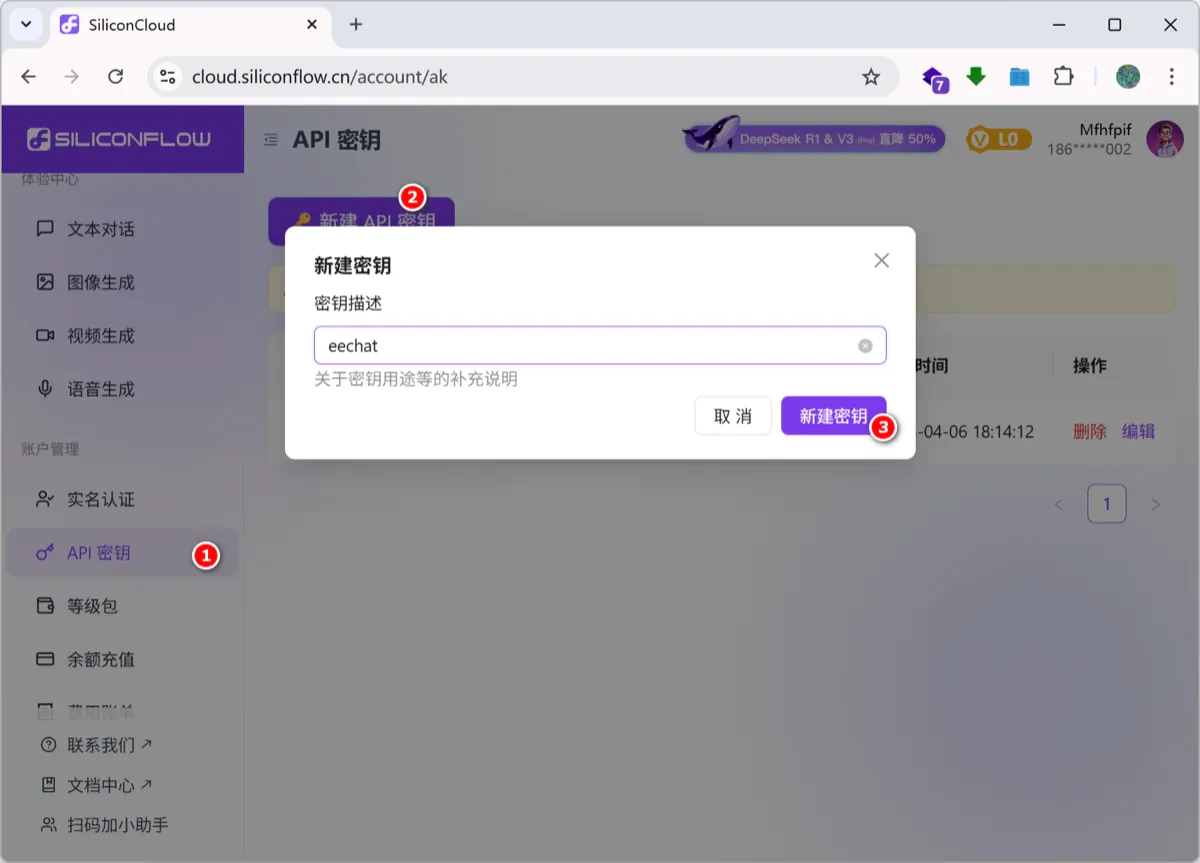
 * Create an API Key.
 ### 3. Configure the API Key
* Set up the provider and API Key in eechat.
### 3. Configure the API Key
* Set up the provider and API Key in eechat.
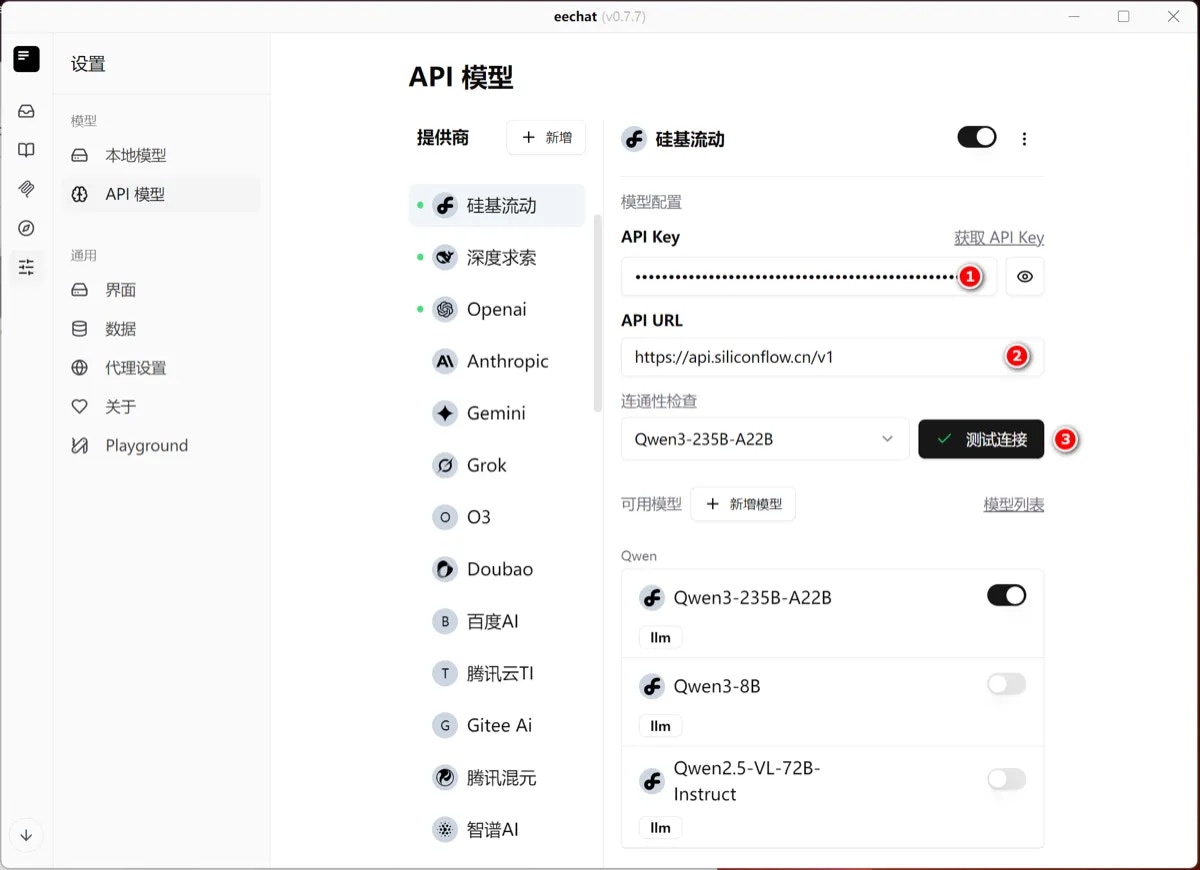 1. Select "SiliconFlow" as the API model provider in eechat.
2. Paste the API Key you just created.
3. Enter `https://api.siliconflow.cn/v1` in the API URL field.
4. Click "Test Connection". If successful, you're ready to chat. If the test fails, please check your API Key and URL.
> The default API URL for SiliconFlow is `https://api.siliconflow.cn/v1`. Refer to the API documentation for any updates.
### 4. Configure a Model
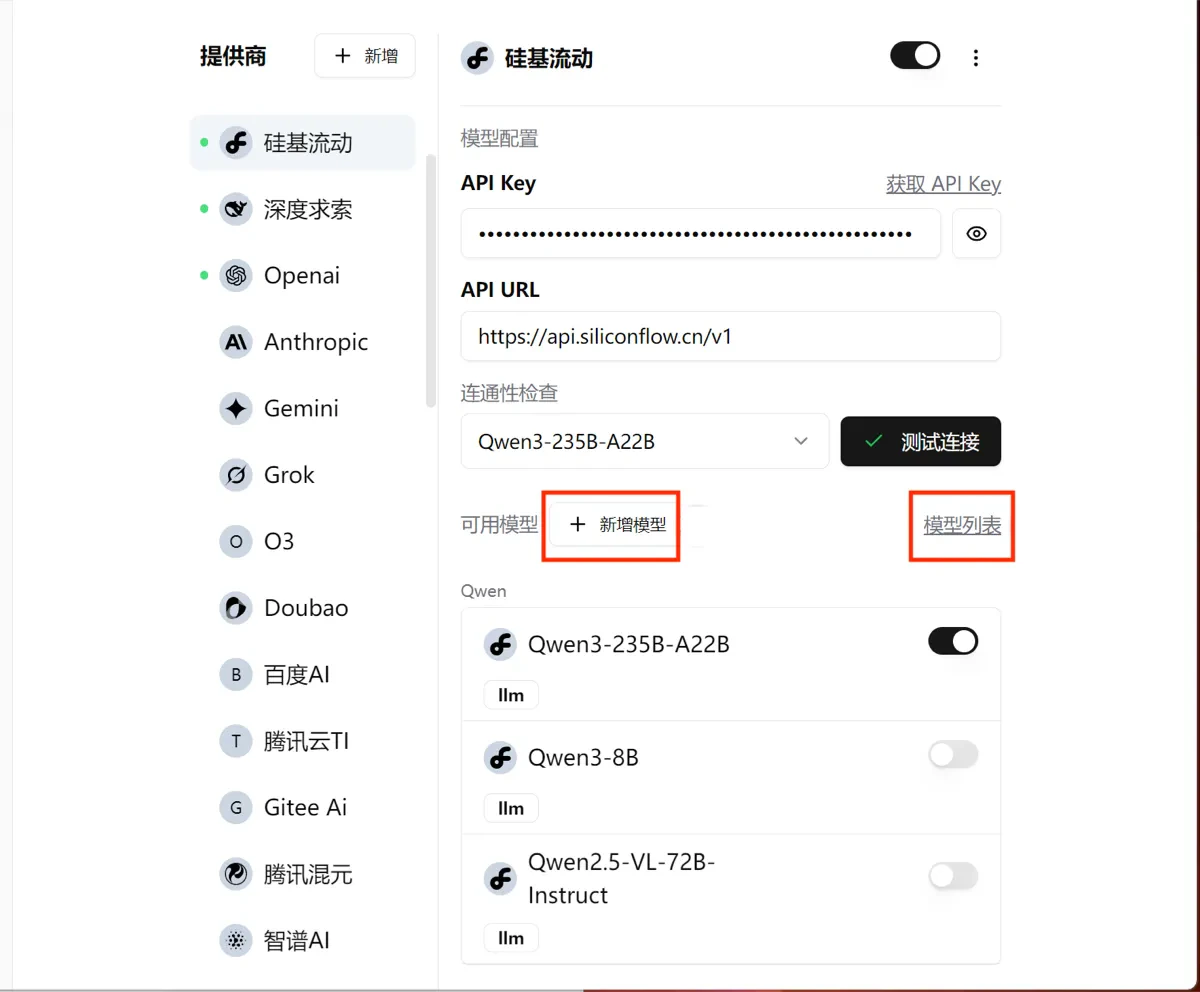
* In eechat, click "Model List".
1. Select "SiliconFlow" as the API model provider in eechat.
2. Paste the API Key you just created.
3. Enter `https://api.siliconflow.cn/v1` in the API URL field.
4. Click "Test Connection". If successful, you're ready to chat. If the test fails, please check your API Key and URL.
> The default API URL for SiliconFlow is `https://api.siliconflow.cn/v1`. Refer to the API documentation for any updates.
### 4. Configure a Model
* In eechat, click "Model List".
 * In the browser window that opens, select the model you want to use (e.g., Qwen3), as shown in ①.
* Copy the model ID from the model card, as shown in ②.
* In the browser window that opens, select the model you want to use (e.g., Qwen3), as shown in ①.
* Copy the model ID from the model card, as shown in ②.
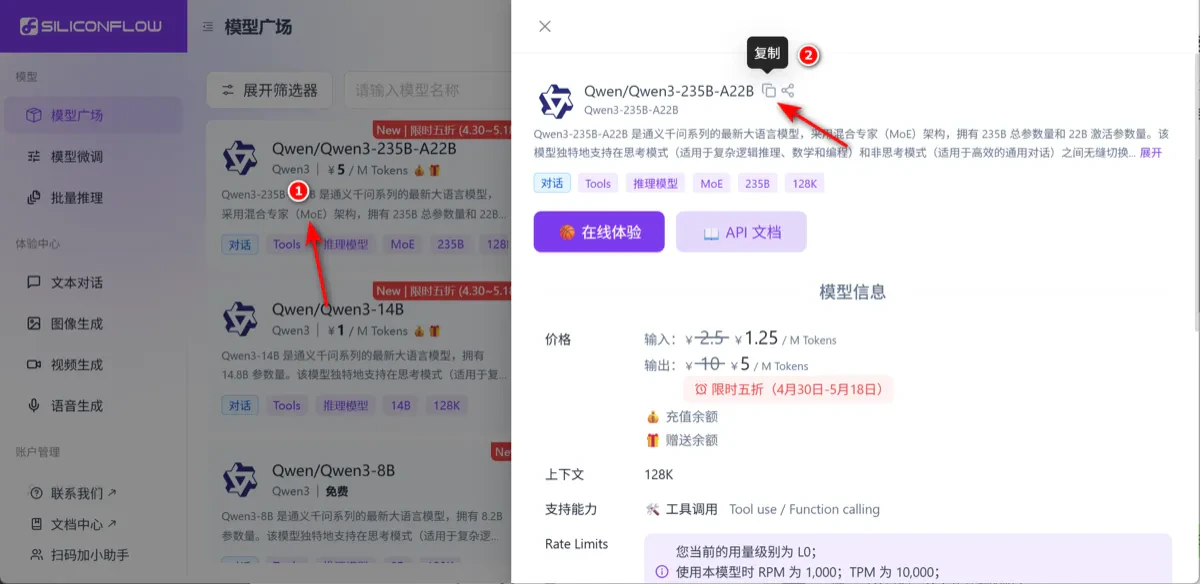 * Click "Add Model" in eechat. In the pop-up window, paste the model ID and click Confirm.
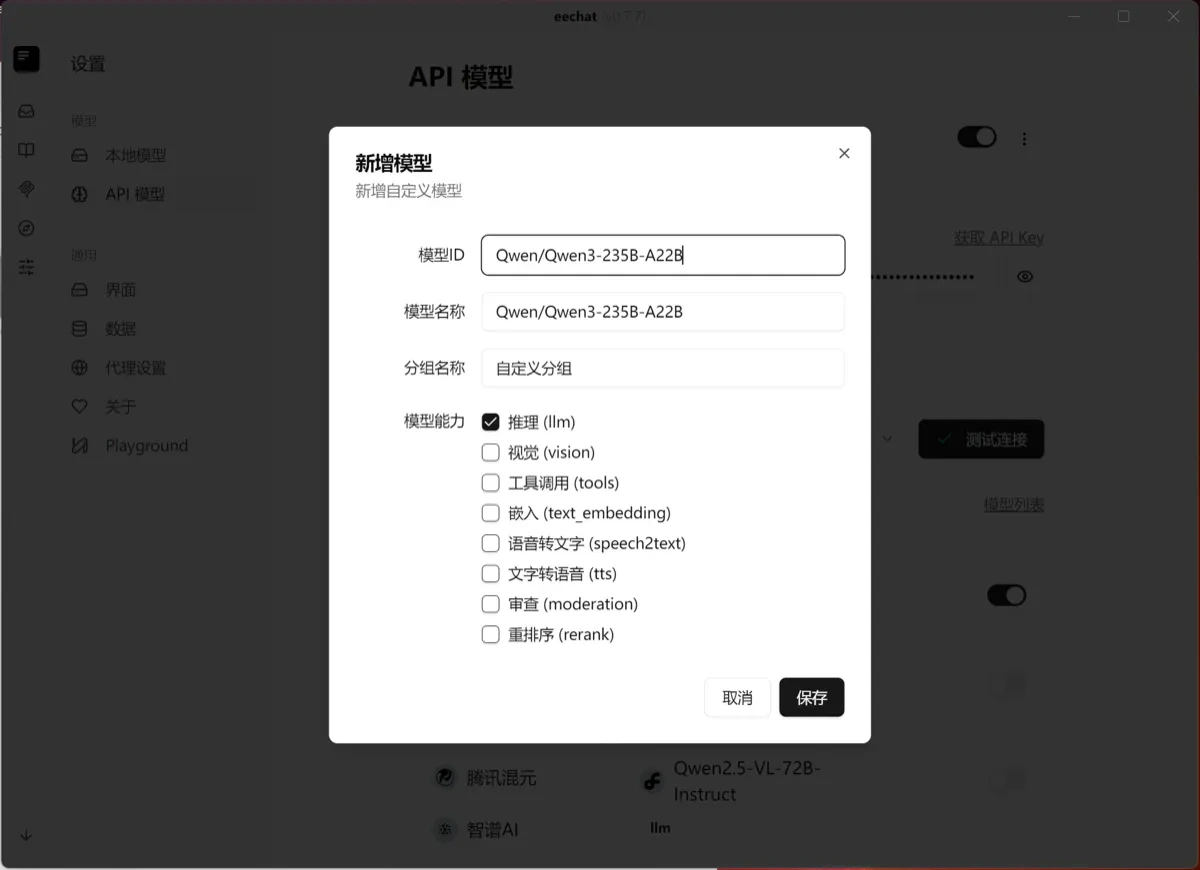 The model is now successfully added.
## Using the Model in Chat
The model is now successfully added.
## Using the Model in Chat
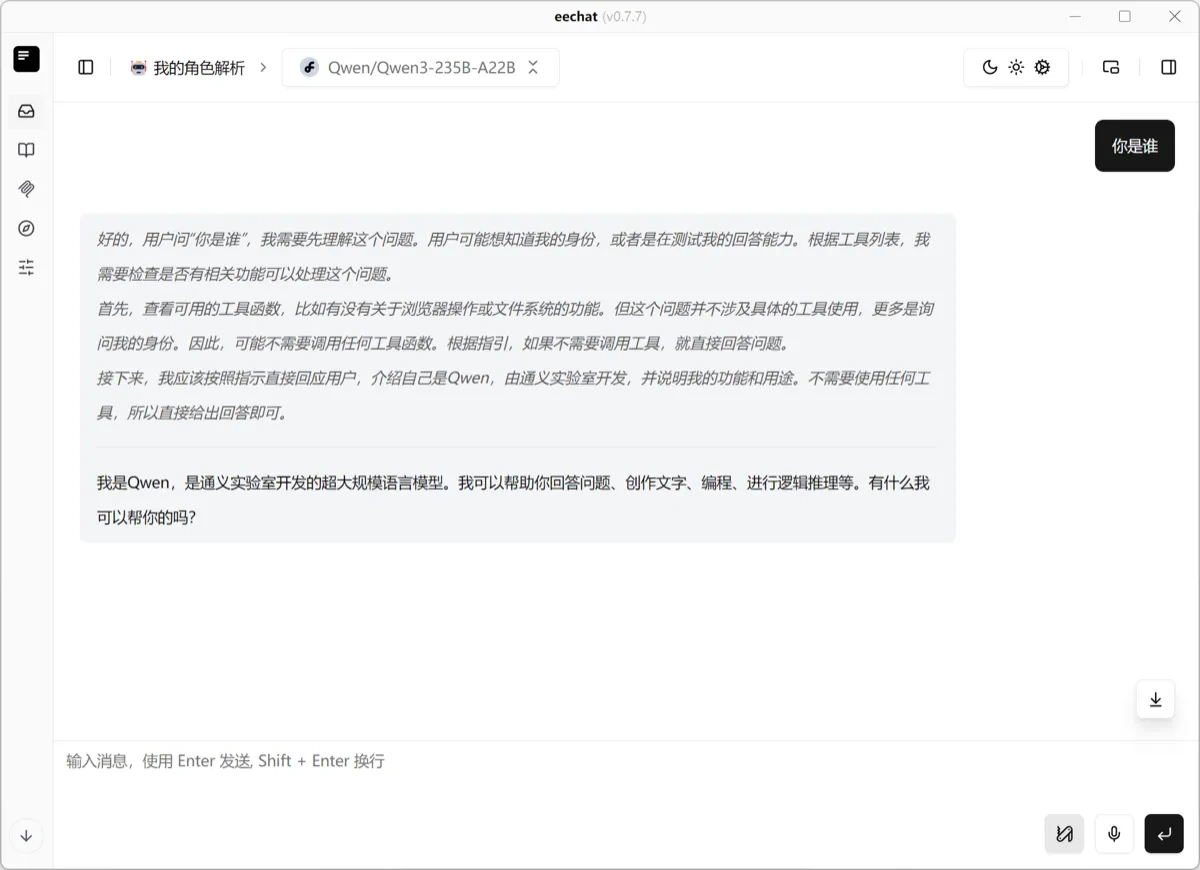
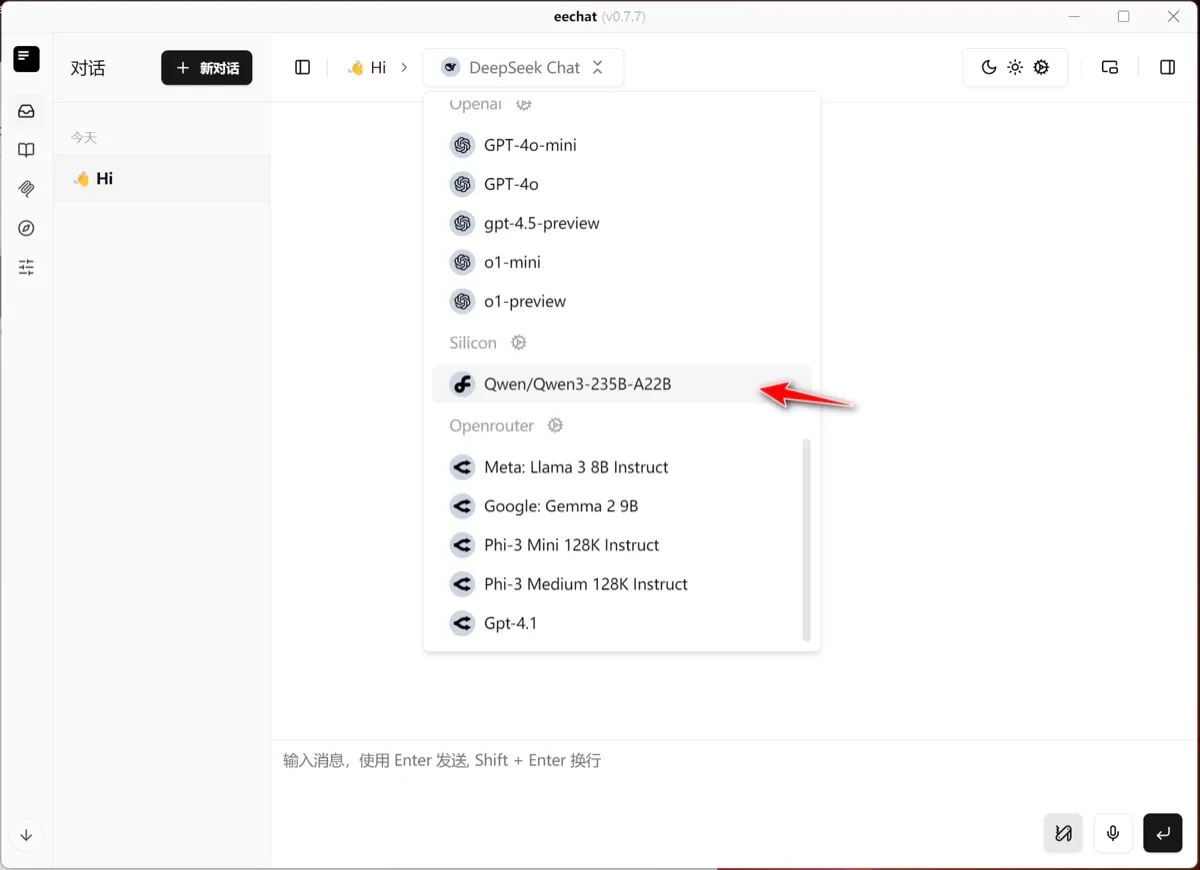 Open the chat menu, select your model, and start chatting!
 ## References
* 💻 [eechat Official Website](https://ee.chat)
* 🧑💻 [eechat GitHub](https://github.com/Lucassssss/eechat)
* ☁️ [SiliconFlow API Key](https://cloud.siliconflow.cn/account/ak)
* 📘 [SiliconFlow Documentation](https://docs.siliconflow.cn)
If you find [eechat](https://github.com/Lucassssss/eechat) useful, consider giving it a ⭐️ on GitHub to support open-source development!
## References
* 💻 [eechat Official Website](https://ee.chat)
* 🧑💻 [eechat GitHub](https://github.com/Lucassssss/eechat)
* ☁️ [SiliconFlow API Key](https://cloud.siliconflow.cn/account/ak)
* 📘 [SiliconFlow Documentation](https://docs.siliconflow.cn)
If you find [eechat](https://github.com/Lucassssss/eechat) useful, consider giving it a ⭐️ on GitHub to support open-source development!