> ## Documentation Index
> Fetch the complete documentation index at: https://docs.siliconflow.cn/llms.txt
> Use this file to discover all available pages before exploring further.
# Bob Translation
> Updated: February 10, 2025
## 1. About Bob
[Bob](https://bobtranslate.com) is a translation and OCR software for macOS that you can use in any application for quick and efficient translation and OCR. It is simple, fast, and effective!
This article will introduce how to use the API services provided by SiliconFlow to perform translations in Bob.
## 2. Installing Bob
Go to the Mac App Store to install Bob. [Install on Mac App Store](https://apps.apple.com/cn/app/id1630034110)
## 3. Using SiliconFlow in Bob
### 3.1 Default Configuration
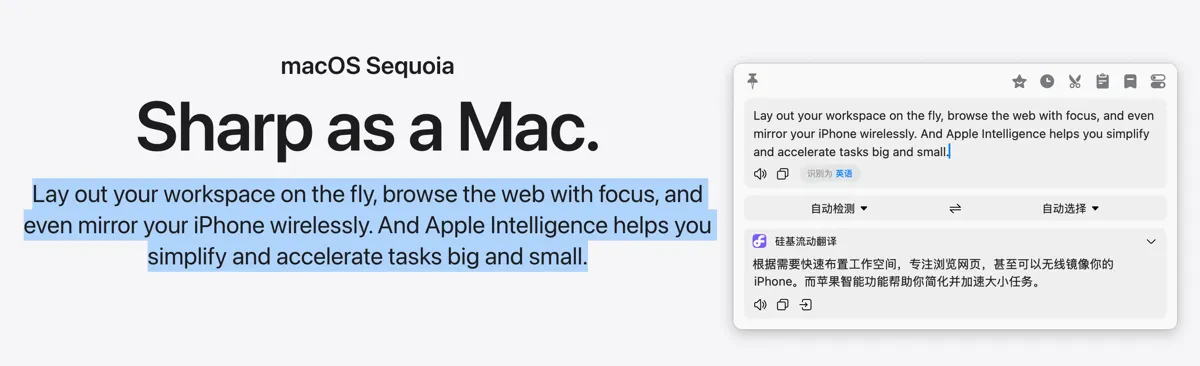
After installing Bob, select any text in any application and press the `⌥` `D` shortcut to translate. SiliconFlow’s free model will be used as the default translation service, as shown in the image below.
 ### 3.2 Using Other Free Models from SiliconFlow
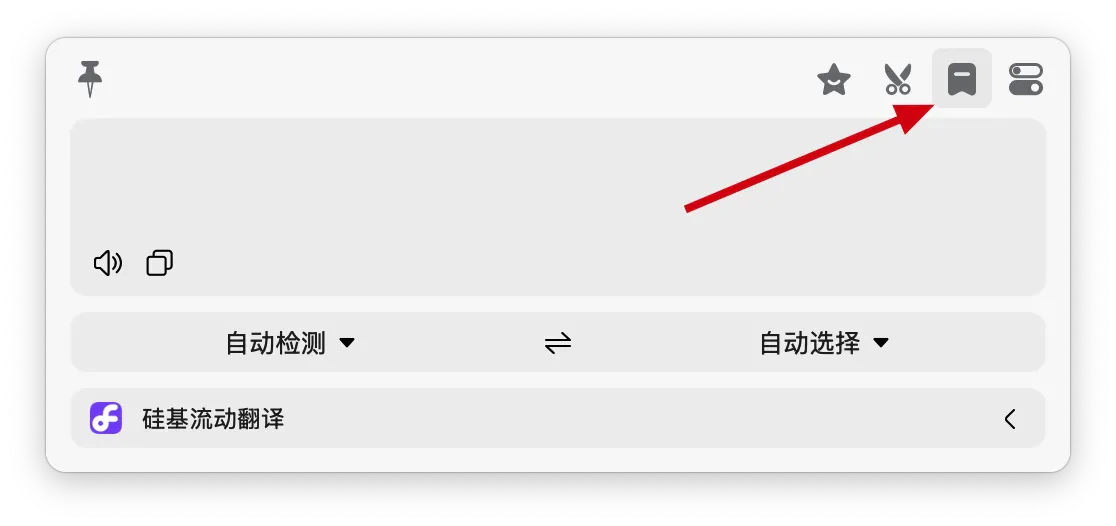
The default model used is `Qwen/Qwen2.5-7B-Instruct`. You can **right-click** the service icon in the top-right corner of the translation window to go to the "Translation - Services" page and switch to other free models.
### 3.2 Using Other Free Models from SiliconFlow
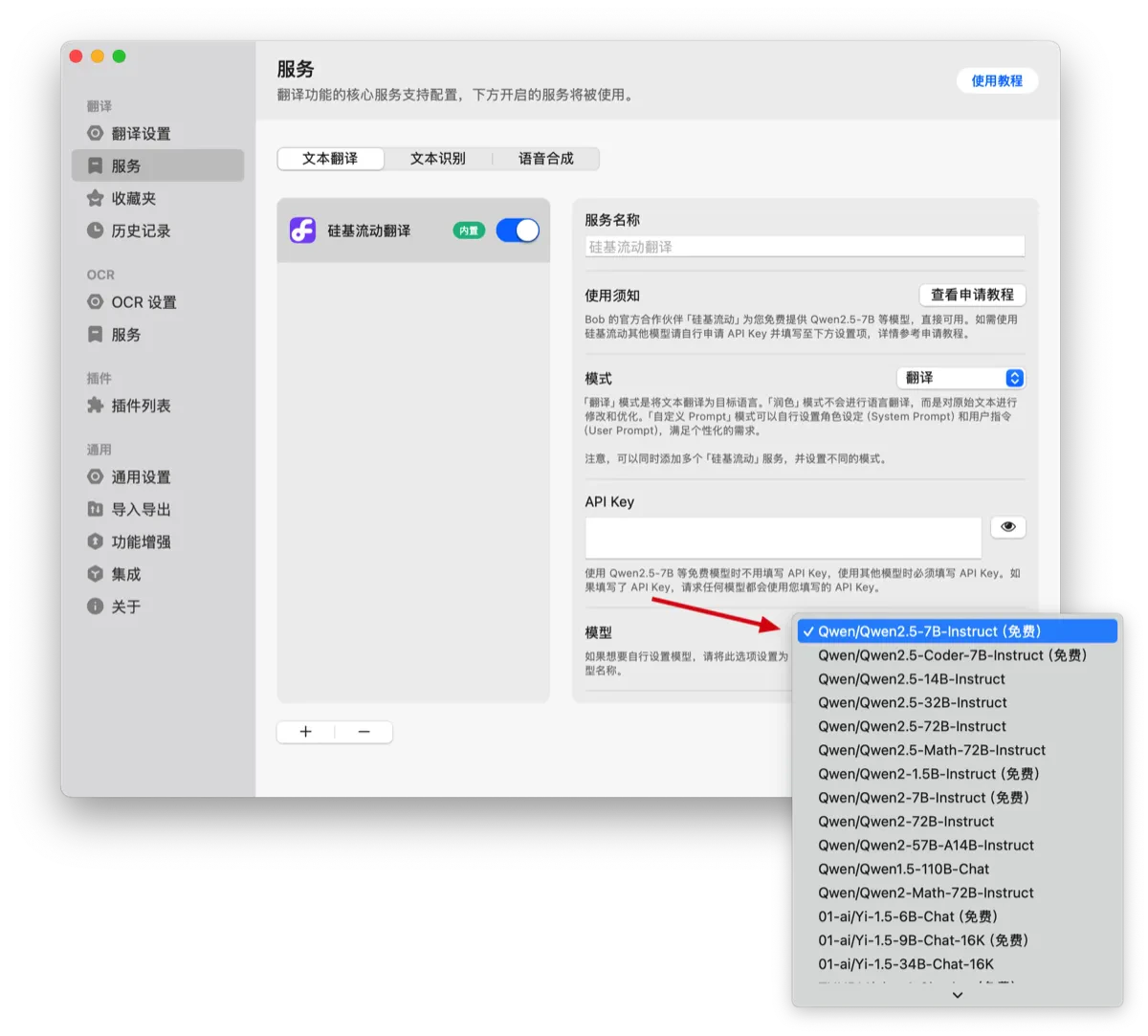
The default model used is `Qwen/Qwen2.5-7B-Instruct`. You can **right-click** the service icon in the top-right corner of the translation window to go to the "Translation - Services" page and switch to other free models.
 As shown in the image below, the models marked as **Free** can be used directly.
 ### 3.3 Using Other Text Generation Models from SiliconFlow
To use models that are not marked as free, you need to obtain a SiliconFlow API Key.
1. Go to the [SiliconFlow official website](https://cloud.siliconflow.cn/) and register an account (or log in if you already have one).
2. After registering, open the [API Keys](https://cloud.siliconflow.cn/account/ak) page and create a new API Key. Click to copy the key for future use.
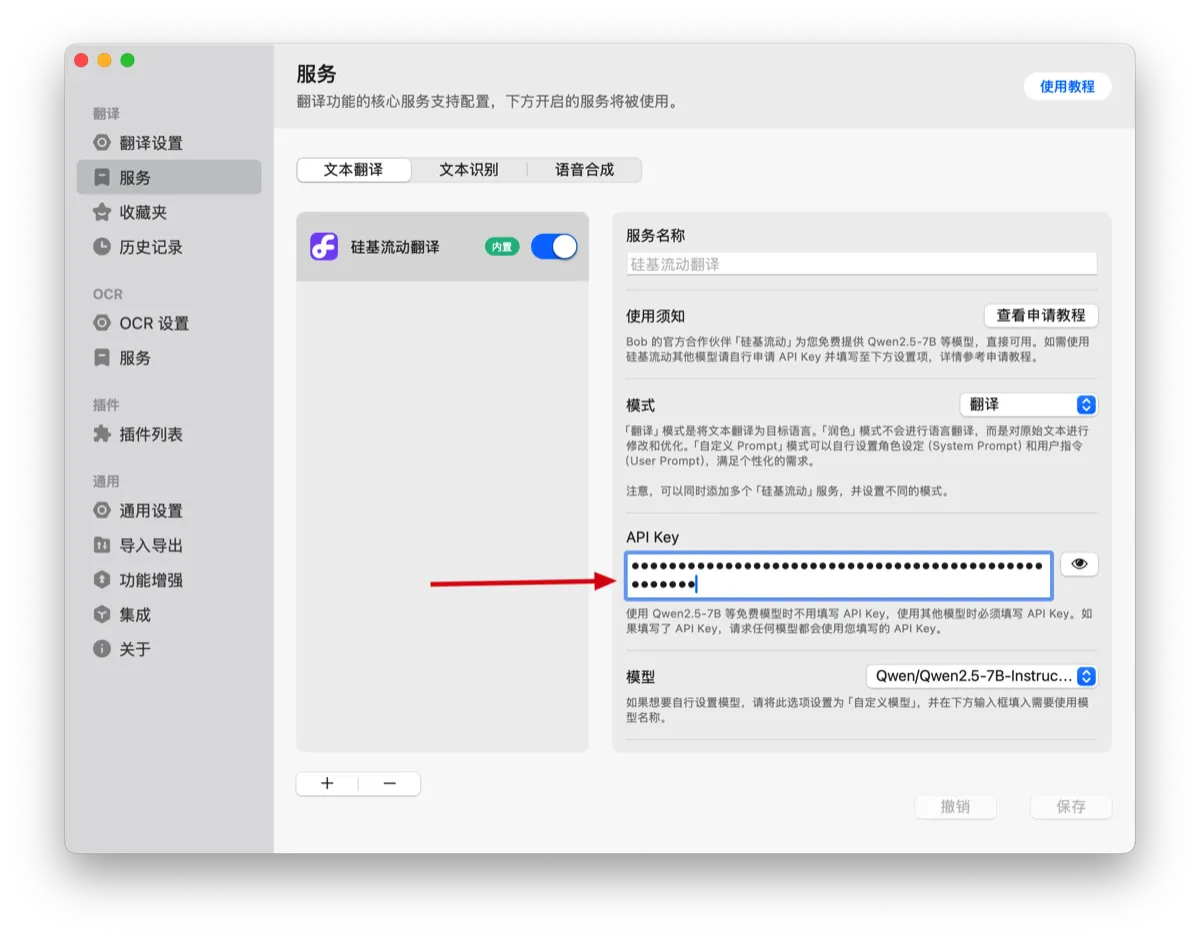
3. Go to the previously mentioned "Translation - Services" page in Bob, paste the API Key into the **SiliconFlow Translation** service’s API Key setting, then switch to the desired model and click save to start using it.
### 3.3 Using Other Text Generation Models from SiliconFlow
To use models that are not marked as free, you need to obtain a SiliconFlow API Key.
1. Go to the [SiliconFlow official website](https://cloud.siliconflow.cn/) and register an account (or log in if you already have one).
2. After registering, open the [API Keys](https://cloud.siliconflow.cn/account/ak) page and create a new API Key. Click to copy the key for future use.
3. Go to the previously mentioned "Translation - Services" page in Bob, paste the API Key into the **SiliconFlow Translation** service’s API Key setting, then switch to the desired model and click save to start using it.