> ## Documentation Index
> Fetch the complete documentation index at: https://docs.siliconflow.cn/llms.txt
> Use this file to discover all available pages before exploring further.
# 精挑翻译
> 更新日期:2026年03月18日
[精挑翻译](https://selecttranslate.com/zhHans)是一款可以免费使用且功能开放的 AI 翻译插件,支持双语对照网页翻译、PDF 翻译、视频双语字幕、在线会议翻译、ePub 电子书翻译、择优翻译、输入翻译、划词翻译等智能实用的翻译功能。集成了 20+ 顶级 AI 翻译模型,支持 100+ 语言的互译,助您无障碍畅游全球知识海洋!
精挑翻译内置了多款 SiliconFlow 提供的免费翻译模型,也可以通过自定义 API Key 使用 SiliconFlow 提供的更多模型。
 ## 1. 安装精挑翻译插件
打开精挑翻译官网的[安装教程](https://selecttranslate.com/zhHans/docs/start/installation),选择适合你的方式进行安装。精挑翻译插件支持在 Edge、Chrome、Safari、Firefox 等浏览器的扩展商店中安装,也可通过下载的 [crx文件](https://selecttranslate.com/zhHans/extensions/crx) 或 [zip包](https://selecttranslate.com/zhHans/extensions/zip) 手动安装。
## 2. 在精挑翻译中使用 SiliconFlow
### 2.1 使用 SiliconFlow 提供的免费模型
1. 选择 SiliconFlow 时,默认为 “**免费使用**” 模式,且设置了默认的免费模型。
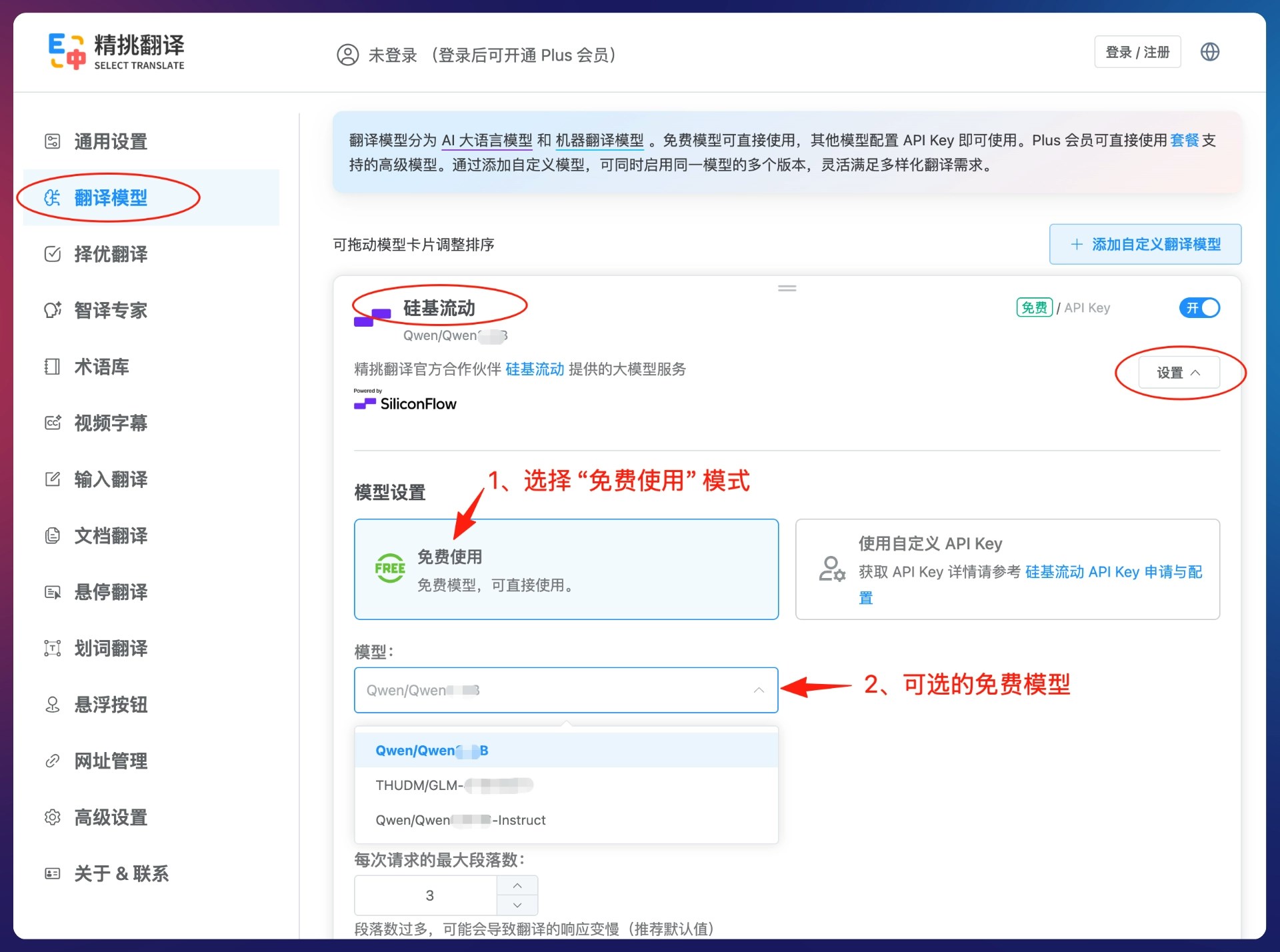
2. 切换 SiliconFlow 提供的免费模型。在精挑翻译插件设置的【翻译模型】管理页面中找到【硅基流动】模型,点击模型卡片的【设置】>(1)选择【免费使用】模式 >(2)在【模型】下拉框中选择你需要的模型即可。
## 1. 安装精挑翻译插件
打开精挑翻译官网的[安装教程](https://selecttranslate.com/zhHans/docs/start/installation),选择适合你的方式进行安装。精挑翻译插件支持在 Edge、Chrome、Safari、Firefox 等浏览器的扩展商店中安装,也可通过下载的 [crx文件](https://selecttranslate.com/zhHans/extensions/crx) 或 [zip包](https://selecttranslate.com/zhHans/extensions/zip) 手动安装。
## 2. 在精挑翻译中使用 SiliconFlow
### 2.1 使用 SiliconFlow 提供的免费模型
1. 选择 SiliconFlow 时,默认为 “**免费使用**” 模式,且设置了默认的免费模型。
2. 切换 SiliconFlow 提供的免费模型。在精挑翻译插件设置的【翻译模型】管理页面中找到【硅基流动】模型,点击模型卡片的【设置】>(1)选择【免费使用】模式 >(2)在【模型】下拉框中选择你需要的模型即可。
 ### 2.2 通过 SiliconFlow 的自定义 API Key 使用更多模型
1. 打开 [**SiliconFlow 官网**](https://cloud.siliconflow.cn/) 注册账号并登录。
2. 打开 [**API 密钥**](https://cloud.siliconflow.cn/account/ak) 管理页面,新建 API 密钥,点击密钥即可复制。
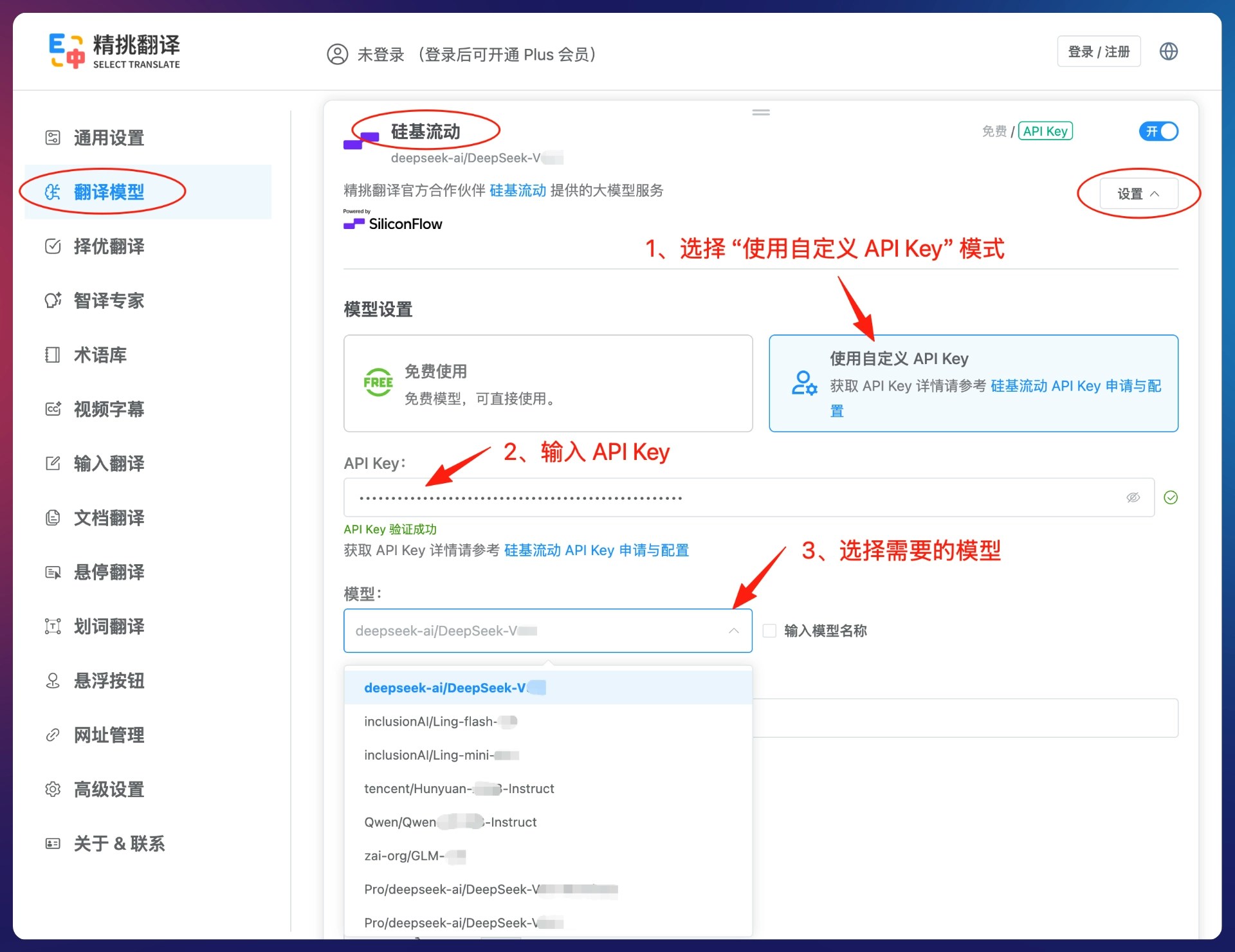
3. 在精挑翻译插件设置的【翻译模型】管理页面中找到【硅基流动】模型,点击模型卡片的【设置】>(1)选择【使用自定义 API Key】模式 >(2)在【API Key】中输入 API 密钥 >(3)在【模型】下拉框中选择你需要的模型即可。
4. 如果模型列表中没有您需要的模型,可勾选【输入模型名称】后自行输入 SiliconFlow 支持的模型名称。
### 2.2 通过 SiliconFlow 的自定义 API Key 使用更多模型
1. 打开 [**SiliconFlow 官网**](https://cloud.siliconflow.cn/) 注册账号并登录。
2. 打开 [**API 密钥**](https://cloud.siliconflow.cn/account/ak) 管理页面,新建 API 密钥,点击密钥即可复制。
3. 在精挑翻译插件设置的【翻译模型】管理页面中找到【硅基流动】模型,点击模型卡片的【设置】>(1)选择【使用自定义 API Key】模式 >(2)在【API Key】中输入 API 密钥 >(3)在【模型】下拉框中选择你需要的模型即可。
4. 如果模型列表中没有您需要的模型,可勾选【输入模型名称】后自行输入 SiliconFlow 支持的模型名称。
 ### 2.3 添加多个 SiliconFlow 提供的模型
在精挑翻译插件设置的【翻译模型】管理页面中找到并点击【添加自定义翻译模型】按钮,在弹窗界面中选择【硅基流动】,然后按以上 3.2 中使用自定义 API Key 的方式设置模型则可。
### 2.4 使用 SiliconFlow 的模型进行翻译
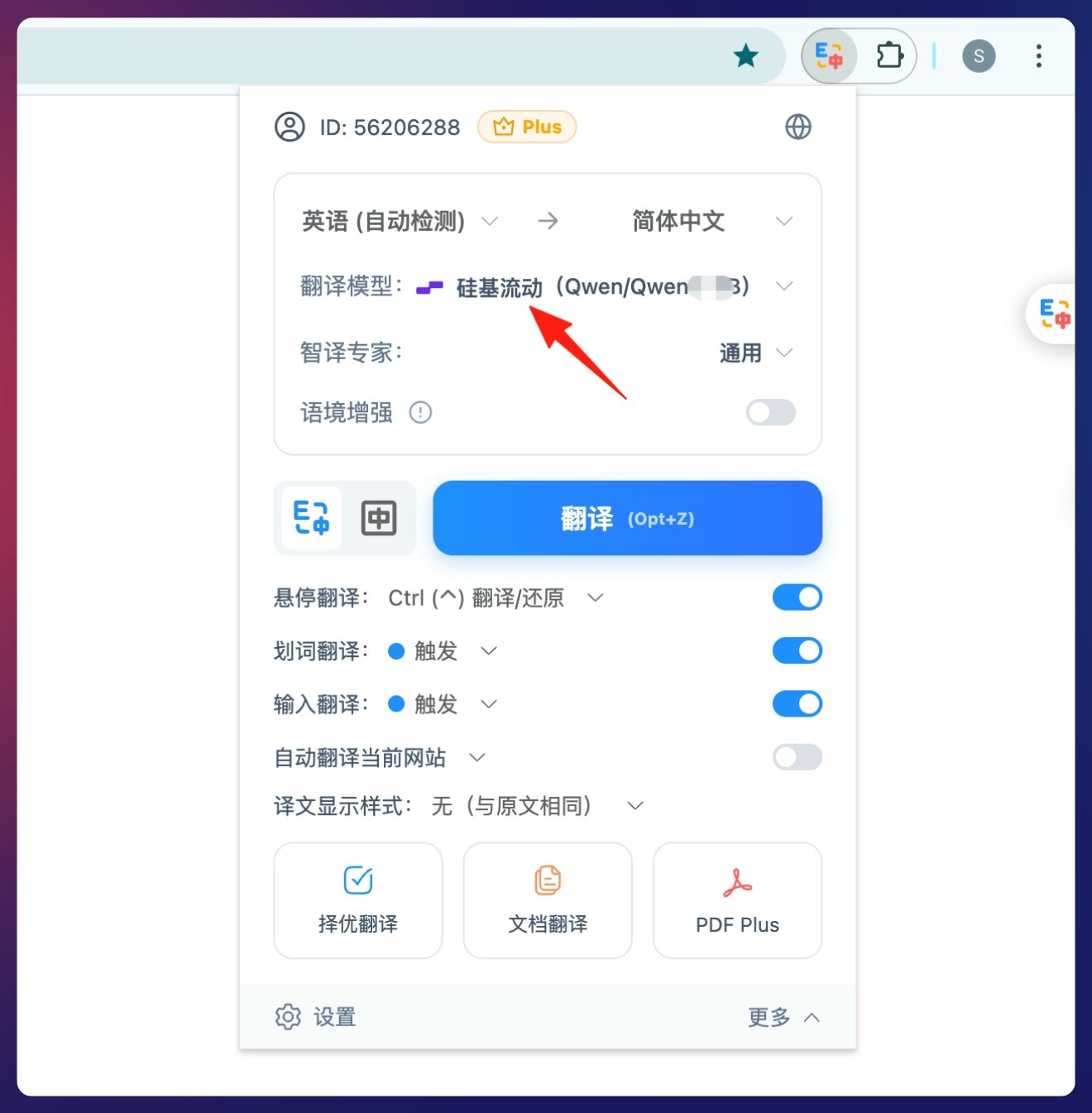
在精挑翻译扩展面板的【翻译模型】选项中选择 SiliconFlow 模型即可进行翻译。
### 2.3 添加多个 SiliconFlow 提供的模型
在精挑翻译插件设置的【翻译模型】管理页面中找到并点击【添加自定义翻译模型】按钮,在弹窗界面中选择【硅基流动】,然后按以上 3.2 中使用自定义 API Key 的方式设置模型则可。
### 2.4 使用 SiliconFlow 的模型进行翻译
在精挑翻译扩展面板的【翻译模型】选项中选择 SiliconFlow 模型即可进行翻译。